
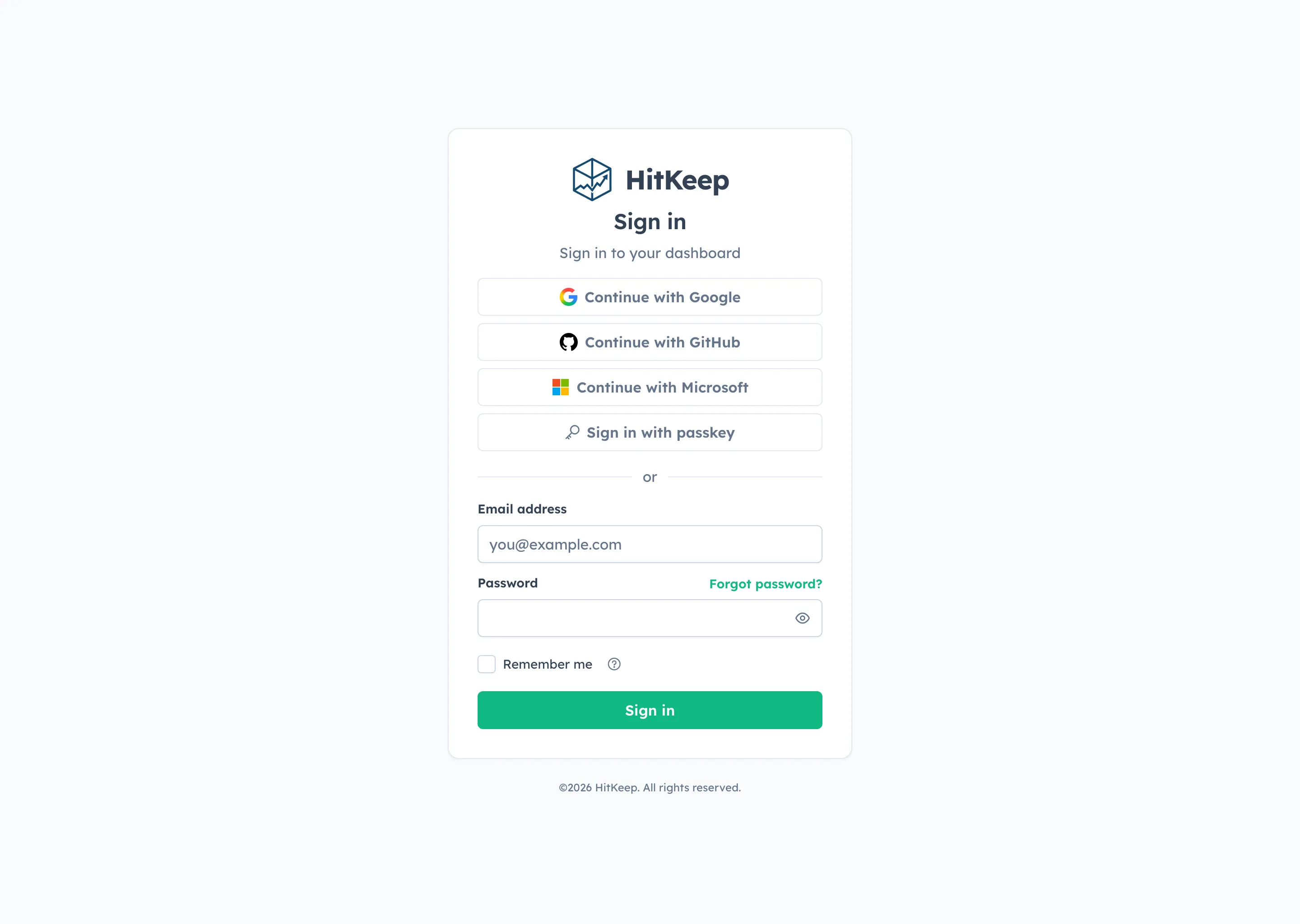
HitKeep social sign-in lets people use configured Google, GitHub, Microsoft, or Apple providers on the normal sign-in, signup, invitation, and account-security screens. Self-hosted operators enable each provider with an OAuth client ID and secret. HitKeep Cloud supplies its own provider configuration.
Social sign-in is instance-wide. It is separate from team OIDC single sign-on, which routes a team through its own identity provider and allowed email domains.
Before you configure a provider
Section titled “Before you configure a provider”You need:
- a HitKeep version supporting the chosen provider (Google, GitHub, and Microsoft require 2.13.0 or later; optional Apple requires 2.17.0 or later and instance configuration);
- an externally reachable
HITKEEP_PUBLIC_URL; - permission to create a confidential web or OAuth application at the provider;
- a separate client ID and client secret for each provider you enable;
- HTTPS for production callbacks;
- working outbound mail if Microsoft users may need HitKeep email confirmation.
Store client secrets in an environment file or secret manager. Do not commit them to compose.yml, screenshots, support tickets, or source control.
Register the exact callback URLs
Section titled “Register the exact callback URLs”For a root deployment at https://analytics.example.com, register callbacks for the providers you enable:
| Provider | Callback URL |
|---|---|
https://analytics.example.com/api/auth/social/google/callback | |
| GitHub | https://analytics.example.com/api/auth/social/github/callback |
| Microsoft | https://analytics.example.com/api/auth/social/microsoft/callback |
| Apple | https://analytics.example.com/api/auth/social/apple/callback |
If HITKEEP_PUBLIC_URL contains a path prefix, the prefix stays in the callback. For example:
https://www.example.net/hitkeep/api/auth/social/google/callbackhttps://www.example.net/hitkeep/api/auth/social/github/callbackhttps://www.example.net/hitkeep/api/auth/social/microsoft/callbackhttps://www.example.net/hitkeep/api/auth/social/apple/callbackHitKeep Cloud uses region-specific callbacks:
https://cloud.hitkeep.eu/api/auth/social/google/callbackhttps://cloud.hitkeep.eu/api/auth/social/github/callbackhttps://cloud.hitkeep.eu/api/auth/social/microsoft/callbackhttps://cloud.hitkeep.eu/api/auth/social/apple/callbackhttps://cloud.hitkeep.com/api/auth/social/google/callbackhttps://cloud.hitkeep.com/api/auth/social/github/callbackhttps://cloud.hitkeep.com/api/auth/social/microsoft/callbackhttps://cloud.hitkeep.com/api/auth/social/apple/callbackThe callback must match the provider registration exactly. Treat the scheme, host, port, path prefix, provider name, and trailing slash as significant.
Configure Google, GitHub, or Microsoft
Section titled “Configure Google, GitHub, or Microsoft”Provider consoles change over time. The steps below name the current settings that matter to HitKeep, and each tab links to the provider’s primary documentation.
- Open Google Cloud Console → Google Auth Platform → Clients.
- Select or create a project. Complete the app branding, audience, and consent-screen information required for the accounts that will use HitKeep.
- Select Create client, then choose Web application.
- Add the exact Google callback from the previous section under Authorized redirect URIs.
- Create the client, then copy its client ID and client secret.
- Set both HitKeep variables:
HITKEEP_SOCIAL_GOOGLE_CLIENT_ID=your-google-client-idHITKEEP_SOCIAL_GOOGLE_CLIENT_SECRET=your-google-client-secretHitKeep requests the standard openid and email scopes. The returned ID token must contain an immutable subject, an email address, and boolean email_verified: true. A Google identity without a verified email is rejected.
Google requires the callback in the authorization request to match an authorized redirect URI. See Google’s web-server OAuth setup and OAuth policy requirements.
- In GitHub, open Settings → Developer settings → OAuth Apps.
- Select New OAuth App or Register a new application.
- Enter a public application name.
- Set Homepage URL to the public HitKeep URL.
- Set Authorization callback URL to the exact GitHub callback from the previous section.
- Register the application, generate a client secret, and copy the secret value.
- Set both HitKeep variables:
HITKEEP_SOCIAL_GITHUB_CLIENT_ID=your-github-client-idHITKEEP_SOCIAL_GITHUB_CLIENT_SECRET=your-github-client-secretHitKeep requests only read:user and user:email. It uses the immutable GitHub user ID as the provider identity and requires a primary, verified GitHub email. Repository access is not requested.
A GitHub OAuth App accepts one callback URL. Use a separate OAuth App for production, staging, and local development when those environments have different callbacks. See Create a GitHub OAuth App and GitHub OAuth redirect rules.
- In the Microsoft Entra admin center, open Entra ID → App registrations and select New registration.
- Choose the supported account type that matches the tenant selector you will give HitKeep.
- Open Authentication, add the Web platform, and register the exact Microsoft callback from the previous section.
- Open Certificates & secrets, create a client secret, and copy its Value before leaving the page.
- Copy the Application (client) ID from the app overview.
- Set the client pair and tenant selector:
HITKEEP_SOCIAL_MICROSOFT_CLIENT_ID=your-application-client-idHITKEEP_SOCIAL_MICROSOFT_CLIENT_SECRET=your-client-secret-valueHITKEEP_SOCIAL_MICROSOFT_TENANT=commonChoose the tenant selector deliberately:
| HitKeep value | Accounts accepted | Matching Entra registration |
|---|---|---|
common | Work, school, and personal Microsoft accounts | Any organizational directory and personal Microsoft accounts |
organizations | Work and school accounts from any Entra directory | Any organizational directory |
consumers | Personal Microsoft accounts | Personal Microsoft accounts |
| Tenant UUID | Accounts from one Entra tenant | Accounts in this organizational directory only |
HitKeep requests openid email profile. It keys the identity by Microsoft tenant ID plus object ID, not by an editable email address. Microsoft email claims are not treated as provider-verified, so some first-use flows require HitKeep email confirmation.
See Microsoft app registration, supported account types, and web app sign-in setup.
Configure optional Sign in with Apple
Section titled “Configure optional Sign in with Apple”Apple uses one registered Services ID and the same system-browser code flow for web, iOS and Android. Associate it with a Sign in with Apple-enabled primary App ID and register each exact HTTPS callback above. Add these settings to a protected YAML configuration file, replacing every placeholder with your own credentials:
social-apple-client-id: "<your registered Services ID>"social-apple-client-secret: "<your externally signed rotating client-secret JWT>"social-apple-token-encryption-key: "<your independent stable random secret of at least 32 bytes>"Load the file explicitly with hitkeep --config ./hitkeep.yaml, or mount it privately into your container and pass --config with its container path. See explicit YAML configuration. The values above are placeholders, not deployable credentials.
Do not place an Apple private signing key or these secrets in an app binary or source. Rotate the expiring client-secret JWT externally before expiration; preserve the independent token encryption key across that rotation and JWT/session-key changes. Lost or replaced encryption keys require manual revocation for old grants. Self-hosted installations need their own credentials and registered return URLs; Apple does not allow localhost or IP callbacks.
HitKeep requests email only, uses code-only form_post, authenticates the token exchange with client_secret_post, and verifies Apple RS256 signatures, issuer, the configured Services ID audience, expiration and the saved nonce. Apple does not advertise upstream PKCE support; HitKeep’s separate native handoff keeps S256. A bounded one-use POST receipt redirects to a same-origin GET that still requires the original browser’s Lax state cookie. No user object or real email disclosure is required on repeated login.
The immutable Apple subject resolves existing links before email policy. Signup and new email matches require provider-verified email; both private.icloud.com and legacy privaterelay.appleid.com relay addresses use normal email validation. HitKeep never guesses the real email behind a relay. Existing authenticated linking, invitation checks, managed Cloud signup controls, Terms and local MFA remain in force. Apple callback and completion pages suppress browser marketing tracking and browser marketing signup events; internal Cloud signup/billing milestones and authentication audit records remain.
Register and verify the actual outgoing sender domains/addresses with Apple’s private relay. Test authorized signup, invitation, security, MFA and deletion messages, SPF/DKIM and envelope/From alignment before enabling the provider. Renewed Developer membership alone does not prove Services ID, capability, callback, relay or signed-device readiness.
Apple alone retains one encrypted current refresh token bound to its Services ID and immutable subject for later grant revocation; access and ID tokens are discarded, and other providers retain no upstream tokens. Unlink checks the last usable primary method before a bounded revocation attempt and local removal. Its Apple-only 200 result reports revoked or manual_revocation_required; other provider unlink responses remain 204. Account deletion attempts revocation after proof/billing checks and before erasing local credentials, proceeds if Apple is unavailable, and reports the accurate outcome. Manual fallback is Apple Account management, not a new password or support request.
See Apple’s web configuration, TN3194, and private relay configuration. Optional source support is not proof that Apple is configured in any live Cloud region or that App Store review has passed.
Native apps use the selected instance’s configured providers in the browser sign-in flow. Linking a provider uses the separate browser management flow, with fresh same-user primary authentication, applicable MFA, and explicit approval. These flows do not embed provider secrets or accept a separate native Apple SDK grant.
Add the variables to Docker Compose
Section titled “Add the variables to Docker Compose”Add every provider variable to the HitKeep service, even if unused values remain empty:
environment: HITKEEP_PUBLIC_URL: ${HITKEEP_PUBLIC_URL:?set HITKEEP_PUBLIC_URL in .env} HITKEEP_SOCIAL_GOOGLE_CLIENT_ID: ${HITKEEP_SOCIAL_GOOGLE_CLIENT_ID:-} HITKEEP_SOCIAL_GOOGLE_CLIENT_SECRET: ${HITKEEP_SOCIAL_GOOGLE_CLIENT_SECRET:-} HITKEEP_SOCIAL_GITHUB_CLIENT_ID: ${HITKEEP_SOCIAL_GITHUB_CLIENT_ID:-} HITKEEP_SOCIAL_GITHUB_CLIENT_SECRET: ${HITKEEP_SOCIAL_GITHUB_CLIENT_SECRET:-} HITKEEP_SOCIAL_MICROSOFT_CLIENT_ID: ${HITKEEP_SOCIAL_MICROSOFT_CLIENT_ID:-} HITKEEP_SOCIAL_MICROSOFT_CLIENT_SECRET: ${HITKEEP_SOCIAL_MICROSOFT_CLIENT_SECRET:-} HITKEEP_SOCIAL_MICROSOFT_TENANT: ${HITKEEP_SOCIAL_MICROSOFT_TENANT:-common}Place the real values in .env:
HITKEEP_SOCIAL_GOOGLE_CLIENT_ID=HITKEEP_SOCIAL_GOOGLE_CLIENT_SECRET=HITKEEP_SOCIAL_GITHUB_CLIENT_ID=HITKEEP_SOCIAL_GITHUB_CLIENT_SECRET=HITKEEP_SOCIAL_MICROSOFT_CLIENT_ID=HITKEEP_SOCIAL_MICROSOFT_CLIENT_SECRET=HITKEEP_SOCIAL_MICROSOFT_TENANT=commonRecreate the container so Compose applies the new environment:
docker compose up -ddocker compose logs --tail=100 hitkeepA provider appears only when both its client ID and secret are non-empty. Microsoft also needs a valid tenant selector. A partial pair stays hidden instead of showing a button that cannot complete.
The full examples in Docker Compose installation include the same variables. The generated configuration reference remains the source of truth for variable names, flags, defaults, and secret redaction.
Verify the rollout
Section titled “Verify the rollout”- Open a private browser window at the HitKeep sign-in page.
- Confirm that only the intended provider buttons appear.
- Complete one login with each enabled provider.
- Test an existing account, an invitation, and a user with MFA enabled.
- From Settings → Security, link a second provider, sign out, and use it to sign back in.
- Add a passkey or confirm password login before testing unlink protection.
- Review the authentication events in the team activity log.
You can also inspect the public availability response:
curl -fsS https://analytics.example.com/api/auth/social/providersThe response contains display names for completely configured providers. It does not expose client IDs, secrets, provider subjects, or configured account details.
How accounts, invitations, and MFA behave
Section titled “How accounts, invitations, and MFA behave”Verified-email rules
Section titled “Verified-email rules”| Provider | Identity key | Email rule |
|---|---|---|
OIDC sub | The ID token must contain a normalized email and boolean email_verified: true | |
| GitHub | Numeric GitHub user ID | HitKeep selects the primary GitHub email and requires verified: true |
| Microsoft | Entra tenant ID plus object ID | Email is metadata and is not treated as provider-verified |
HitKeep stores the immutable provider identity after linking. It does not use an editable email address as the long-term identity key. All provider access and ID tokens and non-Apple refresh tokens are discarded after the exchange; Apple retains one encrypted current refresh token, bound to its Services ID and immutable subject, for revocation.
Existing accounts and invitations
Section titled “Existing accounts and invitations”- A Google or GitHub identity with a verified email can link automatically to the existing HitKeep account with the same normalized email.
- A pending invitation stays bound to its invited email and requested role. HitKeep consumes it only after the provider flow proves the expected account boundary.
- An invitation can prove the target account for a Microsoft first link, so the invite flow does not need a second email confirmation.
- Disabling open social signup does not disable provider login, invitation acceptance, or account linking.
Microsoft confirmation
Section titled “Microsoft confirmation”Microsoft does not provide the same verified-email guarantee used by the Google and GitHub flows. When an unauthenticated Microsoft login or cloud signup would attach or create an account without an invitation, HitKeep sends a 30-minute confirmation link to the target HitKeep email address.
An authenticated user linking Microsoft from Settings → Security has already proved the HitKeep session, so that link does not need the extra email round trip. A matching live invitation also proves the target account.
Outbound mail must work before these confirmation-dependent flows can finish. Configure and test HITKEEP_MAIL_* values first.
MFA handoff
Section titled “MFA handoff”Social sign-in does not bypass HitKeep MFA. If the resolved account has TOTP, passkey, recovery-code, or email-link factors enabled, HitKeep returns the normal MFA challenge before issuing the browser session. The chosen social provider and remember-me preference stay attached to that challenge for session and audit handling.
Team OIDC SSO behaves differently: the team’s identity provider owns its MFA and conditional-access policy. See OIDC Single Sign-On when the requirement is centralized workforce authentication.
Link and unlink providers
Section titled “Link and unlink providers”An authenticated user manages linked identities under Settings → Security.
- Link: choose an unlinked configured provider and complete its provider flow.
- Unlink: choose a linked provider. If password is the only alternative login method, enter the current password so HitKeep can verify that it still works.
- Protection: unlinking is refused when it would remove the last usable primary login method.
Another linked social provider or a registered passkey counts as an alternative method. Team OIDC access and MFA recovery factors do not replace the primary-method guard. Add and test a password, passkey, or second social provider before removing the only working social identity.
Troubleshooting
Section titled “Troubleshooting”| Symptom | What to check |
|---|---|
| Provider button is missing | Set both the provider client ID and secret, recreate the container, and check the Microsoft tenant selector when relevant. HitKeep hides partial configurations. |
| Provider reports a redirect URI mismatch | Compare the provider callback with HITKEEP_PUBLIC_URL, including HTTPS, host, port, path prefix, provider name, and trailing slash. |
social_provider_unavailable | Check the client secret, provider application status, outbound DNS and HTTPS, and Google or Microsoft discovery access. |
social_email_unverified | Google must return boolean email_verified: true. GitHub must expose a primary verified email through user:email. |
| Microsoft says verification was sent | This is expected for an unproved first login or signup. Check SMTP delivery and use the newest confirmation link within 30 minutes. |
social_state_invalid | Start again from the HitKeep button in one browser tab. Old, replayed, cross-browser, or expired state cannot be reused. |
social_identity_conflict | Sign in through an existing method and inspect linked providers. One provider identity cannot belong to two HitKeep users, and one user cannot link two identities from the same provider. |
| MFA appears after provider login | Complete the account’s existing HitKeep MFA challenge. Social sign-in proves the primary identity but does not remove local MFA. |
| Invitation fails | Confirm that the invitation is live and that the provider account matches the invited email. Start the provider flow from the invitation page. |
| Unlink is refused | Add and test another social provider or passkey. When password is the remaining alternative, enter the current password before unlinking. |