
You have analytics data you don’t want anyone else accessing. A stolen password alone should never be enough to break in. HitKeep supports two second-factor methods: TOTP (time-based one-time passwords, compatible with any authenticator app) and Passkeys (WebAuthn, compatible with hardware security keys and platform authenticators). You can also generate recovery codes as one-time backup factors for account recovery.

TOTP (Authenticator App)
Section titled “TOTP (Authenticator App)”TOTP is compatible with Google Authenticator, Aegis, Bitwarden Authenticator, 1Password, and any RFC 6238-compliant app.
- Open Settings → Security in the HitKeep dashboard.
- Under Two-Factor Authentication, click Set up authenticator app.
- Scan the QR code with your authenticator app.
- Enter the 6-digit code displayed in your app to confirm.
TOTP is now active. On future logins you will be prompted for the current code after entering your password.
REST API Reference
Section titled “REST API Reference”Disable TOTP
Section titled “Disable TOTP”API reference:
Passkeys (WebAuthn)
Section titled “Passkeys (WebAuthn)”Passkeys replace your password entirely with a cryptographic credential stored on your device. Supported authenticators include:
- Hardware keys: YubiKey 5, FIDO2 USB keys
- Platform authenticators: Face ID, Touch ID, and Android biometrics
- Open Settings → Security in the HitKeep dashboard.
- Under Passkeys, click Add passkey.
- Follow your browser’s prompt to register your authenticator.
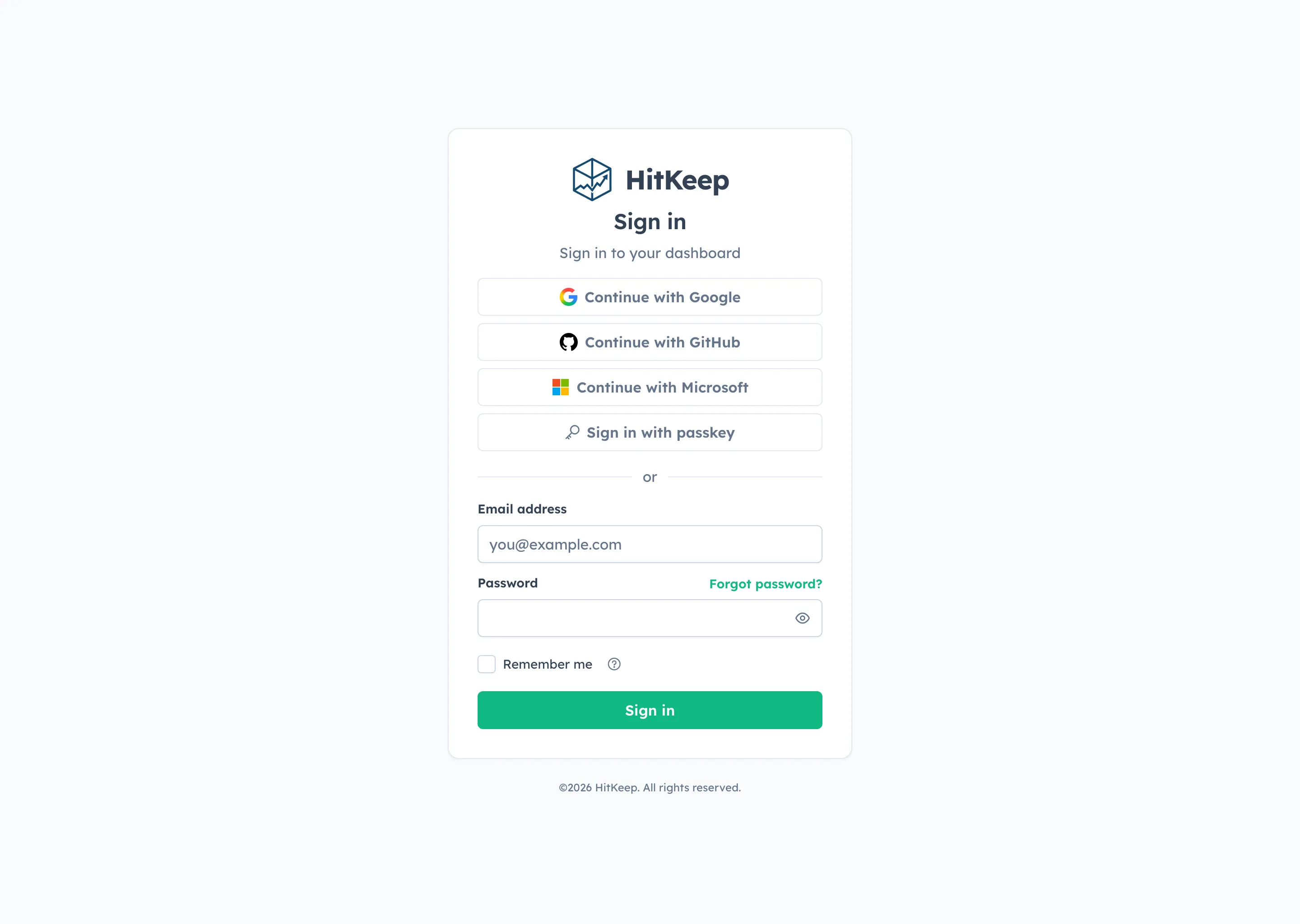
Once registered, you can log in by clicking Sign in with a passkey on the login page — no password needed.
REST API Reference
Section titled “REST API Reference”Passkey Login
Section titled “Passkey Login”API reference:
Native Android passkeys: operator setup
Section titled “Native Android passkeys: operator setup”Native Android passkeys require HitKeep 2.17.0 or later and are disabled by default. Browser passkeys keep the existing web origin, relying-party ID, user-verification, challenge expiry and MFA requirements.
To opt in, an operator needs the real release application ID and the SHA-256 fingerprint of its app-signing certificate. For Google Play distribution, use the Play app-signing certificate, not the upload key. Neither a debug certificate nor a package name alone establishes the release application’s identity. HitKeep supplies no default package or certificate trust.
Configure both settings for a canonical HTTPS instance at the hostname root. Native Android passkey configuration currently rejects a deployment path prefix; use browser passkeys on prefixed self-hosted instances.
passkey-android-package-name: "<release application ID>"passkey-android-sha256-fingerprints: "<32 colon-separated hexadecimal bytes from the release certificate SHA-256>"Add these keys to your explicit YAML configuration file and load it with hitkeep --config ./hitkeep.yaml. Multiple explicitly approved release certificates, such as during signing-key rotation, are comma-separated. Wildcards, malformed fingerprints, missing paired settings and non-HTTPS public URLs are rejected. These placeholders are intentionally invalid; do not deploy them as values. Empty settings leave native Android passkeys off.
For each fingerprint, the backend accepts only the exact opaque origin android:apk-key-hash: followed by the unpadded URL-safe Base64 encoding of those 32 digest bytes. It does not add Android origins to the browser-origin list or relax passkey verification. Package metadata is bound to the certificate by Android’s Digital Asset Links verification; the opaque WebAuthn origin itself contains the certificate digest, not the package name.
At each configured relying-party host, publish this public association document at https://<instance-host>/.well-known/assetlinks.json:
[ { "relation": ["delegate_permission/common.get_login_creds"], "target": { "namespace": "android_app", "package_name": "<same release application ID>", "sha256_cert_fingerprints": ["<same release certificate SHA-256 fingerprint>"] } }]Use the same complete certificate list in the association and backend configuration. If verified app links are also required, their separate association may additionally grant delegate_permission/common.handle_all_urls. Serve the association as JSON over HTTPS without authentication or a redirect; do not return the dashboard HTML fallback. Keep Apple AASA associations separate.
For managed Cloud, both cloud.hitkeep.eu and cloud.hitkeep.com need their own matching association delivery before enabling the backend settings. Association delivery belongs to the operator/proxy deployment; these settings do not publish the file or deploy infrastructure. The official Play application ID and release signing fingerprint must be verified by the release owner before enabling production trust. Capability advertisement is enabled only for valid, nonempty configured Android origins; it cannot certify that a separately deployed association file or a real device is working.
See the configuration reference for the runtime setting catalog.
Recovery Codes
Section titled “Recovery Codes”Recovery codes are single-use backup codes for the case where you still know your password but no longer have your authenticator app or passkey device.
Generate recovery codes
Section titled “Generate recovery codes”- Open Settings → Security in the HitKeep dashboard.
- Under Recovery codes, click Generate codes or Regenerate codes.
- Store the displayed codes immediately.
- Use Copy all or Download .txt to keep them somewhere safe.
Use a recovery code at login
Section titled “Use a recovery code at login”- Enter your email address and password.
- On the MFA screen, choose Use recovery code.
- Enter one of your unused recovery codes.
Each recovery code can be used exactly once.
REST API Reference
Section titled “REST API Reference”Emergency Recovery
Section titled “Emergency Recovery”If another instance owner is still able to log in, they can reset MFA for a locked-out user from Administration → Users → Disable MFA. This is an online, owner-only action and is the preferred operator workflow for cloud deployments.
If no owner can log in, the offline CLI recovery command is still available as break-glass recovery:
hitkeep recover disable-2fa --email user@example.comSee the Recovery Guide for full details.
Social Sign-In and MFA
Section titled “Social Sign-In and MFA”Configured Google, GitHub, Microsoft, or Apple sign-in proves the account’s primary identity. It does not disable HitKeep MFA. When the resolved account has MFA enabled, the provider flow continues to the same TOTP, passkey, recovery-code, or email-link challenge before HitKeep creates the browser session.
Native apps can use the system-browser management flow to add a passkey after fresh same-user sign-in, applicable MFA, and explicit approval. It preserves the browser’s WebAuthn checks and returns a one-use completion receipt. Native iOS passkeys additionally require verified relying-party associated domains; arbitrary self-hosted instances use browser passkeys. A capability flag does not verify an association file or signed device.
Team OIDC SSO is different because the team’s identity provider owns its MFA and conditional-access policy. See Social Sign-In and OIDC Single Sign-On before choosing the provider model.
Related
Section titled “Related”Prefer not to manage authentication infrastructure yourself? HitKeep Cloud → handles backups, security updates, and account recovery automatically.