
HitKeep Two-Factor Authentication with TOTP and Passkeys
You have analytics data you don’t want anyone else accessing. A stolen password alone should never be enough to break in. HitKeep supports two second-factor methods: TOTP (time-based one-time passwords, compatible with any authenticator app) and Passkeys (WebAuthn, compatible with hardware security keys and platform authenticators). You can also generate recovery codes as one-time backup factors for account recovery.
TOTP (Authenticator App)
Section titled “TOTP (Authenticator App)”TOTP is compatible with Google Authenticator, Aegis, Bitwarden Authenticator, 1Password, and any RFC 6238-compliant app.
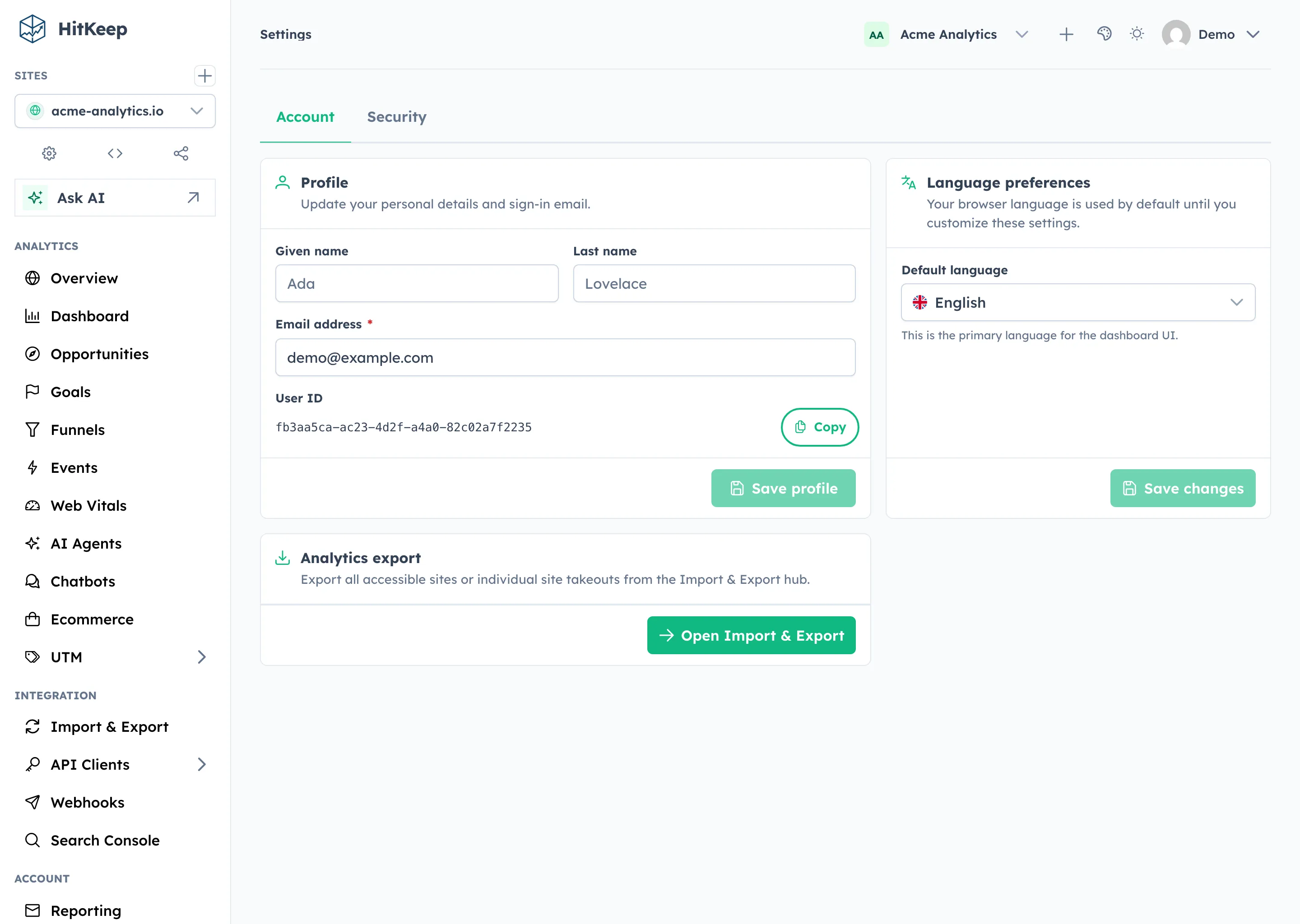
- Open Settings → Security in the HitKeep dashboard.
- Under Two-Factor Authentication, click Set up authenticator app.
- Scan the QR code with your authenticator app.
- Enter the 6-digit code displayed in your app to confirm.
TOTP is now active. On future logins you will be prompted for the current code after entering your password.
REST API Reference
Section titled “REST API Reference”Disable TOTP
Section titled “Disable TOTP”API reference:
Passkeys (WebAuthn)
Section titled “Passkeys (WebAuthn)”Passkeys replace your password entirely with a cryptographic credential stored on your device. Supported authenticators include:
- Hardware keys: YubiKey 5, FIDO2 USB keys
- Platform authenticators: Face ID, Touch ID, and Android biometrics
- Open Settings → Security in the HitKeep dashboard.
- Under Passkeys, click Add passkey.
- Follow your browser’s prompt to register your authenticator.
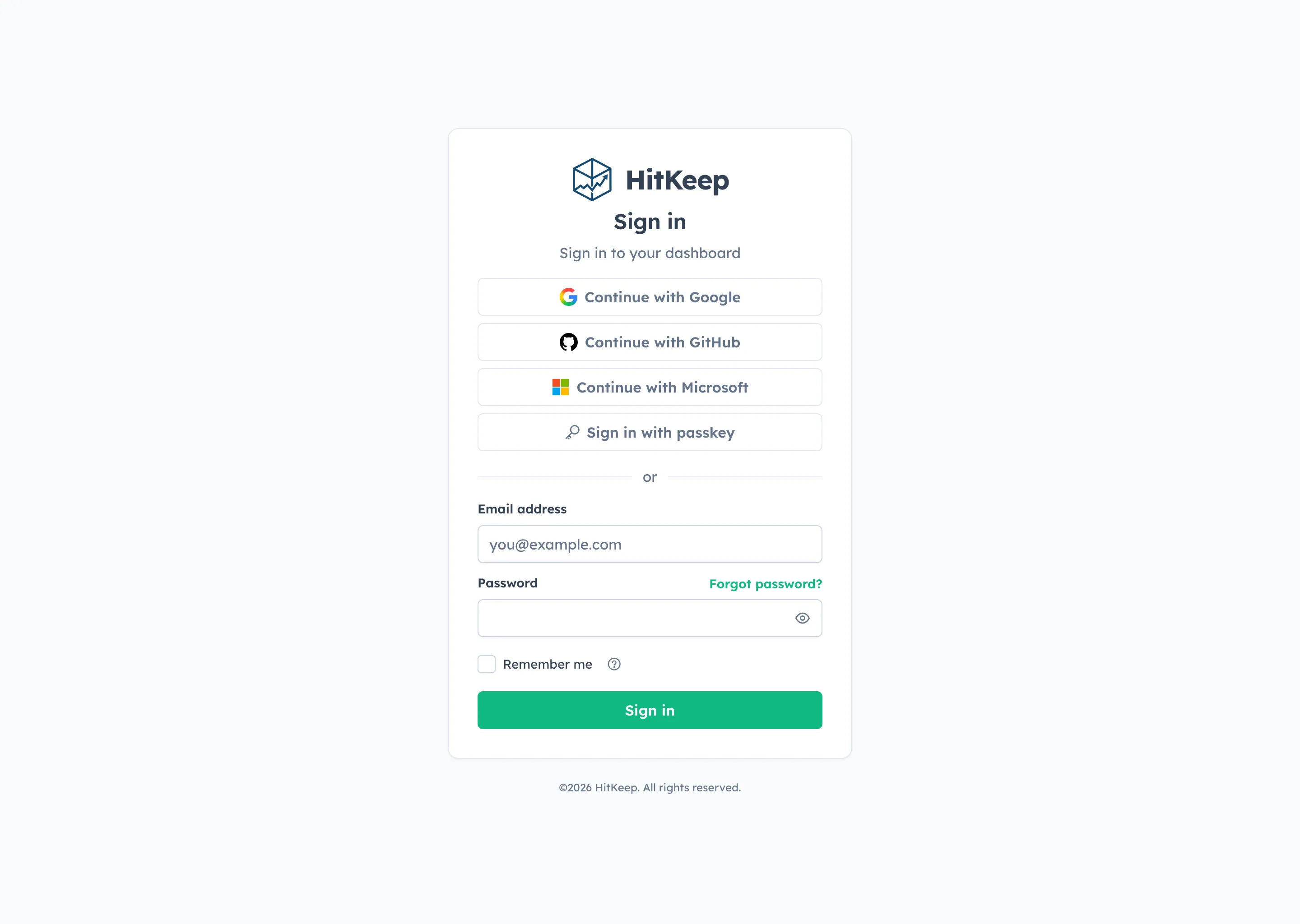
Once registered, you can log in by clicking Sign in with a passkey on the login page — no password needed.
REST API Reference
Section titled “REST API Reference”Passkey Login
Section titled “Passkey Login”API reference:
Recovery Codes
Section titled “Recovery Codes”Recovery codes are single-use backup codes for the case where you still know your password but no longer have your authenticator app or passkey device.
Generate recovery codes
Section titled “Generate recovery codes”- Open Settings → Security in the HitKeep dashboard.
- Under Recovery codes, click Generate codes or Regenerate codes.
- Store the displayed codes immediately.
- Use Copy all or Download .txt to keep them somewhere safe.
Use a recovery code at login
Section titled “Use a recovery code at login”- Enter your email address and password.
- On the MFA screen, choose Use recovery code.
- Enter one of your unused recovery codes.
Each recovery code can be used exactly once.
REST API Reference
Section titled “REST API Reference”Emergency Recovery
Section titled “Emergency Recovery”If another instance owner is still able to log in, they can reset MFA for a locked-out user from Administration → Users → Disable MFA. This is an online, owner-only action and is the preferred operator workflow for cloud deployments.
If no owner can log in, the offline CLI recovery command is still available as break-glass recovery:
hitkeep recover disable-2fa --email user@example.comSee the Recovery Guide for full details.
Social Sign-In and MFA
Section titled “Social Sign-In and MFA”Google, GitHub, or Microsoft sign-in proves the account’s primary identity. It does not disable HitKeep MFA. When the resolved account has MFA enabled, the provider flow continues to the same TOTP, passkey, recovery-code, or email-link challenge before HitKeep creates the browser session.
Team OIDC SSO is different because the team’s identity provider owns its MFA and conditional-access policy. See Social Sign-In and OIDC Single Sign-On before choosing the provider model.
Related
Section titled “Related”Prefer not to manage authentication infrastructure yourself? HitKeep Cloud → handles backups, security updates, and account recovery automatically.