
HitKeep Teams and Analytics Data Isolation
Multi-tenant analytics platforms typically co-mingle everyone’s data in a single database and rely on row-level filters to keep tenants apart. One bad query, one missing WHERE clause, and data leaks across boundaries. HitKeep takes a different approach: it separates control plane and data plane into distinct databases. Each team’s analytics data lives in its own DuckDB file. There is no shared analytics table to accidentally query across.
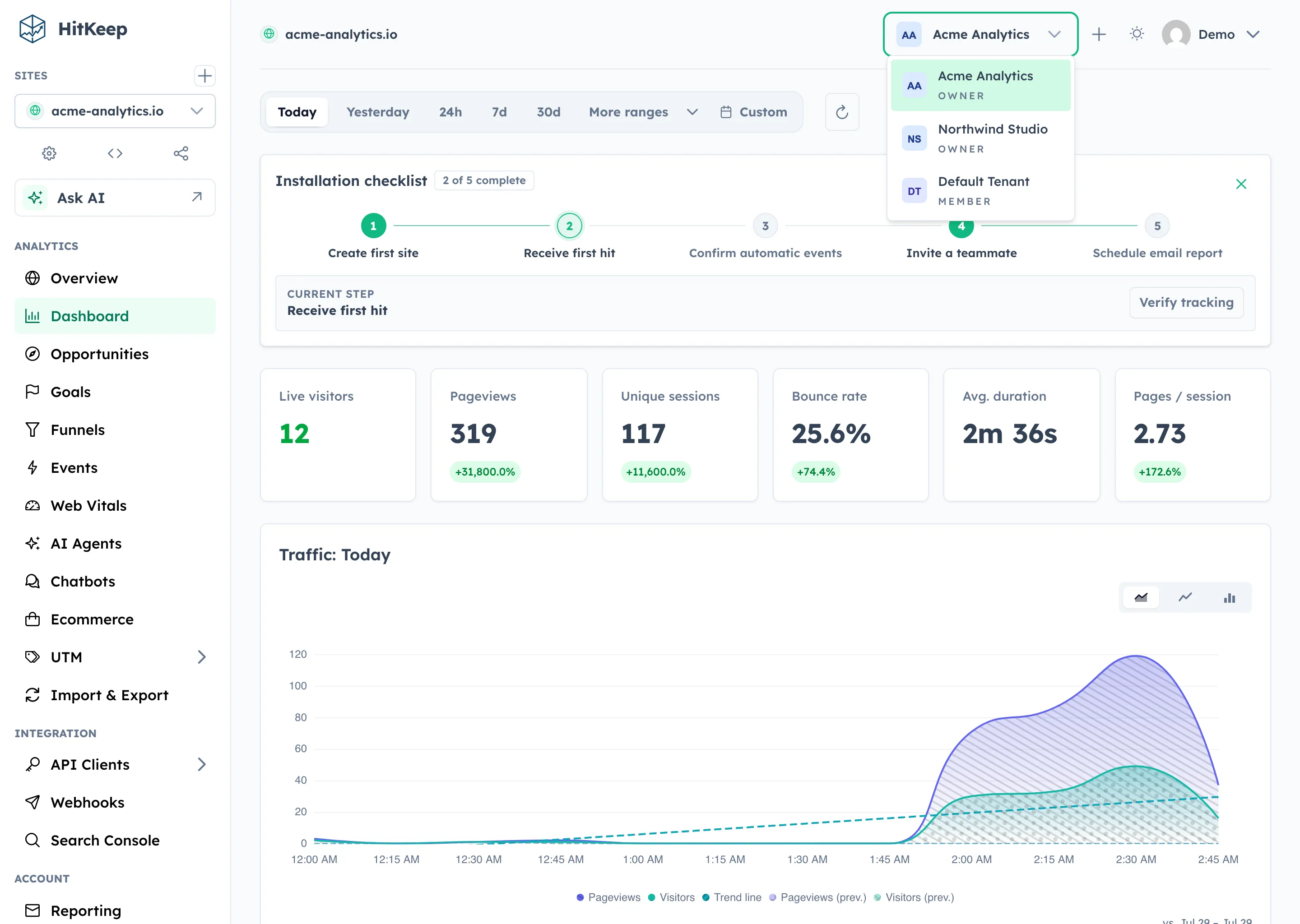
Control Plane vs Data Plane
Section titled “Control Plane vs Data Plane”HitKeep splits its storage into two planes:
Control plane — the shared hitkeep.db:
- Users, sessions, and authentication (JWT, MFA, passkeys)
- Sites metadata (domain, settings, team membership)
- Share links
- Tenants and tenant membership
- User preferences (active tenant)
Data plane — per-tenant DuckDB files:
- Hits (pageviews)
- Events (custom events and properties)
- Goals and funnels (canonical configuration plus rollups)
- Rollups (pre-aggregated daily summaries)
The only reference crossing the boundary is the site_id — the control plane knows which sites exist and which tenant owns them; the data plane stores analytics rows keyed by that site_id. No queries JOIN across the two planes.
How It Works
Section titled “How It Works”HitKeep uses a team (internally called a tenant) as the isolation boundary. Every HitKeep instance has a default team created automatically on first boot. Sites created before teams existed, and sites created by users who never switch teams, belong to this default team.
Every team has a separate data-plane file. The default team file is the shared DuckDB data-plane root and additional team files are attached as isolated catalogs:
/var/lib/hitkeep/data/├── hitkeep.db # Control plane only└── tenants/ ├── default-team-id/hitkeep.db # Shared data-plane root └── a1b2c3d4-.../hitkeep.db # Attached team catalogEvery data pathway — ingestion, API reads, background workers, data exports — resolves the correct data plane database before touching analytics data. The resolution is transparent: a site_id is mapped to its owning tenant, and the tenant’s store is returned.
2.13 Migration
Section titled “2.13 Migration”The first 2.13 startup moves default-team analytics out of hitkeep.db, verifies every tenant table, rewrites the control file, and publishes durable completion markers. The migration is mandatory and has no opt-out flag. Keep a complete pre-upgrade backup: after the split, downgrading to 2.12 or older is unsupported.
Team Roles
Section titled “Team Roles”Each team has its own role hierarchy, independent of instance-level roles.
| Role | Permissions |
|---|---|
owner | Full team control — settings, members, sites, billing |
admin | Manage members and sites; cannot delete the team |
member | Access team sites according to their per-site roles |
Team owners and admins have effective owner/admin access across the sites in their active team. Team members only see and change sites where they also have an explicit per-site role.
The user who creates a team is automatically assigned the owner role.
Team Single Sign-On
Section titled “Team Single Sign-On”Each team can connect to one OpenID Connect provider under Administration → Team → SSO. Allowed email domains route login to the correct provider; they do not grant team access. Existing members and people with a pending invitation can sign in through SSO. Owners and admins can optionally enable trusted-domain auto-provisioning, which adds verified users as Members without an invitation and still enforces managed-cloud seat and team limits. Assign per-site roles separately when users need site access.
SSO is included with the Business plan on HitKeep Cloud and is available without a plan gate in self-hosted HitKeep. Password and passkey login remain available. See Configure OIDC Single Sign-On for provider-specific setup, verified-email requirements, rollout guidance, and troubleshooting.
Usage Visibility
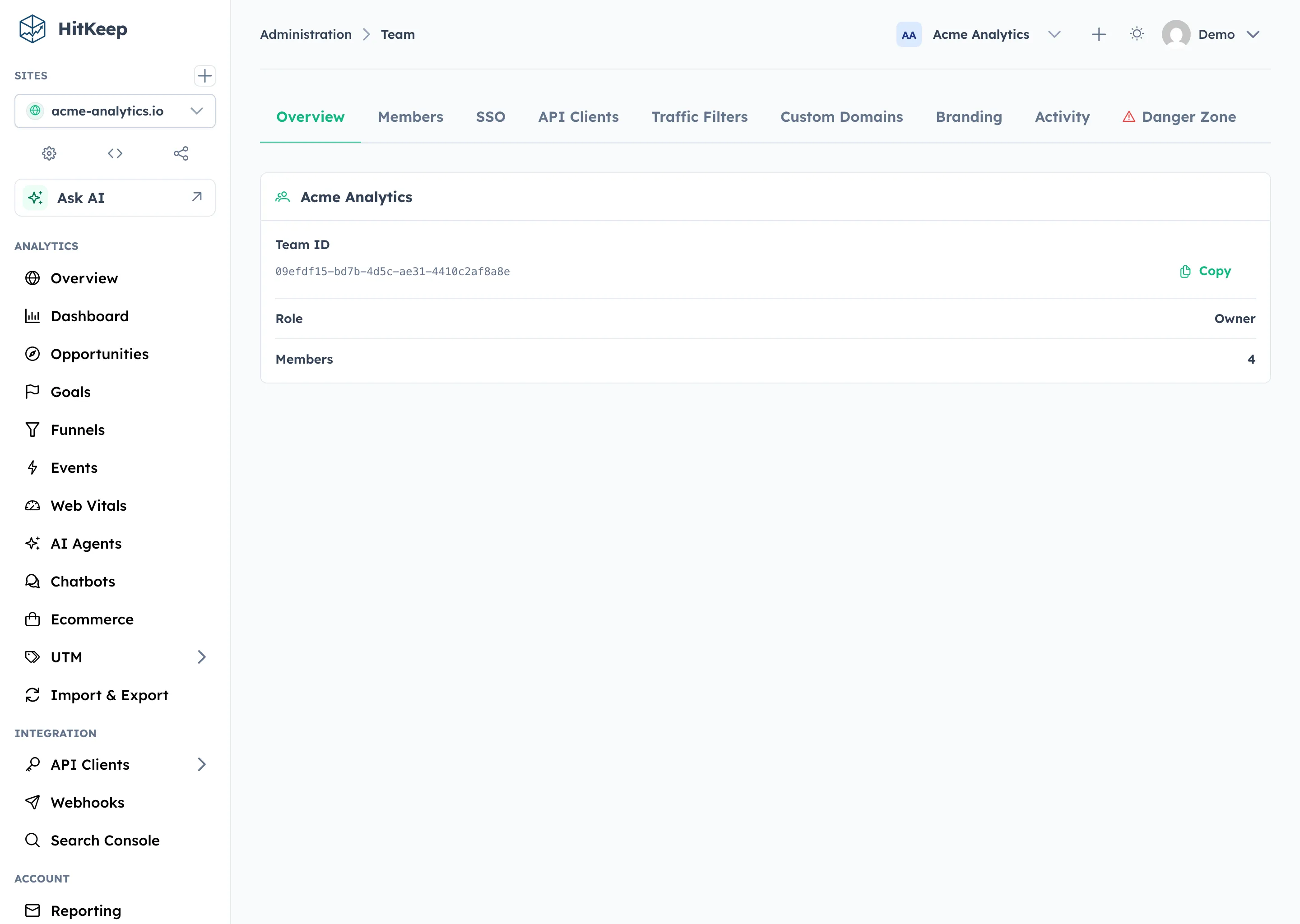
Section titled “Usage Visibility”HitKeep exposes both current usage and plan entitlements in the team payload so owners and admins can see quota pressure before automation or ingestion is blocked.
GET /api/user/teams includes, for each team:
usage.current_sitesusage.current_membersusage.current_pending_invitesusage.current_monthly_eventsentitlements.max_sites_per_teamentitlements.max_team_membersentitlements.max_monthly_events
The Team Overview page renders these values as usage cards and progress bars whenever a limit is finite. In the OSS build, the default provider reports unlimited entitlements, so the cards show current usage alongside an unlimited state.
Team REST API Reference
Section titled “Team REST API Reference”- List teams
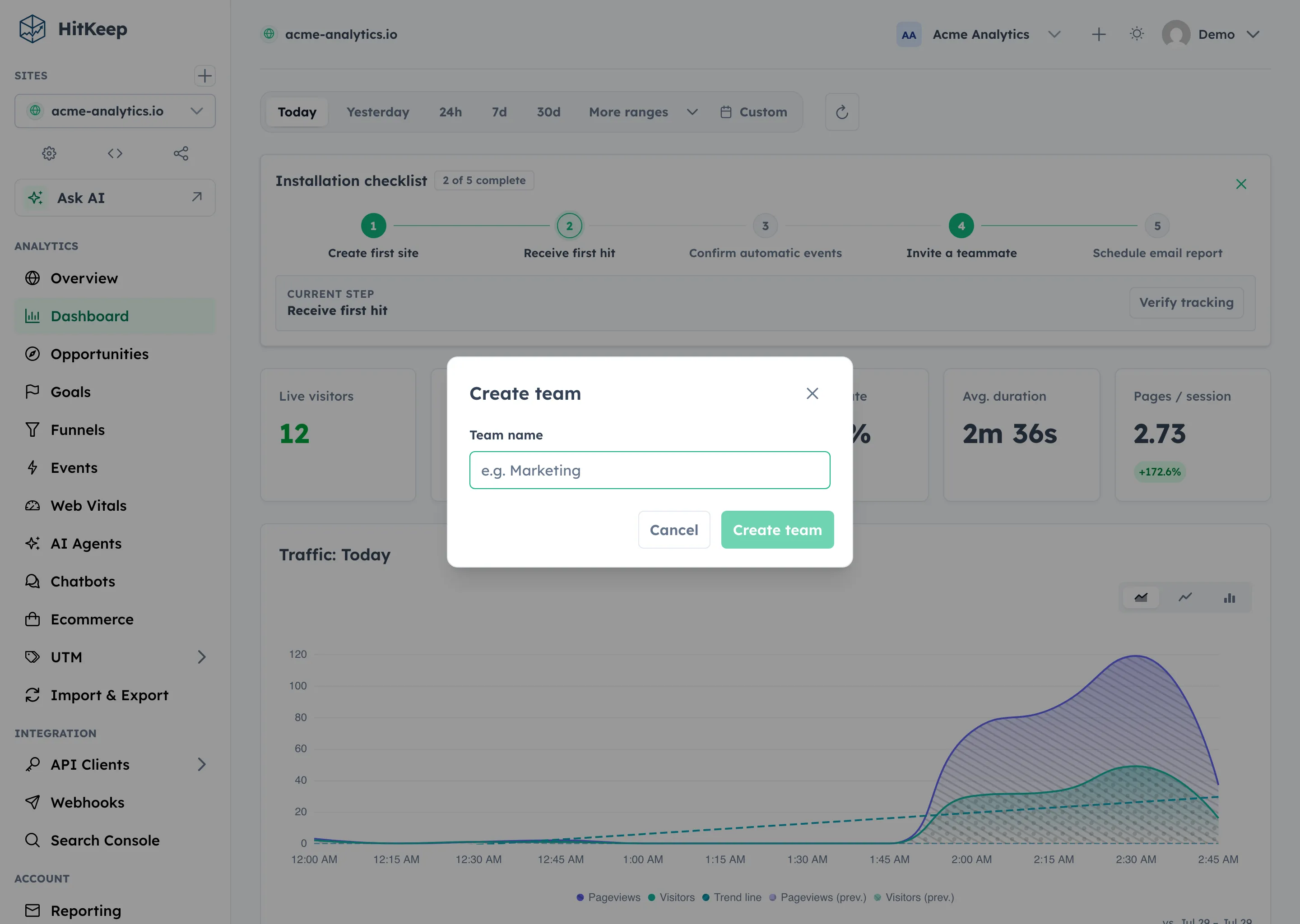
- Create a team
- Set the active team
- Update team settings
- Deprecated compatibility update route
- Invite a member
- Remove a member
- Transfer ownership
- Leave a team
- Archive a team
- List all teams (admin)
- Archive team (admin)
- Hard-delete an archived team
- Transfer a site to another team
The new team is automatically set as the caller’s active team.
Response includes active_team_id so you know which team context you’re operating in.
After switching, all site operations (create, list, analytics queries) are scoped to the active team.
Invite a Member
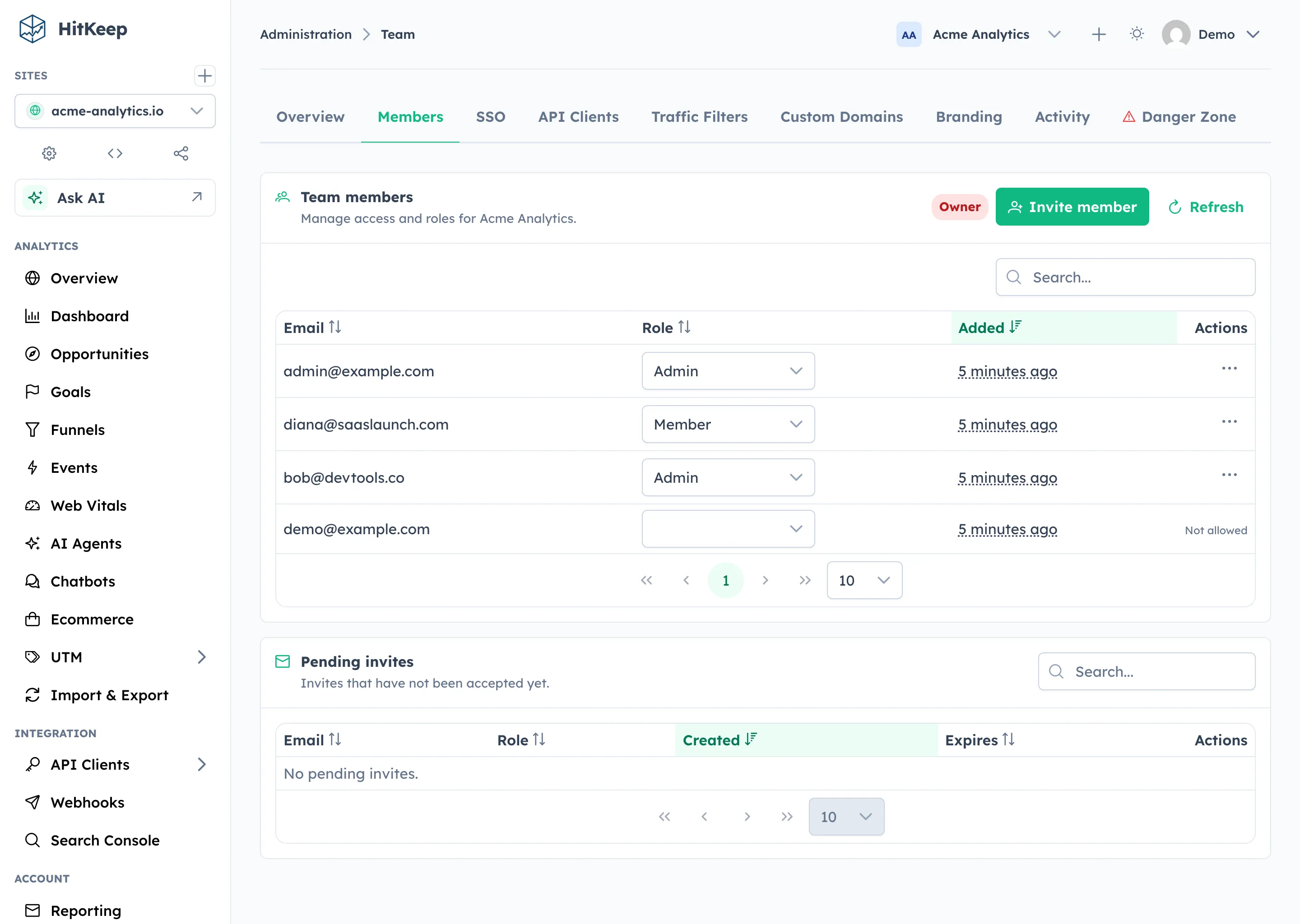
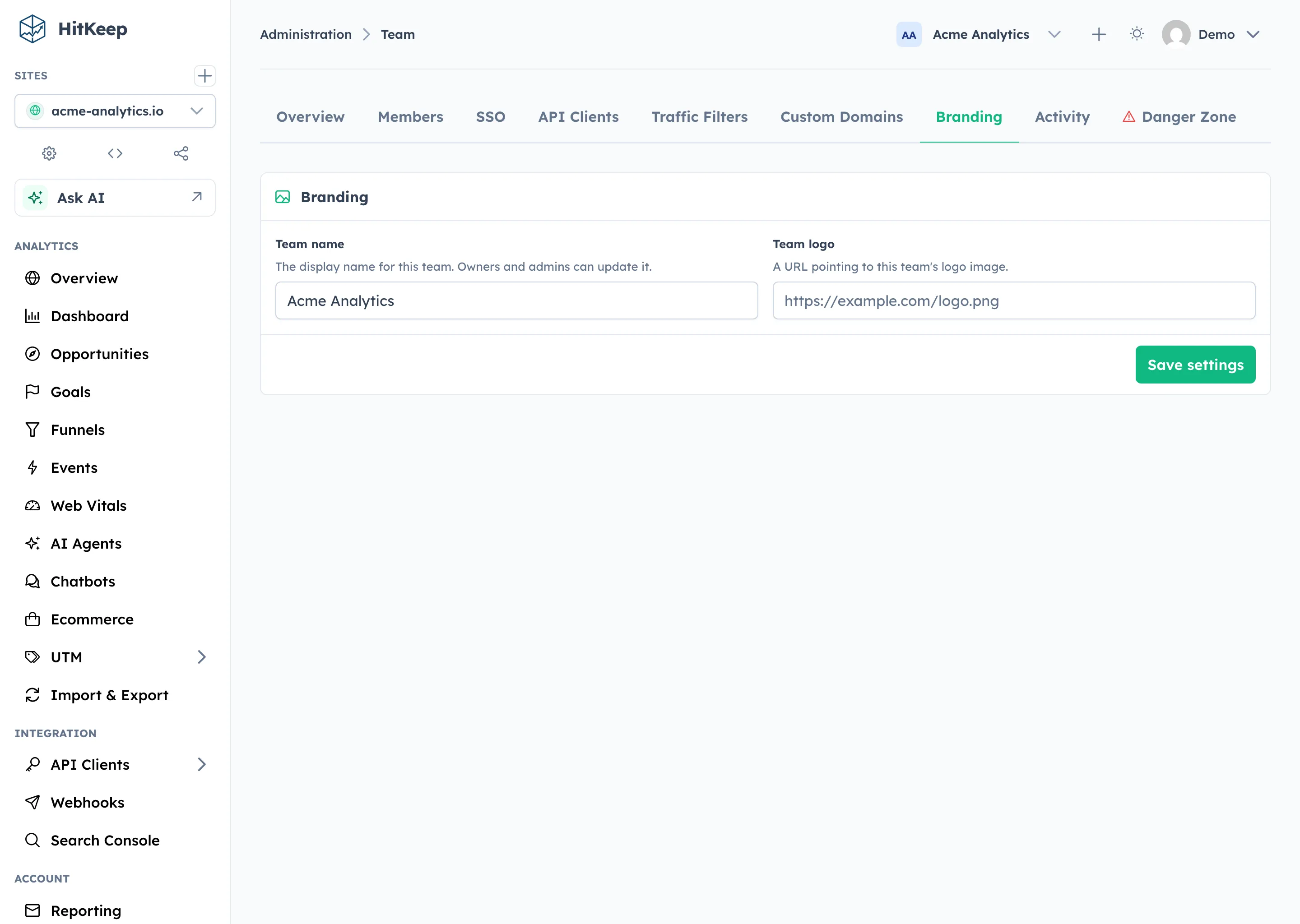
Section titled “Invite a Member”Owners and admins can invite users by email from the team Members tab. Existing users keep their password, passkeys, remember-me setting, and MFA flow. Their invite email sends them through the normal sign-in page and returns them to the invitation after login.
If the email does not match an existing account, HitKeep creates a placeholder account and sends an invite link. The recipient opens the link, sets a password for that invited email address, and is signed in automatically. Accepting the invite makes the invited team active so the new membership is visible immediately.
Role assignment follows a hierarchy: you can only assign roles at or below your own level.
Invite someone to a site
Section titled “Invite someone to a site”Site owners and admins can also add a person from a site’s Team settings. If the person is already a member of the site team, HitKeep grants or updates the site role directly.
If the person is not in that team yet, HitKeep creates or reuses a pending team invite first, then records the requested site role. The site role becomes effective after the recipient accepts the team invite. This removes the old two-step workflow where an admin had to invite the user to the team and then return to the site settings page.
Existing site access is idempotent: adding the same user again updates their site role instead of sending another invite.
On HitKeep Cloud, team member limits still apply to both direct team invites and site invites that need a team invite. A pending invite counts toward the team member limit until it is accepted or revoked.
Remove a Member
Section titled “Remove a Member”The last remaining owner cannot be removed.
Update Team Settings
Section titled “Update Team Settings”PUT /api/user/teams/{team_id} remains available as a deprecated compatibility alias for one bridge release.
Transfer Ownership
Section titled “Transfer Ownership”Ownership transfer is an explicit action. The current owner promotes an existing member to owner and is downgraded to admin.
This keeps the “at least one owner” invariant intact and records an audit event for the change.
The same invariant is enforced at the instance-admin level too: deleting a user account is blocked if that user is still the sole owner of any team. Instance admins must transfer ownership first, then delete the user.
Leave or Archive a Team
Section titled “Leave or Archive a Team”Members can leave a team as long as they are not the last remaining owner and the team is not their only team:
Owners can archive an empty team once all sites have been moved or deleted.
When the active team is left or archived, HitKeep automatically falls back to the next available team and updates active_team_id.
If you need an irreversible cleanup, an instance owner can permanently delete an already archived team and remove its per-tenant DuckDB file:
This hard-delete path is only available after the team has been archived and all sites have been transferred or deleted.
Instance Admin: Managing Teams
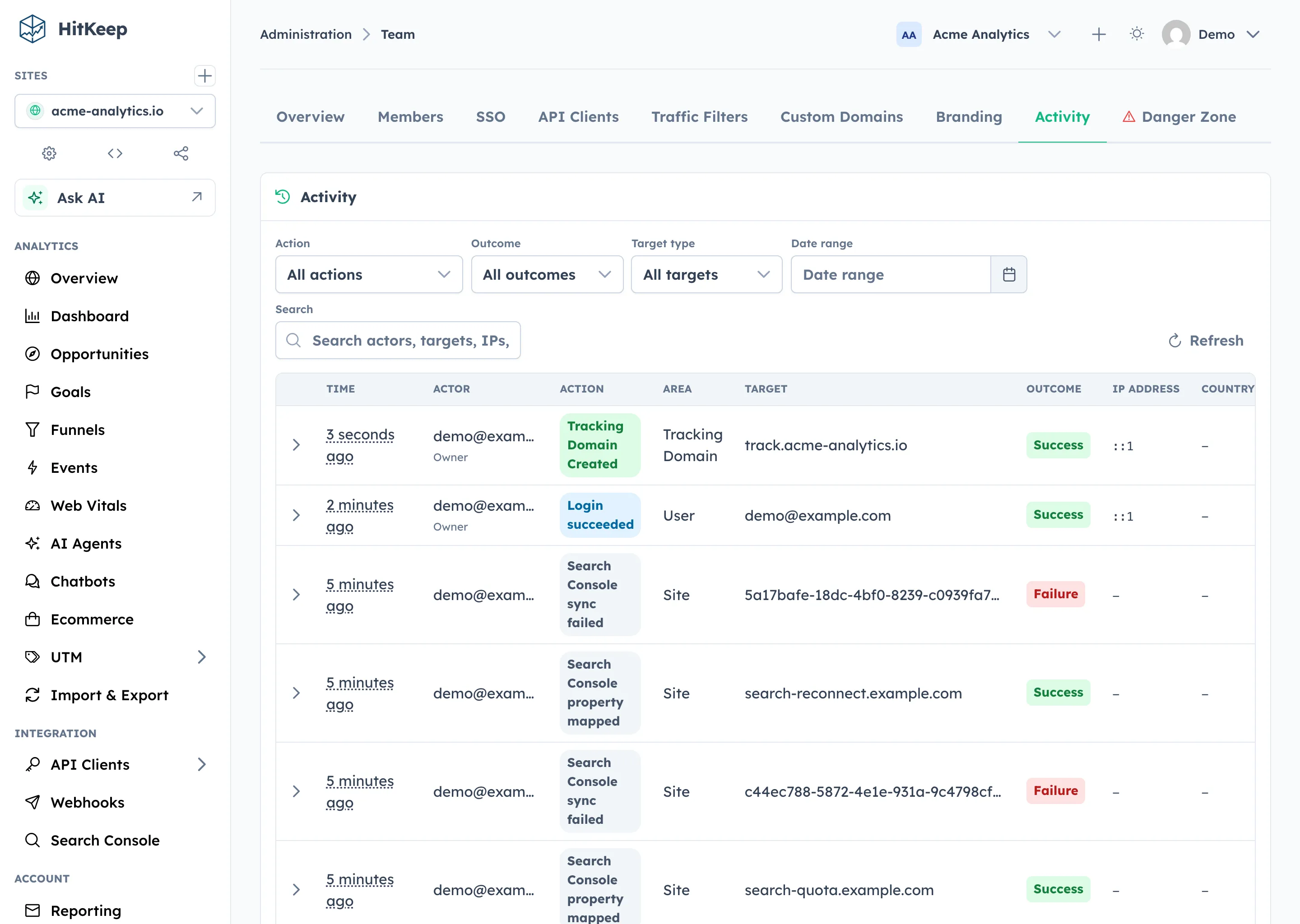
Section titled “Instance Admin: Managing Teams”Instance admins can view and manage all teams from the System Settings → Teams tab. This tab lists every team with its member count, site count, archive status, and creation date.
Deleting a Team
Section titled “Deleting a Team”Any non-default team can be deleted directly from the Teams tab with a single click. HitKeep handles the full cleanup automatically:
- Deletes all sites belonging to the team and their analytics data
- Archives and purges the team record
- Removes the per-tenant DuckDB analytics database
Members keep their instance accounts and remain in any other teams they belong to.
The confirmation dialog warns about the number of sites that will be deleted, so there are no surprises.
Via the API:
# List teams to find the targetcurl -s -b cookies.txt https://your-instance/api/admin/teams | jq .
# Delete a team (sites, members, and data are cleaned up automatically)curl -X DELETE -b cookies.txt https://your-instance/api/admin/teams/{team_id}?force=true
Without ?force=true, the team must already be archived with no sites — useful if you want to handle cleanup manually.
The default team cannot be deleted — it serves as the fallback for users and sites that are not explicitly assigned to a team.
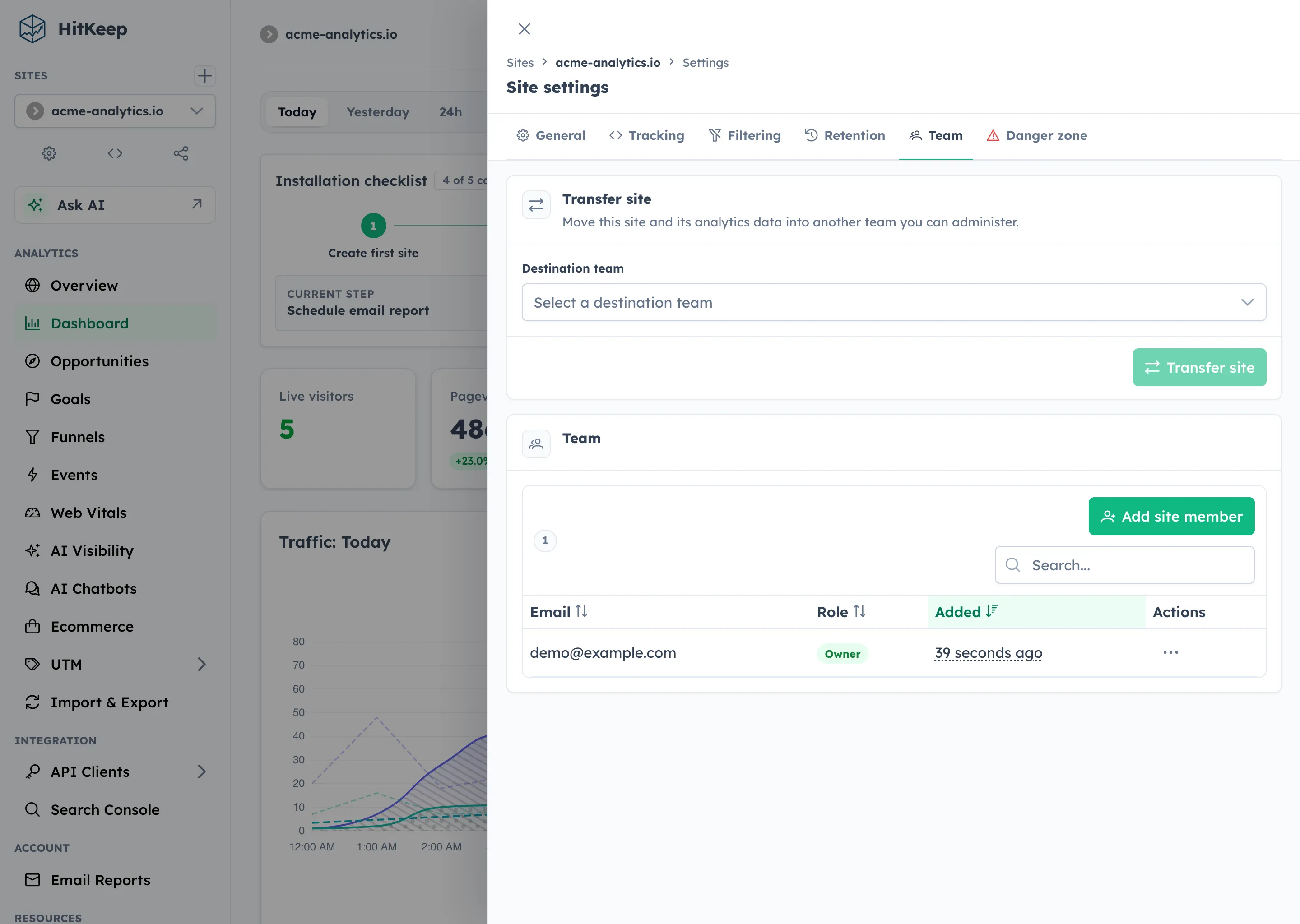
Transfer a Site Between Teams
Section titled “Transfer a Site Between Teams”Teams are most useful when you can reorganize existing sites after the fact. HitKeep lets site owners or team managers move a site into another team they administer:
This operation:
- updates the shared
site_tenantsmapping in the control plane - copies hits, events, goals, funnels, and rollups into the destination tenant database
- removes stale analytics rows from the previous tenant database
- appends audit entries in both the source and destination teams
The site_id remains stable, so integrations and existing share links do not need to change.
Reset or Delete a Site
Section titled “Reset or Delete a Site”Site owners can reset stored stats or delete the site from the site settings Danger Zone. Both flows require typing the site domain before the action is enabled.
Use Reset stats when you want to keep the site shell but remove the measured analytics data currently stored for that site. Reset keeps the site record, team mapping, members, retention policy, exclusions, share links, API client grants, tracking settings, goals, funnels, QR campaigns, Search Console mapping, and import job records. It clears hits, events, Web Vitals, rollups, dirty rollup markers, imported analytics aggregates, Search Console facts, site activity summaries, AI visibility fetches, QR opens, Opportunities, and site-scoped AI run metadata.
Reset does not pause live tracking. Rows written after the reset transaction can appear normally. Completed imports are marked as deleted so their imported aggregate rows do not remain active. Imports that are uploading, validating, queued, or running are left alone; if they write rows after reset, those rows count as new data.
Use Delete site when the site itself should go away. Site deletion removes the site shell and its associated analytics data. Existing API client grants, share links, team access, and configuration tied to that site are cleaned up with the site.
The reset endpoint accepts dashboard sessions only. API client bearer tokens cannot reset stats, even when the token has a site owner grant. See Reset site stats for the API contract.
Data Plane Isolation by Pathway
Section titled “Data Plane Isolation by Pathway”Every pathway that reads or writes analytics data resolves the tenant’s data plane database first. No analytics query ever touches the control plane, and no control plane query ever touches analytics data.
| Pathway | Plane | What happens |
|---|---|---|
| Ingestion (hits & events via NSQ) | Data | Consumer resolves site_id → tenant_id → tenant DB, then writes |
| AI fetch ingest | Data | Authenticated handler resolves the site tenant and writes crawler records directly to the tenant DB |
| API reads (stats, hits, events, timeseries) | Data | Handler resolves tenant DB before running analytics queries |
| MCP reads | Data | Leader-only MCP tools use API client permissions and the same tenant store resolution as REST analytics reads |
| Workers (retention, rollups, reports) | Data | Each site’s tenant DB is resolved before pruning, aggregating, or exporting |
| Exports (CSV, Parquet, XLSX, JSON, NDJSON) | Data | COPY queries execute against the tenant-scoped database |
| Site CRUD (create, list, delete, settings) | Control | Operates on the shared hitkeep.db |
| Goals & Funnels (create, update, delete, timeseries) | Data | Canonical rows live in the tenant DB; shared legacy copies remain only for bridge-release rollback safety |
| Share links (create, revoke) | Control | Link metadata in shared DB; shared dashboard reads go to data plane |
Bridge Release Compatibility
Section titled “Bridge Release Compatibility”This release keeps legacy shared goals and funnels tables only as a rollback bridge.
- Reads prefer the tenant-local data plane.
- If a non-default team site has legacy shared goals or funnels but none in its tenant DB yet, HitKeep backfills them automatically on first access.
- Writes and deletes are mirrored into the shared legacy tables for one release so rollbacks remain possible.
Backup Considerations
Section titled “Backup Considerations”The control plane and each team’s data plane are independent DuckDB files. Prefer the built-in backup worker, which checkpoints and exports the shared database plus every tenant database.
If you use raw filesystem copies, stop HitKeep first and capture the configured shared database path plus the entire tenant data tree:
sudo systemctl stop hitkeeprsync -a /var/lib/hitkeep/data/ /backup/hitkeep-$(date +%Y%m%d)/sudo systemctl start hitkeepYou may copy a specific team’s data plane separately for forensic or analytical work while HitKeep is stopped:
cp /var/lib/hitkeep/data/tenants/{team_id}/hitkeep.db /backup/team-{team_id}.dbThat tenant file alone is not a complete HitKeep restore point. The configured HITKEEP_DB_PATH must be included in recoverable backups because it contains user accounts, site definitions, and tenant membership required to make tenant data-plane files meaningful.
Related
Section titled “Related”- Roles and Permissions
- API Clients
- Official MCP Server
- AI Visibility Analytics
- Architecture
- Configuration Reference
- REST API Reference
HitKeep Cloud provisions managed tenants in your chosen region (EU Frankfurt or US Virginia) with encrypted backups and region-aware hosting. Start with HitKeep Cloud →