
Dynamic QR Campaign Tracking in HitKeep
Use QR campaigns when you need to connect offline material to a tracked landing page. HitKeep creates a dynamic redirect URL for each QR code, adds UTM and custom query parameters to the final destination, records QR opens, and shows the resulting pageviews and visitors when the destination page also runs the HitKeep tracker.
Open UTM -> QR codes in the dashboard for the selected site.
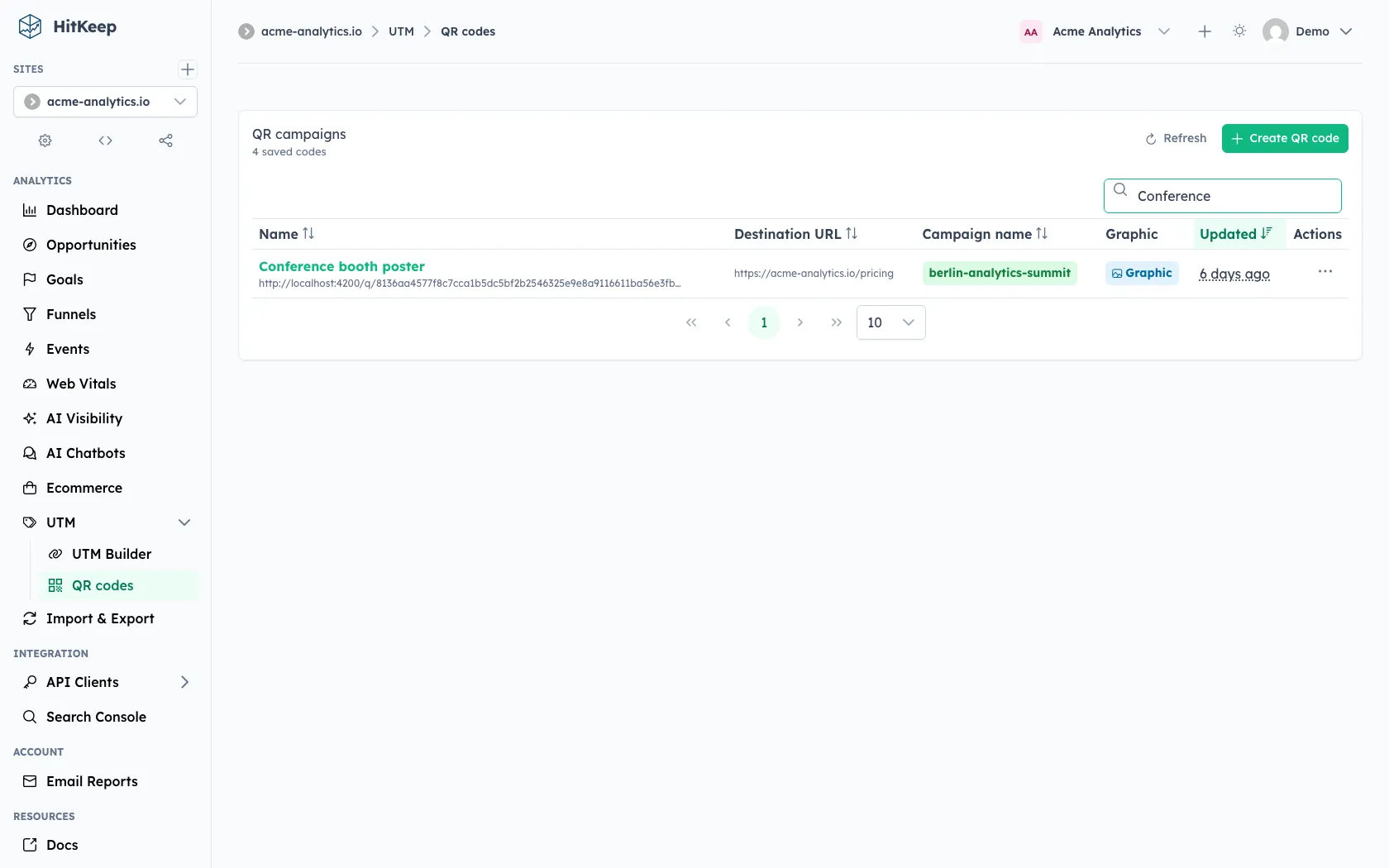
Create A QR Campaign
Section titled “Create A QR Campaign”- Click Create QR code.
- Enter a name that you will recognize later, such as
Conference booth posterorSpring catalog back cover. - Choose the destination URL. It must be an absolute
httporhttpsURL. - Fill in the campaign fields. New QR campaigns start with
utm_source=qrandutm_medium=offline. - Add optional custom query parameters when another system needs extra attribution.
- Choose foreground and background colors, dot style, corner style, and an optional image.
- Save the campaign.
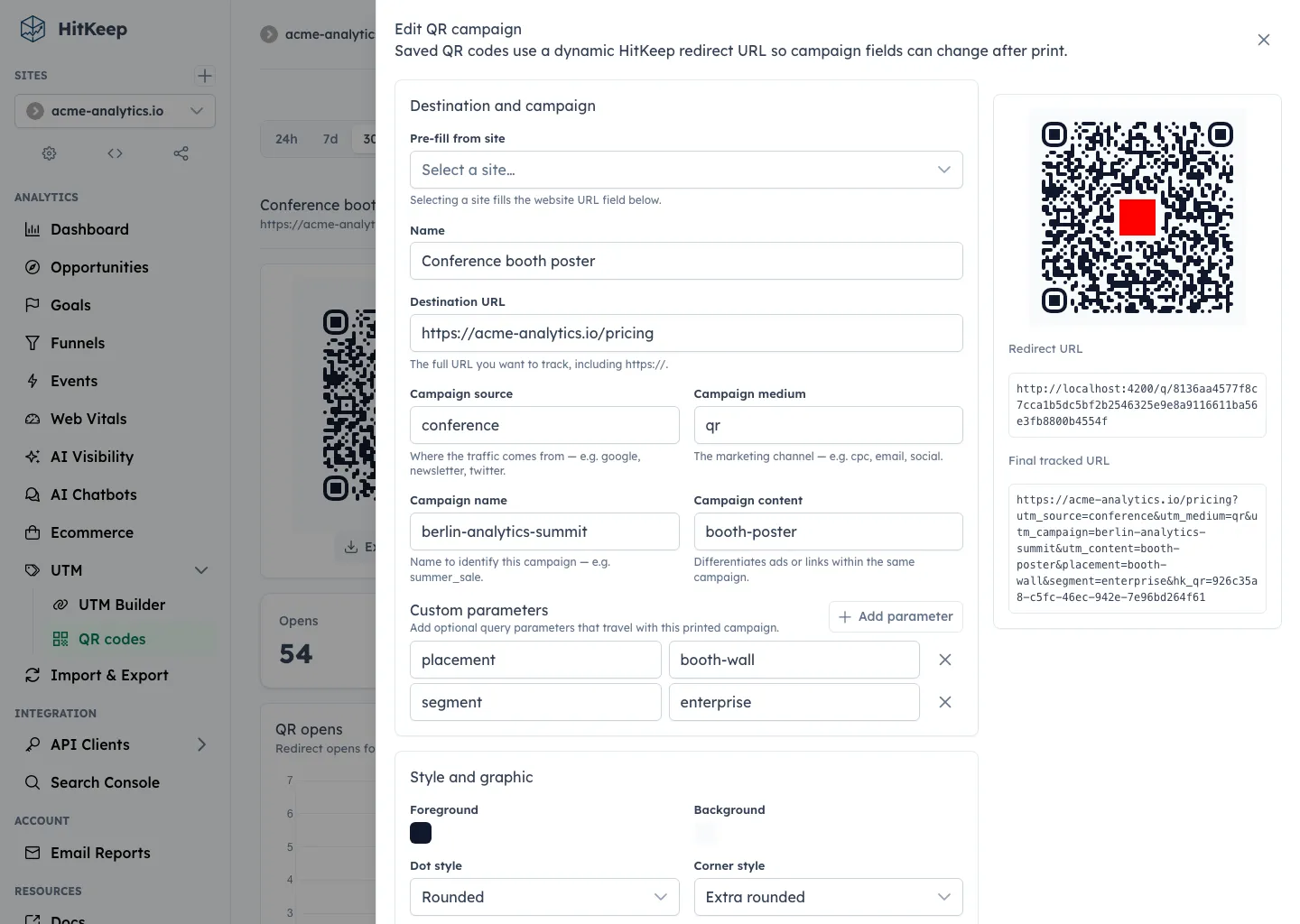
After saving, HitKeep gives the QR campaign a dynamic redirect URL under /q/{token}. Use that redirect URL in the printed QR code, not the final landing-page URL. You can edit the destination, UTM values, custom parameters, and style after print without replacing the printed redirect token.
Campaign Parameters
Section titled “Campaign Parameters”HitKeep can attach the standard UTM fields:
| Field | Example | Use it for |
|---|---|---|
utm_source | qr | The traffic source. The QR editor uses qr by default. |
utm_medium | offline | The channel. The QR editor uses offline by default. |
utm_campaign | spring-launch | The campaign, promotion, event, or print run. |
utm_term | vip-ticket | A keyword or audience segment when you need one. |
utm_content | front-window | A creative, placement, or variant. |
Custom parameters are also supported. HitKeep stores up to 20 non-empty custom parameters per QR campaign. The hk_qr parameter is reserved because HitKeep uses it to connect the redirected pageview back to the QR campaign.
Export Print Artwork
Section titled “Export Print Artwork”Open a saved QR campaign and use Export artwork.
- The main action exports SVG artwork for print workflows.
- The dropdown exports PNG artwork at 1024, 2048, or 4096 px.
- Optional center images can be PNG, JPEG, or WebP up to 2 MiB.
Test every printed design with the final material size, background color, paper, and lighting conditions. Dense final URLs, low contrast, or a large center image can make a QR code harder to scan.
How Attribution Works
Section titled “How Attribution Works”When someone scans the QR code, the browser opens the HitKeep redirect URL:
https://analytics.example.com/q/{token}HitKeep resolves the token, records a QR open when allowed, and redirects to the final destination URL. The final URL includes the UTM fields, custom parameters, and hk_qr=<qr-code-id>.
https://example.com/landing?utm_source=qr&utm_medium=offline&utm_campaign=spring-launch&hk_qr=...QR opens and tracked pageviews are related, but they are not the same metric:
- QR opens count redirect activity for the QR token.
- Pageviews require the destination page to load the HitKeep tracker and send the normal pageview.
- Visitors come from the normal tracked analytics data filtered to that QR campaign.
An open may not become a pageview if the destination page does not run hk.js, the visitor closes the browser before the page loads, a browser or network blocks the tracker, or traffic filters suppress the request. HitKeep also skips QR open recording when the request sends DNT: 1 or Sec-GPC: 1, and QR opens can be suppressed by IP, country, or spam filters.
Read QR Analytics
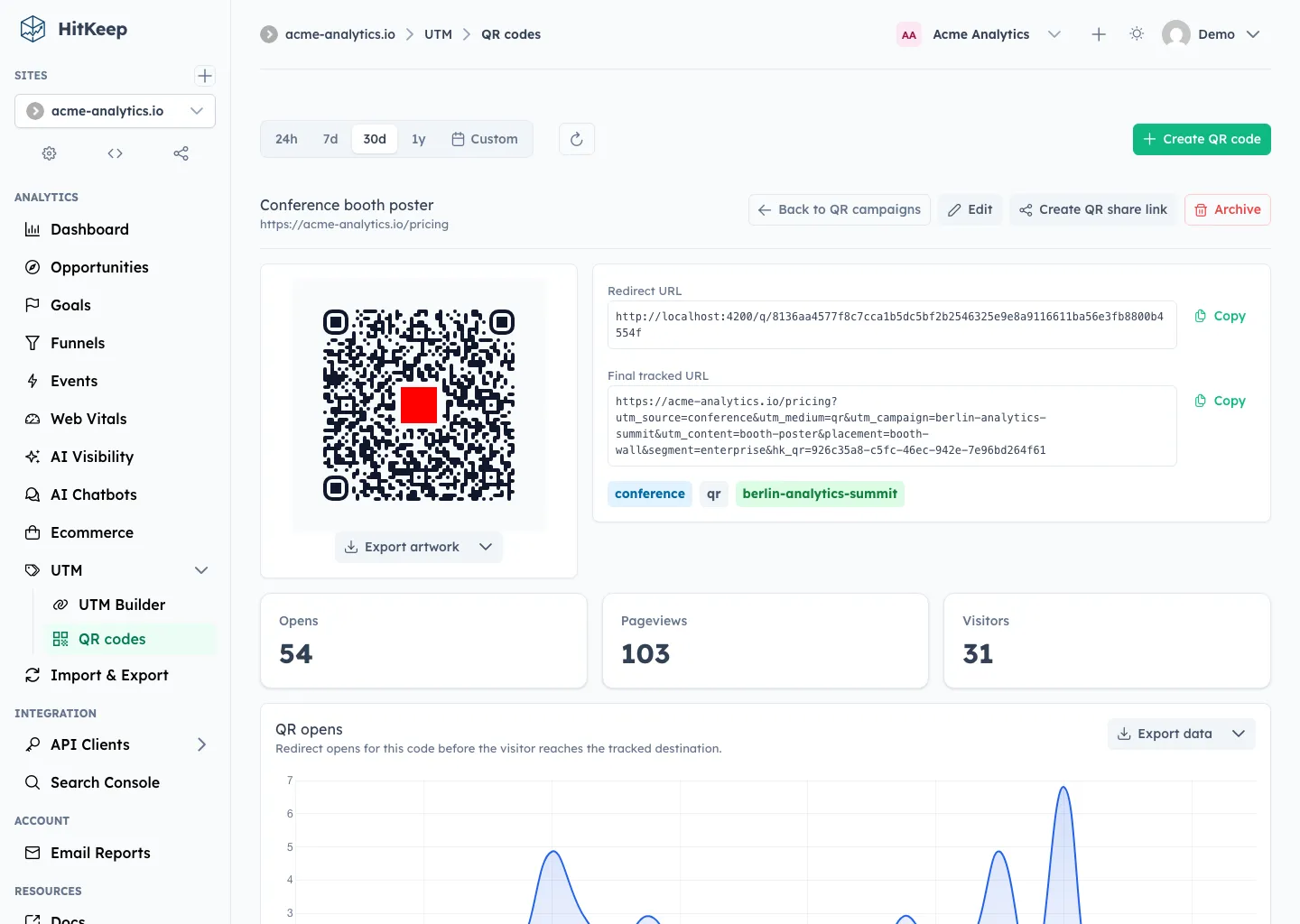
Section titled “Read QR Analytics”Open a saved QR campaign to see:
- QR opens for the selected date range
- pageviews attributed through
hk_qr - visitors attributed through
hk_qr - top pages, referrers, devices, and countries for the QR-attributed traffic
- an opens time series
Use the same date range control as the rest of the dashboard. If a print run happens over a weekend, select a custom range around that window before comparing QR opens with pageviews or conversions.
Share QR-Only Stats
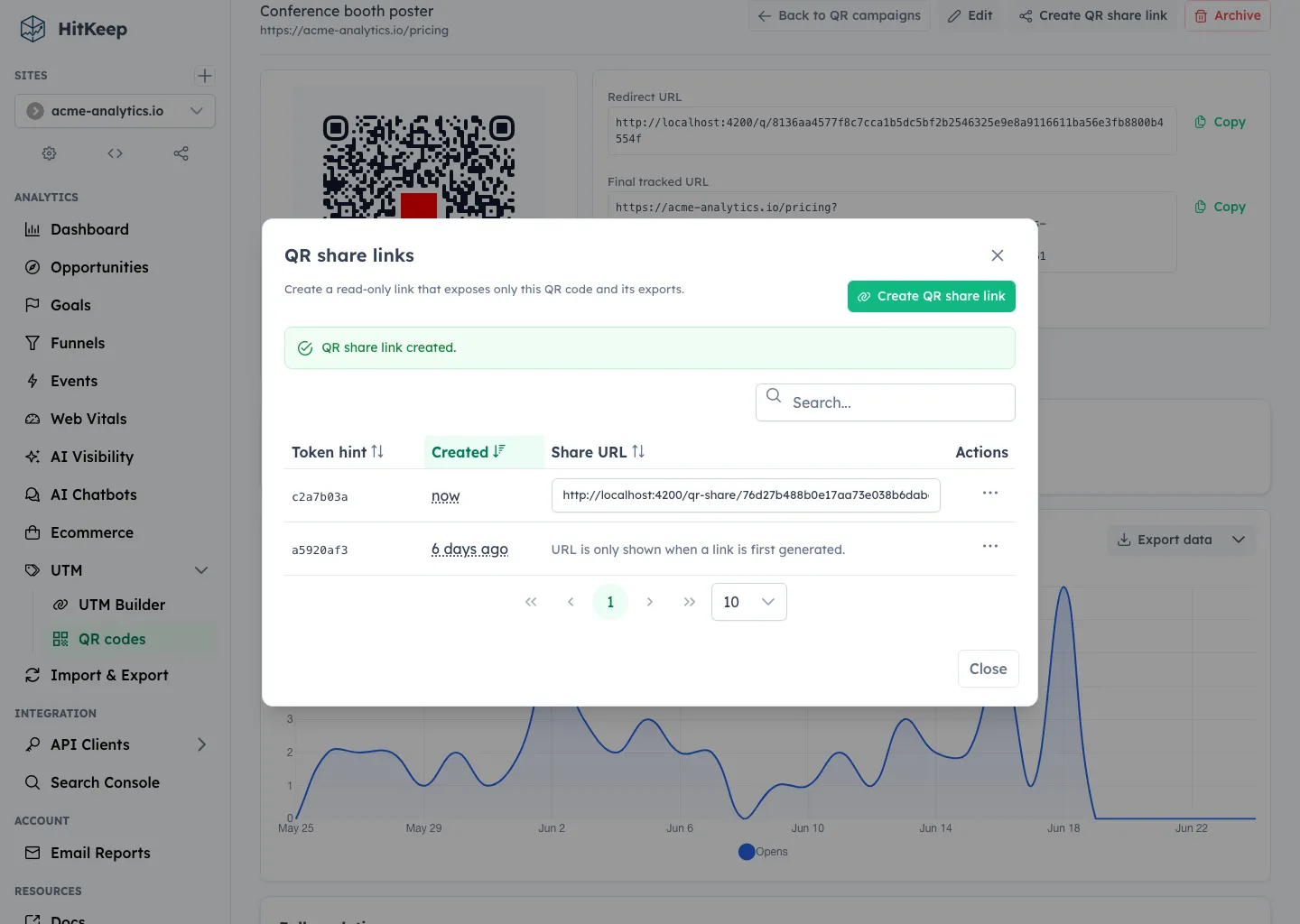
Section titled “Share QR-Only Stats”Use Create QR share link when a client, event partner, or stakeholder needs to see one QR campaign without getting dashboard access.
A QR-only share link exposes that QR campaign’s read-only stats and exports. It does not expose site settings, other campaigns, normal dashboard sessions, billing, or admin actions. Delete the share link to revoke access.
Export QR Data
Section titled “Export QR Data”Use Takeout on a saved QR campaign to export the QR definition, asset metadata, QR opens, and QR-filtered analytics rows. HitKeep uses the normal open export formats where the product surface supports them, including CSV, XLSX, JSON, NDJSON, and Parquet.