
Chart Annotations for Web Analytics in HitKeep
A traffic spike is easy to explain on the day it happens and hard to explain three months later. Annotations keep that context next to the data: mark a release, a campaign, a pricing change, or an outage once, and every chart for the site shows it.
Annotations are available from HitKeep 2.14.0.
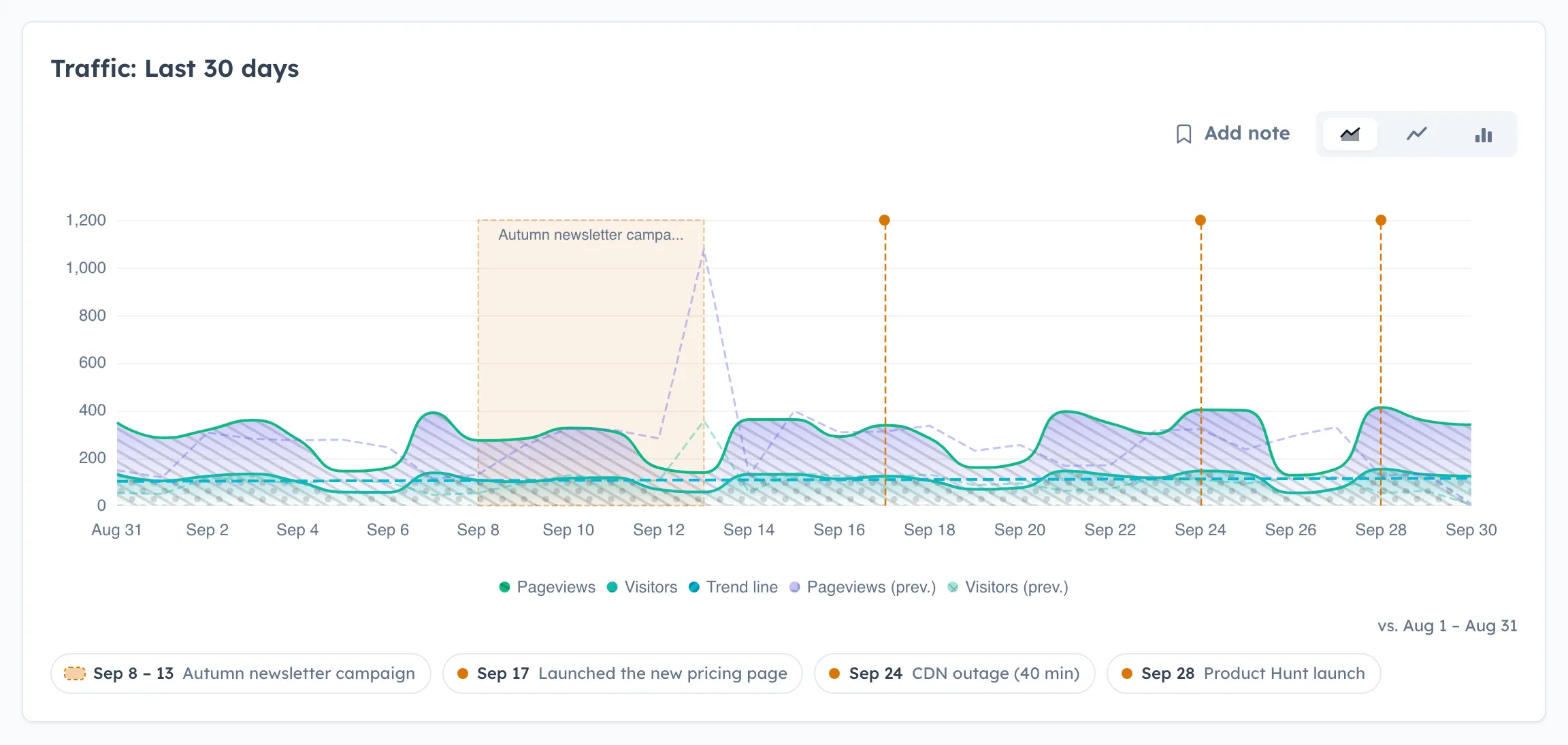
What An Annotation Is
Section titled “What An Annotation Is”An annotation is a short note on a site’s timeline:
- A point in time, such as “Launched the new pricing page”. It appears as a dashed line with a pin.
- A date range, such as “Autumn newsletter campaign”. It appears as a shaded band with its label along the top.
Notes belong to the site, not to one chart. The same note appears on the dashboard traffic chart and on the Goals, Funnels, Events, Web Vitals, Ecommerce, UTM, QR, AI Agents, and Chatbot charts whenever its time falls inside the selected range. Notes are context only: adding, editing, or deleting one never changes collected analytics.
Shared With Your Team
Section titled “Shared With Your Team”Annotations are team notes, not personal bookmarks. They belong to the site, so everyone with access to that site works from the same timeline:
- Everyone sees every note. Team members, invited collaborators with a site role, and API clients with a site grant all see the same notes. There are no private notes.
- Anyone who can write can edit any note. People with the
owner,admin, oreditorsite role can change or delete a note a teammate wrote. HitKeep does not show who wrote a note; if attribution matters, put it in the text, such asDeployed v2.14.0 (ops). - Teammates see new notes on their next load. Charts load a site’s notes when the site opens; a note a teammate adds appears after a page reload or site switch, not live.
- Notes stay with the site. A note on one site does not appear on the team’s other sites. Moving a site to another team keeps its notes, and removing a member keeps the notes they wrote.
The permission rules decide who can write: site owner, admin, and editor roles and instance owners; everyone else with access can read.
When To Add A Note
Section titled “When To Add A Note”Add a note for anything that could move a metric and that someone will want to know about later:
| Change | Example note | Why it helps later |
|---|---|---|
| Release or deploy | Deployed v2.14.0 | Separates a product change from a traffic change |
| Campaign | Autumn newsletter, as a date range | Shows where paid or owned traffic starts and stops |
| Pricing or offer | New pricing page live | Explains conversion-rate shifts in Goals and Funnels |
| Incident | CDN outage (40 min) | Stops a dip from being read as lost demand |
| Measurement change | Consent banner updated, New bot exclusion rule | Marks a jump that comes from how data is collected, not from visitors |
| External event | Press mention in trade newsletter, Public holiday | Records context no report can infer |
Measurement changes are the easiest to forget and the most expensive to misread. Note tracker updates, consent changes, new traffic exclusions, and data imports the day they happen.
Add A Note In The Dashboard
Section titled “Add A Note In The Dashboard”People with the owner, admin, or editor site role can add, edit, and delete notes. Viewers see the notes and can open them to read the full text.
On any chart with data:
- Click an empty spot on the chart to add a note at that bucket.
- Drag across the chart to mark a period. A shaded preview follows the pointer; release to open the note dialog with the start and end filled in. Press Escape to cancel the drag.
- Select Add note above the chart to start a note on the newest bucket, then change the date in the dialog. This is also the path for keyboard users and touch screens, where a tap still shows the chart tooltip.
In the dialog, write the note, adjust the date and, for a period, the Until date. Press Ctrl+Enter (⌘+Enter on macOS) or select Save.
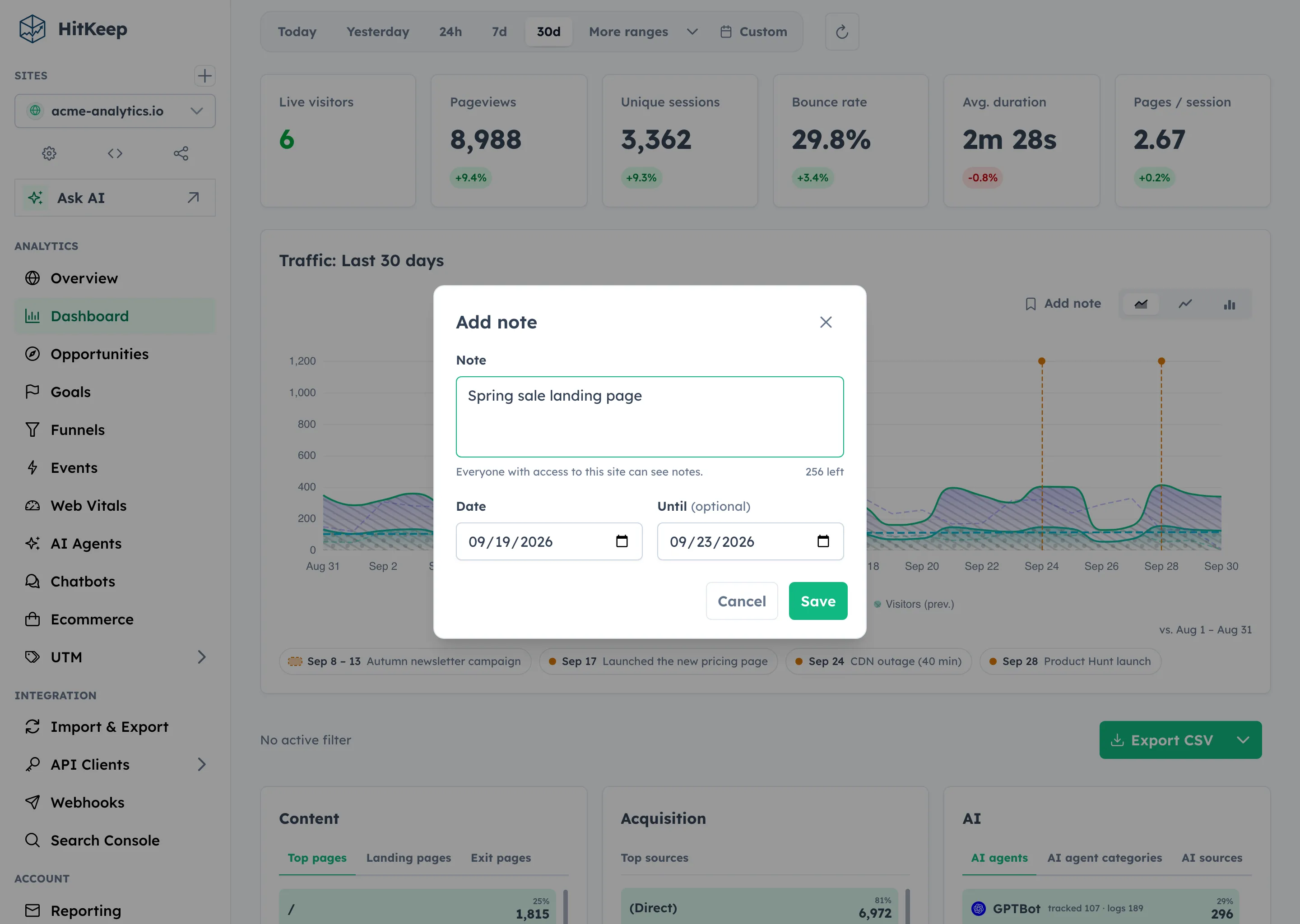
To change or remove a note, click its marker on the chart or its chip below the chart. Deleting asks for a second confirmation because the note disappears for everyone on the site.
Add Release Notes From CI
Section titled “Add Release Notes From CI”The most reliable notes are the ones nobody has to remember. The annotations API accepts API client tokens, so a deployment pipeline can add a note for every production release.
- Create a team API client and grant it the
editorrole on the site. That role can manage goals, funnels, and notes, and nothing broader. - Store the token as a CI secret, and your HitKeep URL and the site ID as variables.
- Call the API after a successful deploy:
curl --fail-with-body -sS -X POST "$ANALYTICS_URL/api/sites/$ANALYTICS_SITE_ID/annotations" \ -H "Authorization: Bearer $ANALYTICS_TOKEN" \ -H "Content-Type: application/json" \ -d "{\"starts_at\": \"$(date -u +%Y-%m-%dT%H:%M:%SZ)\", \"body\": \"Deployed v2.14.0\"}"In GitHub Actions, the same call becomes the last step of the deploy job:
- name: Add a HitKeep release note env: ANALYTICS_URL: ${{ vars.ANALYTICS_URL }} ANALYTICS_SITE_ID: ${{ vars.ANALYTICS_SITE_ID }} ANALYTICS_TOKEN: ${{ secrets.ANALYTICS_TOKEN }} run: | curl --fail-with-body -sS -X POST "$ANALYTICS_URL/api/sites/$ANALYTICS_SITE_ID/annotations" \ -H "Authorization: Bearer $ANALYTICS_TOKEN" \ -H "Content-Type: application/json" \ -d "{\"starts_at\": \"$(date -u +%Y-%m-%dT%H:%M:%SZ)\", \"body\": \"Deployed ${GITHUB_REF_NAME} (${GITHUB_SHA::7})\"}"For a date range, send ends_at as well, for example {"starts_at": "2026-10-01T00:00:00Z", "ends_at": "2026-10-14T00:00:00Z", "body": "October newsletter campaign"}. The response returns the stored note with its id, which you can use to update or delete it later.
API reference:
Listing requires site.view. Creating, updating, and deleting require site.manage_annotations. See Roles and Site Permissions.
How Notes Line Up With The Chart
Section titled “How Notes Line Up With The Chart”Charts group data into buckets: days on longer ranges, hours on Today, Yesterday, and 24h. A note sits on the bucket that contains its time.
- On day charts, a note covers a calendar day in UTC, matching how HitKeep buckets daily data.
- On hour charts, the dialog also shows a time and uses your browser’s local clock, matching the chart’s axis labels.
- A range that starts before or ends after the selected period is drawn up to the chart edge.
- Several single-moment notes on the same bucket share one pin; its label counts them.
- Overlapping ranges stack their labels so the text stays readable.
Annotations In MCP And Ask AI
Section titled “Annotations In MCP And Ask AI”A note is often the fastest answer to “why did this change?”, so HitKeep gives assistants the same context:
- The read-only MCP server exposes
hitkeep_get_annotations. It returns the notes that overlap a date range for a site the API client may view, without author information. - Ask AI reads the same notes while it explains a spike or a drop.
- Opportunity recommendations do not use notes as evidence, because a note records what the team believes rather than what was measured.
Ask a connected assistant “Why did pageviews jump on 11 September?” and it can read the traffic shape with hitkeep_get_site_overview, find the overlapping campaign with hitkeep_get_annotations, and name the campaign as likely context while keeping the observation separate from the explanation. Assistants treat note text as data written by your team, never as an instruction.
Accessibility
Section titled “Accessibility”Every chart with notes lists them below the chart as buttons in time order, with the date and the note text. Each button opens the note in the same dialog the chart uses, so everything that works with a pointer also works from the keyboard. The chart’s accessible description includes how many notes it shows.
Limits And Data Handling
Section titled “Limits And Data Handling”| Fact | Behavior |
|---|---|
| Note length | Up to 280 characters |
| Dates | A start time and an optional end time that is not before the start; a start more than a year ahead is rejected as a likely typo |
| Visibility | Everyone who can view the site, including API clients with a site grant |
| Share links | Not shown on public share links, because notes often hold internal context |
| Storage | Shared control database, alongside sites and goals |
| Site deletion | Deletes the site’s notes |
| User deletion | Keeps the notes and removes the author reference |
| Takeout | Included in site and user takeout as record_type = annotation, without the author |
| Backups | Included in the main data directory backup; see Backups and Restore |
Keep notes factual and do not put personal data or credentials in them: everyone with access to the site can read them.
Frequently Asked Questions
Section titled “Frequently Asked Questions”Do annotations change my analytics data?
Section titled “Do annotations change my analytics data?”No. Annotations are a separate layer of context. Adding, editing, or deleting a note never changes pageviews, events, goals, or any other collected data.
Can I see annotations on a shared dashboard?
Section titled “Can I see annotations on a shared dashboard?”No. Public share links hide annotations so internal context, such as an outage or a pricing test, does not reach outside readers.
Can I import annotations from GA4, Plausible, or Matomo?
Section titled “Can I import annotations from GA4, Plausible, or Matomo?”Not directly. HitKeep’s importers bring over traffic history, not notes. Recreate the notes that still matter with the create annotation API; a short script over an exported list is usually enough.
Who can add or delete annotations?
Section titled “Who can add or delete annotations?”Site owner, admin, and editor roles, and API clients granted one of those roles. Viewers can read notes but not change them.