
Install the HitKeep analytics skills in ChatGPT, then connect your own HitKeep instance through MCP. The skills teach analysis procedures; the connection supplies the separately authorized aggregate data.
Before you start
Section titled “Before you start”- Use a ChatGPT account and workspace with plugin archive installation and custom MCP connections available. Menu labels and access depend on your client and account.
- Sign in to the HitKeep instance you use. Cloud EU and US are separate endpoints; self-hosted instances use their own canonical HTTPS URL.
- OAuth and the Assistants setup UI require the 2.15.0 application functionality on an instance that advertises support. The skills archive is published separately. Check release availability before following OAuth steps on an older instance.
- Review what you intend to share. Authorized aggregate results are sent to ChatGPT under its provider and workspace data handling rules.
Install the native plugin archive
Section titled “Install the native plugin archive”- Download the HitKeep Analytics 2.15.0 ZIP. Use
checksums.txton the release page to verify the download if required. - In ChatGPT, open Settings → Plugins → Browse catalog → Add → Upload plugin archive.
- Select the ZIP and choose Add plugin.
- Review the HitKeep Analytics detail: version 2.15.0, 5 Skills, and the Read capability.
- Choose Install plugin. The installed detail offers Manage and Try in chat.
The five skills cover general analytics, traffic diagnosis, AI visibility, ecommerce, and tracking verification. The portable package has no bundled endpoint, credentials, or executable hooks. This private installation is separate from a listing or approval in the universal ChatGPT/Codex directory.
Copy your HitKeep MCP endpoint
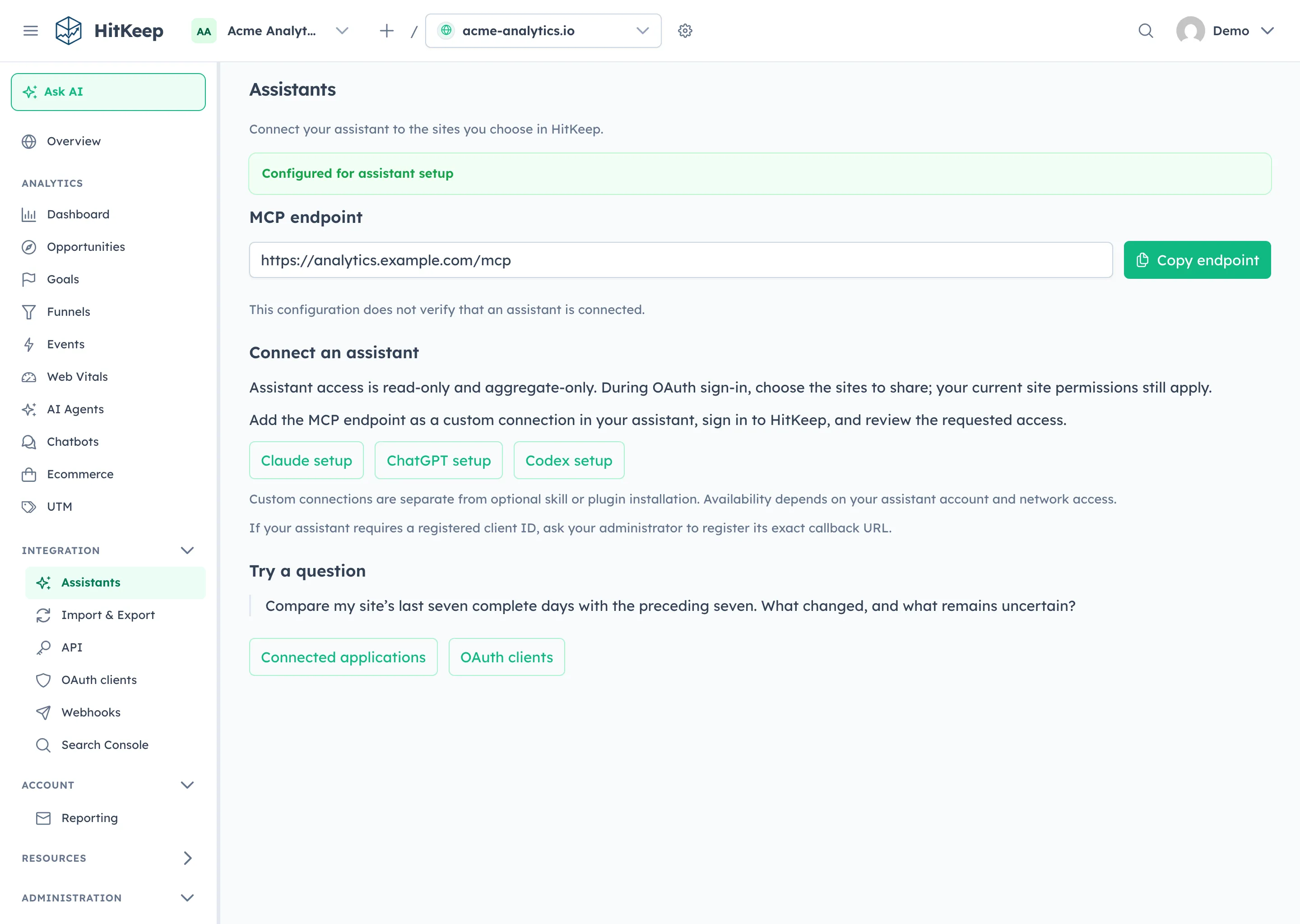
Section titled “Copy your HitKeep MCP endpoint”Open Integration → Assistants in HitKeep and copy the endpoint. Use the exact URL shown rather than guessing the path, especially behind a proxy or on a custom mount.
Add the custom MCP connection
Section titled “Add the custom MCP connection”- Open ChatGPT’s Plugins catalog and choose Add → Add custom MCP server.
- Enter a recognizable name and the Server URL copied from HitKeep.
- Use OAuth authentication. Review the discovered settings and any account acknowledgement before continuing.
- Sign in to HitKeep when the browser authorization flow opens.
- Review the application, MCP resource, team, requested scopes, and sites. Approve only what the task needs; analytics uses
sites:readandanalytics:read. - Return to ChatGPT and confirm the connection completed before asking it to query analytics.
The exact account flow may change. HitKeep supports public PKCE clients with client metadata or an explicitly registered public client, rather than dynamic registration or a shared client secret. If your client requests an ID, have a team owner or admin register its exact callback through Integration → OAuth clients. Follow the central OAuth guide for metadata, callback, resource, and scope requirements.
Do not paste API tokens, authorization codes, dashboard cookies, or refresh tokens into a conversation. For clients that require manual bearer setup instead, use the API-client guidance and the client’s supported secret storage.
Verify one bounded analytics question
Section titled “Verify one bounded analytics question”Ask ChatGPT to list only the HitKeep sites authorized for the connection. Select the intended site, then try: “Compare the last seven complete days with the previous seven. Explain traffic and source changes, and state the date range and missing evidence.”
Confirm that the answer comes from an actual aggregate tool response for the selected site. Installing the archive, copying the endpoint, completing sign-in, and successfully querying analytics are separate checks. Empty Search Console or crawler reports may mean those data sources are not configured, rather than that no activity occurred.
Review, revoke, and reconnect
Section titled “Review, revoke, and reconnect”In HitKeep, open the header user menu and choose Connected applications. Inspect the application’s team, selected sites, permissions, MCP resource, and grant status. Revoke access when it is no longer needed.
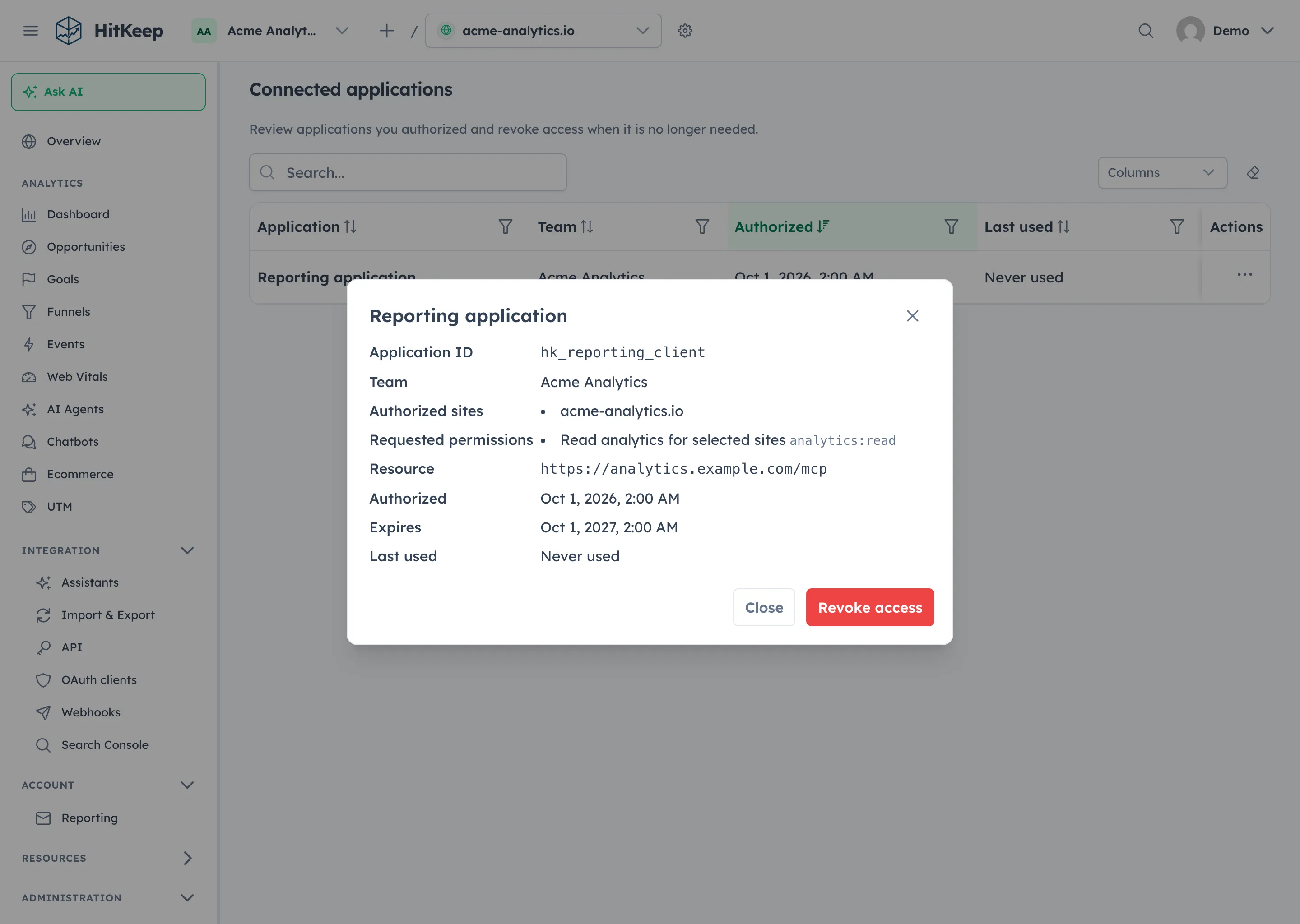
After revocation or grant expiry, use ChatGPT’s connection or sign-in flow to authorize again. If a stale connection remains, remove that custom connection and add it again with the same canonical endpoint. Do not broaden scopes or add a client secret to work around an authentication error. The OAuth guide explains access-token refresh and grant lifetime separately.
Troubleshooting
Section titled “Troubleshooting”| Symptom | Check |
|---|---|
| Archive upload or custom MCP menu is missing | Confirm the current client, account, and workspace feature availability. Repository packaging does not bypass provider restrictions. |
| Skills visible but no analytics tools | Add and authorize the custom MCP connection separately. |
| OAuth metadata cannot be discovered | Check the HitKeep release, HTTPS public URL, endpoint reachability, and whether that instance advertises OAuth support. |
| Client identity or callback rejected | Match the client’s exact public metadata or registered callback. Use the supported public PKCE flow. |
| Empty site list or denied request | Check the consented team, sites, scopes, and your current site permissions. A different dashboard selection does not change the grant. |
| Connection breaks after grant revocation | Reconnect and approve a new grant; record the client behavior when reporting a relinking problem. |
HitKeep MCP provides aggregate reports and documentation. It excludes raw hit exports, dashboard sessions, billing, token management, and administrative writes. See the tool catalog and limits or the ChatGPT integration overview.