
Custom and Automatic Event Analytics in HitKeep
You want to understand what visitors do after they land: which forms they submit, which files they download, which outbound links they click, and which custom product actions they trigger. HitKeep’s Events page reports both automatic events from hk.js and manual events from your own code.
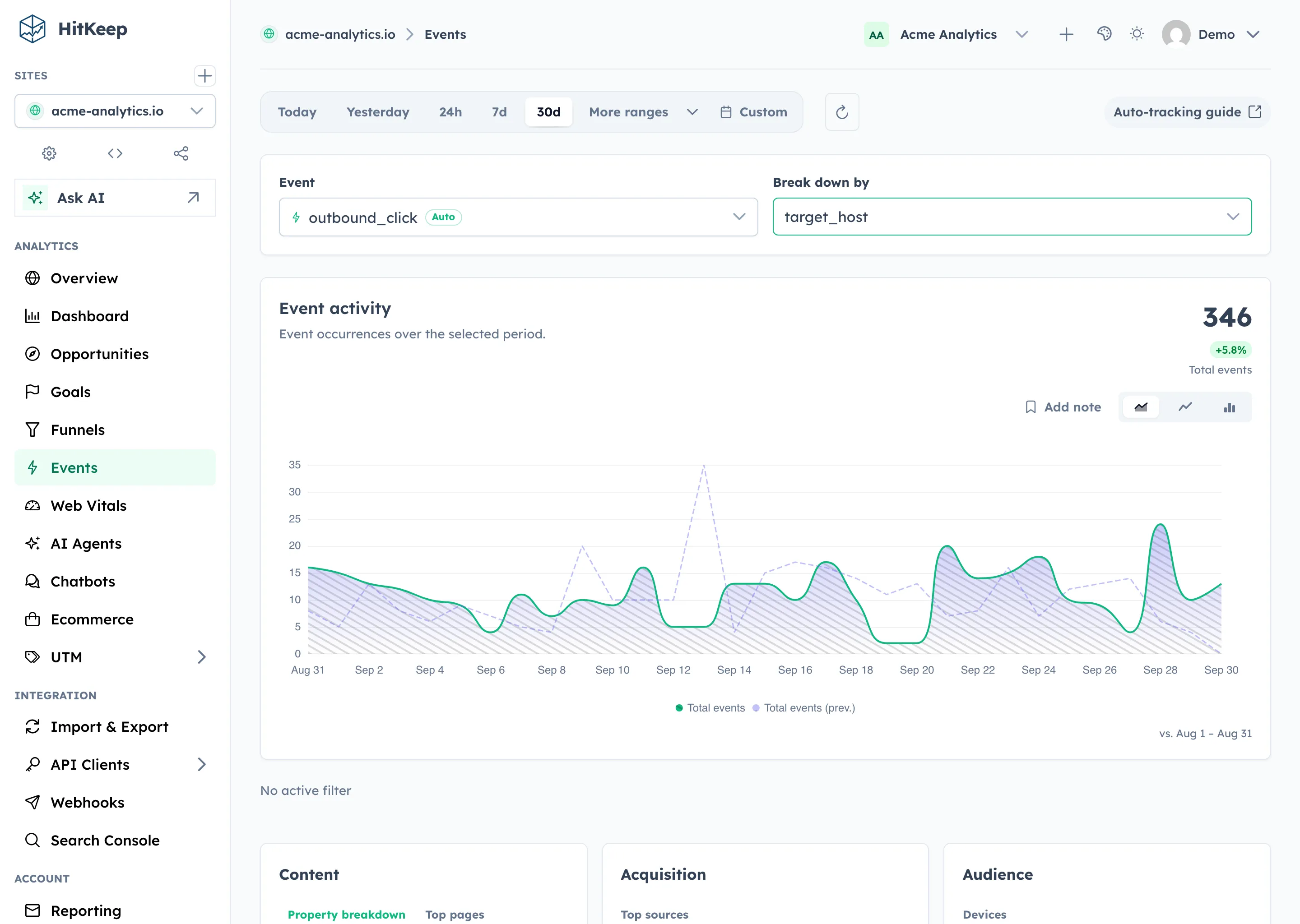
The Events page turns those events into reporting you can use: slice any event by its JSON properties, filter the chart by audience dimensions such as country, city, provider, ASN, device, page, or referrer, and see the audience behind each event without writing SQL.
HitKeep’s built-in automatic events are outbound_click, file_download, and form_submit. They appear when they exist for the selected range.
AI chatbot analytics is built from normal custom events with stable assistant.* names. Those events appear here too, so you can inspect their raw counts, properties, and audiences before using the dedicated AI Chatbot Analytics page, labeled Chatbots in the sidebar.
Prerequisites
Section titled “Prerequisites”Events can come from either manual or automatic tracking:
- Automatic Events for
outbound_click,file_download, andform_submit - Custom Events for product-specific actions you emit yourself
Manual events can be tracked using the HitKeep snippet:
window.hk('purchase_completed', { plan: 'pro', billing: 'annual', amount: 99 });If you want to disable any built-in automatic events, use the tracking settings toggle in the dashboard or the snippet attributes documented in Automatic Events.
Using the Events Page
Section titled “Using the Events Page”1. Select an event and property
Section titled “1. Select an event and property”- Navigate to Events in the sidebar.
- Select a time range from the toolbar.
- Use one of the Automatic events quick picks when available, or pick an event name from the first dropdown.
- Optionally pick a property from the second dropdown — the list shows all keys present on that event.
- The Property breakdown table appears with one row per distinct value, ordered by unique-session count descending.
Click any row in the breakdown table to filter the chart to only sessions that had that property value. Click the row again to clear the filter. Active filters appear as pill chips below the chart — click the × button on a chip or Clear all to remove them.
2. Audience panels
Section titled “2. Audience panels”When an event is selected, audience panels appear below the breakdown table:
| Panel | What it shows |
|---|---|
| Top pages | Pages visited during sessions that contain the selected event |
| Top sources | Referrers for those sessions |
| Devices | Desktop vs. Mobile breakdown |
| Countries | Country distribution |
| Cities | City distribution from derived IP metadata |
| Providers | Network provider distribution from derived IP metadata |
| ASNs | Autonomous system distribution from derived IP metadata |
All counts are unique sessions — consistent with the property breakdown table.
Click any row in an audience panel to add an audience filter. This restricts both the timeseries chart and the other audience panels to sessions that match. For example, clicking “Germany” in the Countries panel shows the event trend for German visitors only. You can combine different audience dimensions, such as country plus provider or city plus device. Click the same row again, or use the filter chips bar, to remove the filter.
3. Combining filters
Section titled “3. Combining filters”You can combine one property-value filter with multiple audience-dimension filters. Each audience dimension can have one active value at a time, so selecting another country replaces the previous country while keeping filters such as city, provider, ASN, device, or path in place. Active filters are shown as pill chips below the chart:
plan: pro × Country: DE × Device: Desktop × Clear allFilters are applied together (AND logic): the chart shows events where plan = pro and the same session also matches Germany and Desktop.
# List event names for a site and time rangeGET /api/sites/{id}/events/names?from=2025-01-01T00:00:00Z&to=2025-01-31T23:59:59Z
# List property keys for a specific eventGET /api/sites/{id}/events/properties?from=...&to=...&event_name=purchase_completed
# Breakdown of a property across an eventGET /api/sites/{id}/events/breakdown?from=...&to=...&event_name=purchase_completed&property_key=plan
# Event timeseries, optionally filtered by property and audience dimensionsGET /api/sites/{id}/events/timeseries?from=...&to=...&event_name=purchase_completedGET /api/sites/{id}/events/timeseries?...&property_key=plan&property_value=proGET /api/sites/{id}/events/timeseries?...&filter=country:DE&filter=device:Desktop
# Audience breakdown for an eventGET /api/sites/{id}/events/audience?from=...&to=...&event_name=purchase_completedGET /api/sites/{id}/events/audience?...&property_key=plan&property_value=proGET /api/sites/{id}/events/audience?...&filter=country:DE&filter=device:Desktop
Repeated filter=type:value query parameters are applied conjunctively. Event audience filters accept: path, hostname, referrer, referrer_host, device, country, city, provider, asn, browser, language, utm_campaign, utm_content, utm_medium, utm_source, and utm_term.
The older dimension_key and dimension_value parameters still work for one audience filter, but new integrations should use repeated filter parameters.
All endpoints require Site Viewer access (session cookie, bearer token, or API key).
Seed data
Section titled “Seed data”Run ./hitkeep seed and navigate to Events → purchase_completed → plan to see the full breakdown and audience panels populated immediately with seeded demo data.