
Google Search Console Analytics Integration
HitKeep imports finalized, aggregate Search Analytics rows from Google Search Console. Team admins connect one Google account, map Search Console properties to HitKeep sites, then use Sync now or the recurring sync worker to import clicks, impressions, CTR, average position, queries, pages, countries, and devices.
This is not a CSV upload on the Imports page. Search Console import uses Google’s Search Console API and the read-only OAuth scope.
What HitKeep Imports
Section titled “What HitKeep Imports”HitKeep requests this Google scope:
https://www.googleapis.com/auth/webmasters.readonlyFor each mapped site, HitKeep stores aggregate Search Analytics rows:
| Group | Stored values |
|---|---|
| Property | Search Console property URI, such as sc-domain:example.com |
| Dimensions | Date, query, page URL, country, device, and aggregation type |
| Metrics | Clicks, impressions, CTR, and average position |
| Sync state | Last attempt, last success, imported date range, retry time, and safe error category |
| Audit | Connect, disconnect, property refresh, map, unmap, manual sync, sync start, imported rows, and sync failures |
HitKeep does not turn Search Console data into HitKeep sessions. A Google query is not attributed to a visitor, event, goal, order, funnel step, or shared dashboard view.
Self-Hosted Setup
Section titled “Self-Hosted Setup”Self-hosted installs need a Google OAuth web client. Set these environment variables before starting HitKeep:
HITKEEP_PUBLIC_URL=https://analytics.example.comHITKEEP_GOOGLE_SEARCH_CONSOLE_CLIENT_ID=your-client-id.apps.googleusercontent.comHITKEEP_GOOGLE_SEARCH_CONSOLE_CLIENT_SECRET=your-client-secretHitKeep derives the callback URL from HITKEEP_PUBLIC_URL:
https://analytics.example.com/api/integrations/google-search-console/oauth/callbackSet HITKEEP_GOOGLE_SEARCH_CONSOLE_REDIRECT_URL only when the public callback differs from the default. For a local smoke test, the redirect URI usually looks like this:
http://localhost:8080/api/integrations/google-search-console/oauth/callbackExample local smoke-test command:
HITKEEP_DB_PATH=/tmp/hitkeep-gsc-smoke/hitkeep.db \HITKEEP_DATA_PATH=/tmp/hitkeep-gsc-smoke/data \HITKEEP_PUBLIC_URL=http://localhost:8080 \HITKEEP_JWT_SECRET=dev-gsc-smoke-secret-change-me \HITKEEP_GOOGLE_SEARCH_CONSOLE_CLIENT_ID=your-client-id.apps.googleusercontent.com \HITKEEP_GOOGLE_SEARCH_CONSOLE_CLIENT_SECRET=your-client-secret \./hitkeepUse a dedicated Google Cloud OAuth client for local testing. Do not reuse a production client secret in shared scripts, screenshots, seed data, issue reports, or support logs.
Google Cloud Setup
Section titled “Google Cloud Setup”Use the same Google Cloud project for the OAuth client and the Search Console API.
- Open the Google Cloud project that owns the OAuth client.
- Enable Google Search Console API.
- Create an OAuth client for a web application.
- Add HitKeep’s callback URL as an authorized redirect URI.
- Copy the client ID and client secret into HitKeep’s environment.
- Restart HitKeep.
If Google returns SERVICE_DISABLED or accessNotConfigured, the Search Console API is disabled in the OAuth client’s project. Enable it, wait a few minutes, then use Refresh on the HitKeep page.
Connect And Map A Property
Section titled “Connect And Map A Property”Open Integration -> Google Search Console. The page shows the connected Google account, the active HitKeep site, the mapped Search Console property, and the last import state.
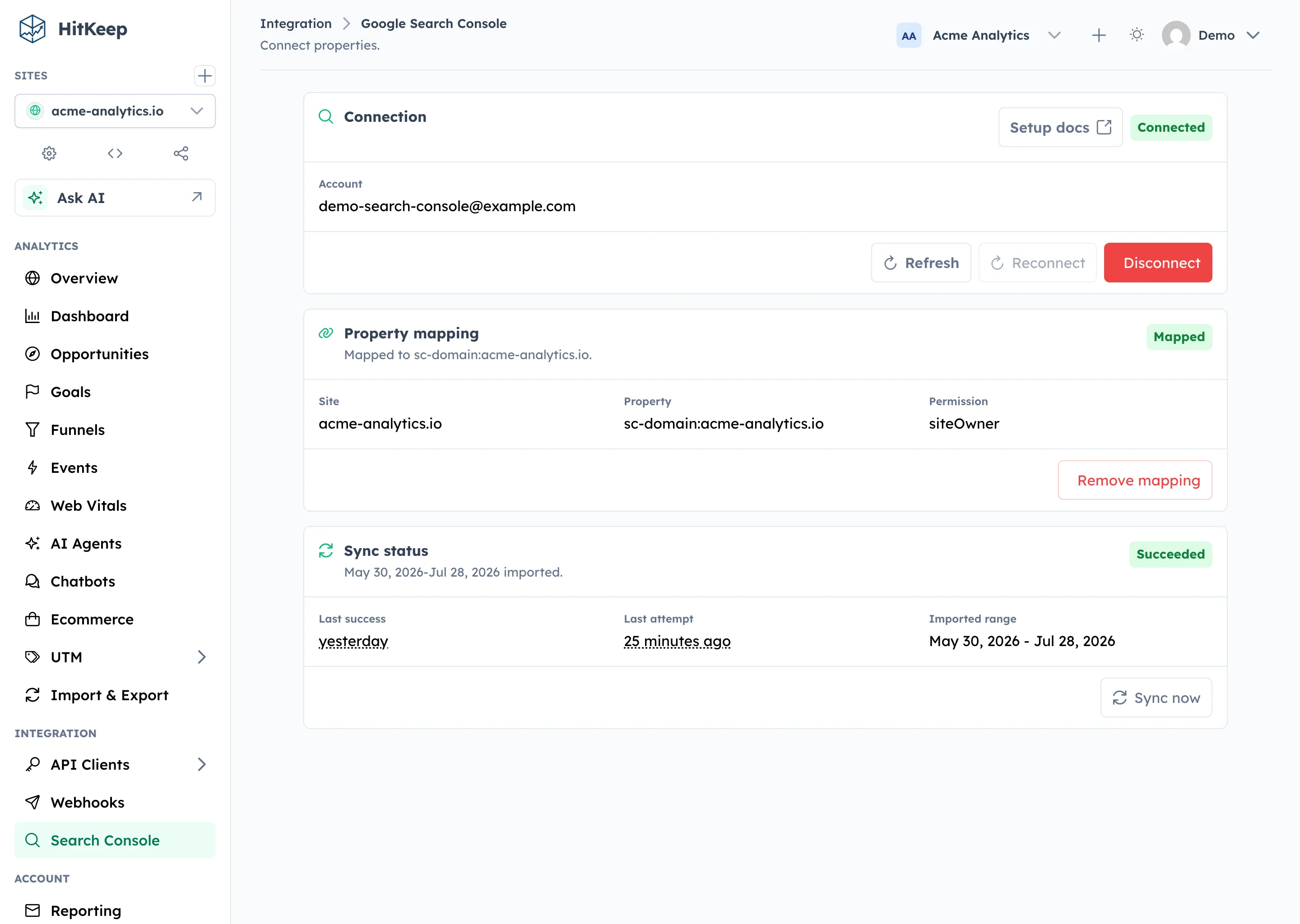
To connect and import:
- Open Integration -> Google Search Console.
- Choose Connect and complete Google consent.
- Use Refresh if the property list is not loaded yet.
- Select the HitKeep site in the sidebar.
- Map a Search Console property to that site.
- Choose Sync now.
Only team owners and admins can connect, disconnect, map, unmap, refresh properties, or request a manual sync. Viewers can see connection, mapping, and sync status.
Sync Behavior
Section titled “Sync Behavior”Manual Sync now records an audit entry and starts an import for the mapped site. The recurring worker then keeps recent completed days fresh because Google can adjust finalized Search Analytics aggregates after first publication.
The integration page gives immediate feedback after a manual sync request. The button changes from request state to queued or running state, then the sync panel shows the latest attempt, last success, imported date range, retry time, or safe error category.
Common states:
| State | Meaning |
|---|---|
pending | A manual or scheduled sync is queued. |
running | HitKeep is importing the mapped property. |
succeeded | The last import completed. |
failed | The import failed and may retry. |
needs_attention | An admin must reconnect, fix credentials, or restore property access. |
All data operations write audit entries. That includes connection changes, mapping changes, manual sync requests, sync attempts, imported rows, and failure outcomes.
Operator Visibility
Section titled “Operator Visibility”Instance operators can also check Search Console health from Admin -> System Status. The Search Console system card reports credential configuration, worker availability, sync state, connected teams, mapped sites, pending or running syncs, failed syncs, needs-attention syncs, and the latest success or retry timestamp.
This status view does not expose OAuth client secrets, access tokens, refresh tokens, raw Google payloads, or connected account tokens. It is meant to answer operational questions:
- Are Search Console credentials configured for this instance?
- Is the sync worker available?
- Are any sites stuck in
failedorneeds_attention? - Which teams and mapped sites are affected at an aggregate level?
Where The Imported Data Appears
Section titled “Where The Imported Data Appears”Mapped sites show a Search Console drilldown on the authenticated dashboard. It summarizes clicks, impressions, CTR, average position, trends, top queries, top pages, countries, and devices for the selected date range.
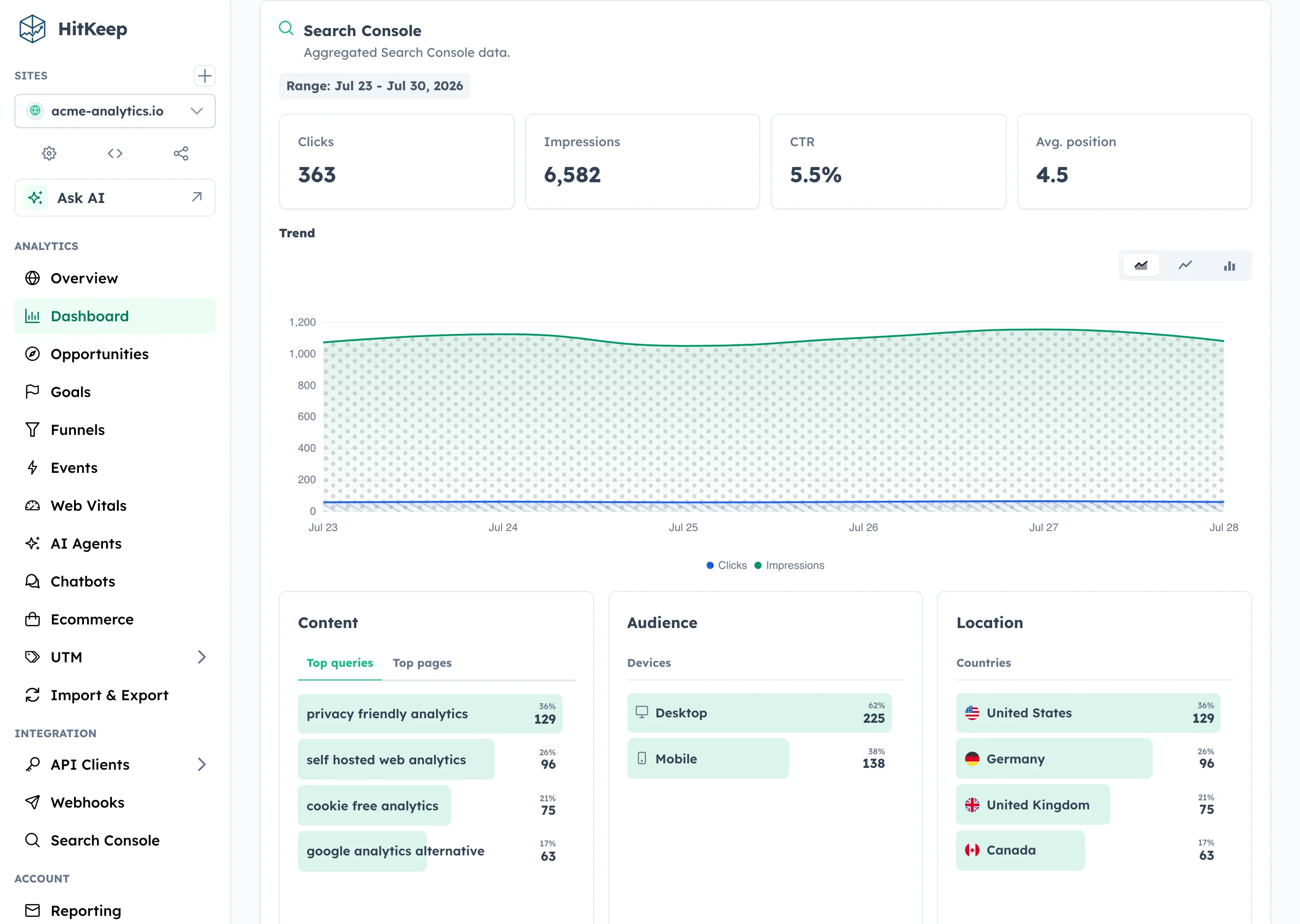
Search Console data does not appear in public share links. Shared dashboards stay limited to HitKeep analytics data that is safe for share-mode endpoints.
When the active site is not mapped yet, authenticated dashboards show a compact Search Console setup prompt below the main metric cards. Site or team managers get a button to open Integration -> Google Search Console. Viewers see readonly copy asking them to contact a team or site operator.
MCP Access To Imported Rows
Section titled “MCP Access To Imported Rows”The optional HitKeep MCP server can read Search Console data for approved assistants and internal reporting tools. It uses the same API client bearer tokens and site.view permission checks as the other MCP analytics tools. For the full tool list and boundary, see Read-only MCP Server for Web Analytics.
Two read-only MCP tools cover Search Console:
| Tool | What it returns |
|---|---|
hitkeep_get_search_console_status | Mapping state, property URI, safe permission level, sync state, imported date range, data_available, needs_attention, and a short reason. |
hitkeep_get_search_console | Imported overview and series by default, plus optional query, page, country, and device sections when requested. |
MCP reads imported aggregate rows only. It does not call Google live, refresh OAuth credentials, or trigger a sync. If the last sync failed or needs attention, the report can still return older imported rows with warnings so assistants do not confuse stale data with live Google data.
Use the HitKeep Agent Skills when an assistant should combine Search Console rows with HitKeep traffic, ecommerce, AI visibility, and tracking-health checks.
Troubleshooting
Section titled “Troubleshooting”| Error category | What to check |
|---|---|
api_disabled | Enable the Search Console API in the Google Cloud project used by the OAuth client. |
authorization_revoked | Reconnect Search Console from the integration page. |
token_refresh_failed | Reconnect so HitKeep receives a fresh offline token. |
property_access_lost | Confirm the connected Google account can still access the mapped property. |
quota_limited | Wait for the retry time shown in HitKeep. Large sites can hit Google API quota. |
credentials_missing | Set the OAuth client ID and secret, then restart HitKeep. |
credentials_invalid | Check that the client ID, secret, redirect URL, and OAuth consent app belong to the same Google Cloud project. |
google_unavailable | Retry later. Google returned a temporary service error. |
HitKeep logs safe categories, team IDs, and site IDs. It does not log raw provider response bodies for OAuth or Search Console failures.
Disconnect And Data Retention
Section titled “Disconnect And Data Retention”Disconnecting stops future imports and removes the active team connection. Already imported aggregate rows stay in the tenant data plane so historical authenticated reports do not disappear.
Disconnecting does not delete Search Console data from Google and does not remove your verified Search Console property.
Privacy Boundaries
Section titled “Privacy Boundaries”Search Console data stays authenticated-only in the first version of the integration. There are no share-mode Search Console endpoints.
Imported rows are aggregate search performance data from Google. They live in the same tenant DuckDB data plane as the mapped HitKeep site and follow the same backup boundary as that tenant database.
Related API Routes
Section titled “Related API Routes”The generated REST API reference includes:
GET /api/user/teams/{id}/integrations/google-search-console/statusPOST /api/user/teams/{id}/integrations/google-search-console/connectGET /api/user/teams/{id}/integrations/google-search-console/propertiesPOST /api/sites/{id}/integrations/google-search-console/syncGET /api/sites/{id}/search-console/overviewGET /api/admin/system/search-console