
Configure OIDC Single Sign-On (SSO) in HitKeep
HitKeep can connect each team to one OpenID Connect (OIDC) identity provider. Team owners and admins configure the connection once, then people enter their email address and choose Continue with SSO on the normal HitKeep sign-in page.
Password and passkey sign-in remain available. HitKeep SSO is an additional login method, not an enforced domain lock, and it does not replace the existing login screen.
If you want instance-wide Google, GitHub, or Microsoft buttons for normal account login and managed-cloud signup, use Social Sign-In instead. Social sign-in and team OIDC SSO have different configuration, verified-email, invitation, MFA, and account-linking rules.
Enterprise SSO does not appear on public signup. An invited person can choose Continue with SSO directly on the invitation page when the invited team has an enabled, entitled SSO connection.
Before You Begin
Section titled “Before You Begin”You need:
- a HitKeep team where you are an owner or admin;
- permission to create a confidential web application in your identity provider;
- the exact callback URL shown by HitKeep;
- an HTTPS OIDC issuer with a valid discovery document;
- a client ID and client secret;
- one or more email domains for the team;
- an ID token that contains
sub, an email claim, and the boolean claimemail_verified: true.
HitKeep requests the standard openid email profile scopes. The email and display-name values must be present in the ID token. HitKeep does not use a provider’s UserInfo response as a fallback for missing ID-token claims.
Cloud and Self-Hosted Prerequisites
Section titled “Cloud and Self-Hosted Prerequisites”- Confirm that the active team is on the Business plan.
- Open Administration → Team → SSO.
- Copy the callback URL from the page. It uses the region where the team is hosted:
- EU Cloud:
https://cloud.hitkeep.eu/api/auth/sso/callback - US Cloud:
https://cloud.hitkeep.com/api/auth/sso/callback
- EU Cloud:
- Create the OIDC application in the provider and register that callback URL exactly.
- Confirm that the issuer and its discovery, authorization, token, and JWKS endpoints use HTTPS and resolve only to publicly routable addresses.
HitKeep Cloud rejects private, loopback, link-local, carrier-grade NAT, and HTTP endpoints, including redirect targets. Use a publicly reachable provider for Cloud SSO. When the team is not entitled to SSO, the SSO tab shows a BUSINESS pill and returns the owner or admin to the team overview, where they can upgrade. An existing SSO configuration is not usable after the entitlement is removed.
- Set
HITKEEP_PUBLIC_URLto the externally reachable HTTPS URL before configuring SSO. - Keep
HITKEEP_JWT_SECRETstable. HitKeep derives the encryption key for the stored OIDC client secret from this value. - Confirm that the reverse proxy forwards the public callback path to HitKeep.
- Allow the HitKeep server to reach the provider’s discovery, token, and JWKS endpoints over HTTPS.
- Open Administration → Team → SSO and copy the generated callback URL.
Self-hosted HitKeep can use an internal identity provider. Its hostname must resolve from the HitKeep host, and the operating system must trust the provider’s TLS certificate.
For a root deployment, the callback looks like this:
https://analytics.example.com/api/auth/sso/callbackFor a path-prefixed deployment, the configured prefix remains part of the callback:
https://www.example.net/hitkeep/api/auth/sso/callbackChanging the public URL changes the callback URL. Update the provider registration before restarting production traffic. Changing the JWT secret makes the previously stored client secret unreadable, so enter and save the provider secret again after an intentional rotation.
Configure the Connection
Section titled “Configure the Connection”1. Copy the callback URL
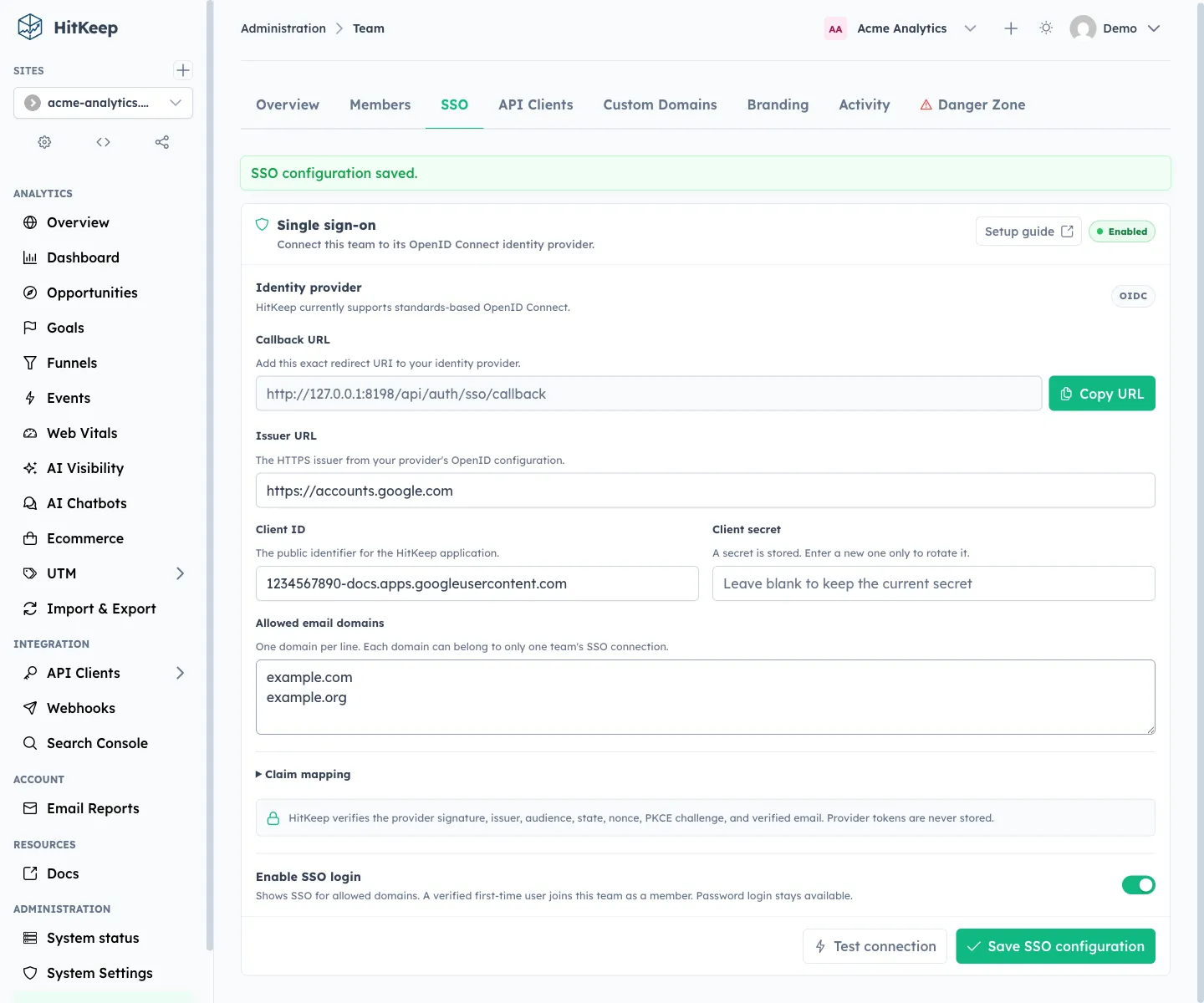
Section titled “1. Copy the callback URL”Open Administration → Team → SSO. Copy the read-only Callback URL before creating the provider application. Register the complete URL, including the scheme, host, any path prefix, and /api/auth/sso/callback.
2. Create a confidential OIDC web application
Section titled “2. Create a confidential OIDC web application”In the identity provider, create a Web Application or Regular Web Application that uses Authorization Code flow. Register the HitKeep callback as an allowed sign-in redirect URI. Use an exact URI instead of a wildcard.
HitKeep authenticates the client with a client secret and adds PKCE S256 to the authorization-code exchange. Do not configure the integration as a single-page or native public client.
3. Enter the provider values
Section titled “3. Enter the provider values”Complete these fields in HitKeep:
| Field | Value |
|---|---|
| Issuer URL | The provider’s exact HTTPS issuer identifier, including its full path and any trailing slash; do not enter the authorization endpoint or discovery URL |
| Client ID | The public identifier assigned to the HitKeep application |
| Client secret | The secret generated for the confidential web application |
| Allowed email domains | One domain per line, or separated by commas or spaces |
| Email claim | email unless the provider places the verified address at another claim path |
| Display name claim | name unless the provider uses another claim path |
Claim mappings support dot-separated nested paths, for example user.email. Each allowed domain can belong to only one team’s enabled or disabled SSO configuration in the same HitKeep instance. This keeps email-based routing unambiguous.
The client secret is encrypted before storage and is never returned to the dashboard. After saving, leave the field blank to keep the current secret or enter a new value to rotate it.
Domain routing and team access
Section titled “Domain routing and team access”Allowed domains route an email address to the correct team and identity provider. A trusted domain does not grant team access by itself.
After the provider verifies the identity, HitKeep requires one of these authorization paths:
- the user is already a member of the routed team;
- the user has a live pending invitation for the routed team; or
- Automatically provision trusted-domain users is enabled.
Invitation acceptance is scoped to the invited team. HitKeep carries the one-time invitation token through the OIDC flow, consumes it only after the provider returns the same verified email address, and retains the role requested by the invitation. Other pending team invitations for that email are not accepted automatically.
Automatic provisioning is off by default. When enabled, a verified trusted-domain user without an invitation joins as a Member. On HitKeep Cloud, current team-seat and per-user team limits are checked before just-in-time provisioning. This setting does not grant site roles; assign site access separately.
4. Save, test, then enable
Section titled “4. Save, test, then enable”For a controlled rollout:
- Leave Enable SSO login off and save the configuration.
- Select Test connection. This validates that the issuer is reachable and its discovery document contains usable authorization, token, and key metadata.
- Enable SSO and save again.
- Invite a test user, or enable automatic provisioning for the rollout you intend to test.
- Open a private browser window and test a real assigned provider account.
- Keep an owner session open until the private-window login succeeds.
The connection test does not perform an end-user login. It cannot prove that the application assignment, client secret, callback, or ID-token claims will work. Complete at least one browser login before announcing the integration.
Provider Setup Examples
Section titled “Provider Setup Examples”Use the callback URL copied from HitKeep in every example. Provider consoles change over time, so the linked provider documentation remains the source of truth for menu names and account-specific settings.
- In the Okta Admin Console, open Applications → Applications and select Create App Integration.
- Choose OIDC - OpenID Connect, then Web Application.
- Enable Authorization Code and client-secret authentication.
- Add the HitKeep callback under Sign-in redirect URIs. Avoid wildcard redirects.
- Assign the application to the people or groups that should use HitKeep.
- Copy the generated client ID and client secret into HitKeep.
Use the Okta org issuer for ordinary workforce SSO:
https://your-company.okta.comIf you deliberately use a custom authorization server, copy its exact issuer instead, for example https://your-company.okta.com/oauth2/default. Keep HitKeep’s default email and name claim mappings. Okta documents email_verified as a boolean claim associated with the email scope.
Provider references: Create an OIDC app integration, choose an authorization server, and review OIDC claims.
- In Google Cloud Console, select or create a project and configure the OAuth consent screen.
- Open APIs & Services → Credentials and create an OAuth client ID.
- Choose Web application.
- Add the HitKeep callback under Authorized redirect URIs.
- Copy the client ID and client secret into HitKeep.
Use these HitKeep values:
| Setting | Value |
|---|---|
| Issuer URL | https://accounts.google.com |
| Email claim | email |
| Display name claim | name |
| Allowed domain | Your Google Workspace email domain, for example example.com |
Google includes email and boolean email_verified claims when the email scope is requested. HitKeep also checks that the provider email exactly matches the email entered on the HitKeep login page. The allowed-domain setting is authoritative even if Google also returns an hd hosted-domain claim.
Provider references: Google OpenID Connect setup and OpenID Connect API reference.
- In the Auth0 Dashboard, open Applications → Applications and create an application.
- Choose Regular Web Applications.
- Open the application’s settings and add the HitKeep callback to Allowed Callback URLs.
- Copy the client ID, client secret, and domain shown by Auth0.
- Enable only the Auth0 connections whose users should access HitKeep.
The Auth0 issuer normally includes a trailing slash, for example:
https://your-tenant.eu.auth0.com/Enter the issuer exactly as Auth0 publishes it, including the trailing slash. HitKeep preserves the full issuer identifier for discovery and token verification. Keep the email and name mappings. HitKeep requests the Auth0 email and profile scopes, but the upstream connection must still produce a verified email. Test each enabled enterprise, database, or social connection instead of assuming all connections return identical claims.
Provider references: create a regular web application, configure Allowed Callback URLs, and review OIDC scopes.
- Select the target realm in the Keycloak Admin Console.
- Open Clients, create an OpenID Connect client, and set Client authentication to on.
- Enable Standard flow. Disable Direct Access Grants unless another application needs them.
- Add the exact HitKeep callback under Valid redirect URIs.
- Copy the client ID and the generated credential from the Credentials tab.
- Confirm that the
profileandemailclient scopes are linked and that the affected Keycloak users have verified email addresses.
The HitKeep issuer is the realm URL:
https://id.example.com/realms/analyticsKeycloak publishes discovery at:
https://id.example.com/realms/analytics/.well-known/openid-configurationKeep the email and name mappings unless your realm uses custom protocol mappers. Use Client scopes → Evaluate in Keycloak to inspect a sample ID token and confirm that email_verified is a boolean.
Provider references: Keycloak OIDC endpoints and Keycloak client and scope administration.
You can prepare the application registration, but do not enable the HitKeep connection until a real sample ID token proves that all required claims are present:
-
In Microsoft Entra admin center, open App registrations and create a registration.
-
Add a Web platform and register the exact HitKeep callback.
-
Create a client secret and copy its value immediately.
-
Prefer a tenant-specific issuer:
https://login.microsoftonline.com/YOUR_TENANT_ID/v2.0 -
Add the
emailoptional claim if the tenant does not emit it for managed users. -
Inspect the returned ID token. The email claim must contain an address, and
email_verifiedmust exist as the boolean valuetrue.
Changing HitKeep’s email mapping to preferred_username does not solve the verified-email requirement. Microsoft Entra External ID has separate federation claim-mapping features, but its behavior should not be assumed to match workforce app registrations.
Provider references: Microsoft OIDC discovery and issuer values, ID-token claims reference, and redirect URI guidance.
Start with the issuer URL supplied by the provider. HitKeep appends /.well-known/openid-configuration and loads the provider metadata automatically when the configuration is saved or tested.
You can inspect the same document before entering credentials:
ISSUER='https://id.example.com'
curl -fsS "${ISSUER%/}/.well-known/openid-configuration" | jq '{  issuer,  authorization_endpoint,  token_endpoint,  jwks_uri,  scopes_supported,  code_challenge_methods_supported}'
Confirm that:
- the document’s
issuerexactly identifies the issuer you intend to trust; - authorization, token, and JWKS endpoints are present and use HTTPS;
- Authorization Code flow and a client-secret authentication method are supported;
- the provider accepts PKCE S256;
openid,email, andprofileare accepted scopes;- the ID token contains
sub, your configured email and name claim paths, and booleanemail_verified: true.
Discovery supplies protocol endpoints and signing-key locations. It cannot supply your client ID, client secret, allowed domains, claim mappings, application assignments, or enabled state. Those values remain explicit HitKeep and provider configuration.
What Users See
Section titled “What Users See”When at least one entitled team has an enabled SSO connection, the public sign-in page shows Log in with SSO below the existing password and passkey actions.
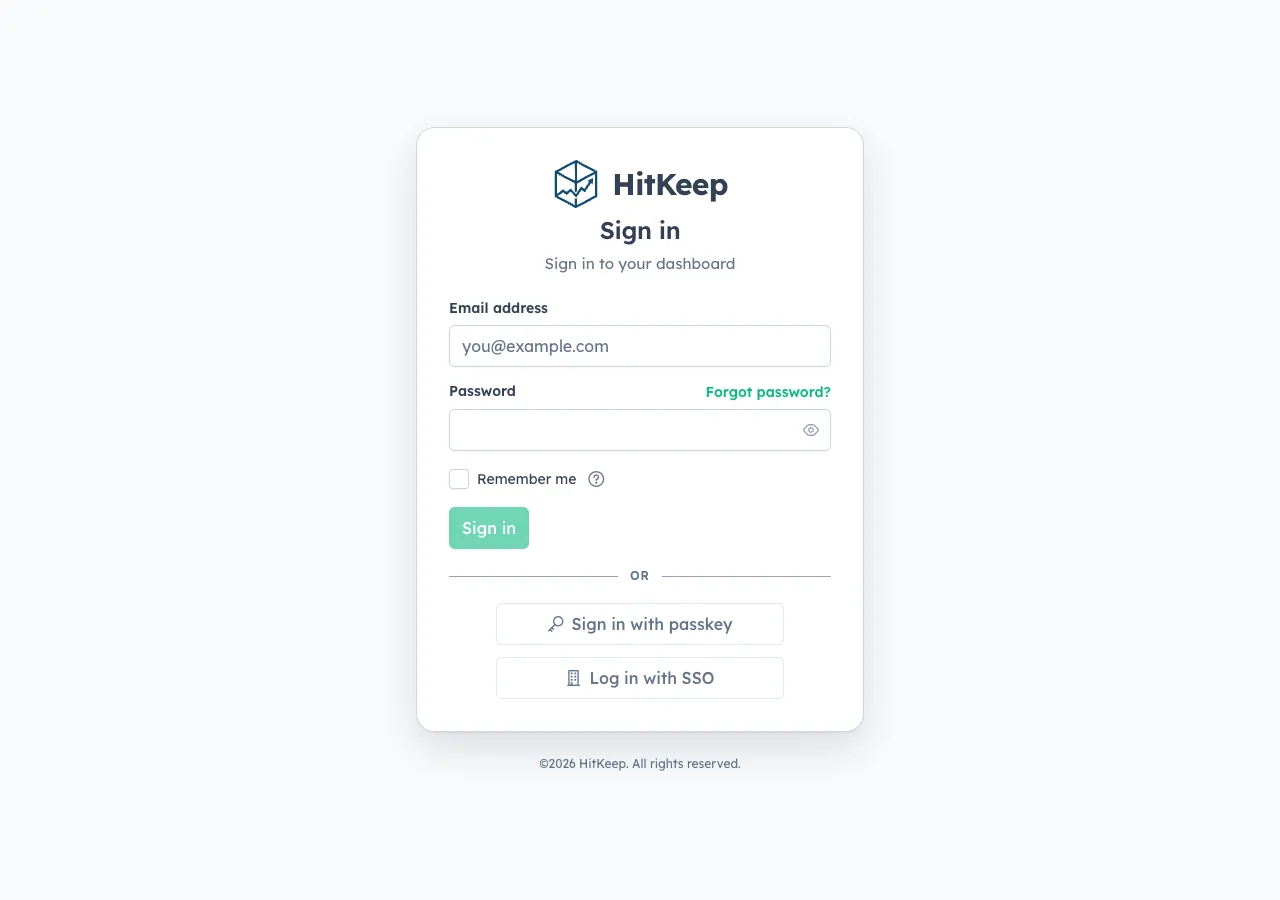
The login flow is:
- The user enters their full email address and selects Log in with SSO.
- HitKeep resolves the team privately from the email domain. The public availability endpoint reveals only whether any usable SSO connection exists, not which teams or domains are configured.
- HitKeep creates a short-lived, one-time state record and redirects to the discovered authorization endpoint with state, nonce, and PKCE S256.
- The provider authenticates the user and returns an authorization code to the HitKeep callback.
- HitKeep verifies the provider signature, issuer, audience, expiry, nonce, subject, verified email, entered email, and allowed domain.
- HitKeep creates the normal HitKeep browser session and returns the user to the requested page.
For an existing HitKeep account, SSO links the provider identity to the matching email account. For a new email address, the first successful SSO login creates the account and adds it to the team as a member. Assign site roles separately when the new member needs access to specific sites. Provider groups and roles are not mapped to HitKeep roles.
The identity provider is responsible for MFA and conditional-access policy during SSO. HitKeep does not add a separate TOTP or passkey challenge after a successful provider login.
Roll Out Safely
Section titled “Roll Out Safely”- Test with a provider account whose email exactly matches the address entered in HitKeep.
- Test both a new user and an existing HitKeep account if both paths will be used.
- Assign the provider application only to intended users or groups.
- Keep password access available to at least two HitKeep owners during rollout.
- Configure MFA, device, location, and risk policies in the identity provider.
- Review provider sign-in logs and Administration → Team → Activity after testing.
- Remove a departing user from the HitKeep team as well as from the provider assignment.
HitKeep SSO is not SCIM provisioning and does not continuously synchronize provider groups, account disablement, roles, or active browser sessions. Removing an IdP assignment prevents future SSO authentication, but it does not by itself remove an existing HitKeep membership or invalidate every other configured HitKeep login method.
Troubleshooting
Section titled “Troubleshooting”| Symptom | What to check |
|---|---|
| The SSO tab shows a BUSINESS pill | The active HitKeep Cloud team is not entitled to SSO. Upgrade that team from the overview; self-hosted builds do not apply this plan gate. |
| Log in with SSO is missing | No team on the instance currently has an enabled and entitled SSO configuration. Check the enable switch and, on Cloud, the Business entitlement. |
| Saving returns 502 Bad Gateway or reports that HitKeep could not validate the issuer | HitKeep reached the SSO save handler but OIDC discovery failed; this response does not by itself indicate a HitKeep proxy outage. Open <issuer>/.well-known/openid-configuration and compare its issuer value with the Issuer URL character for character. Enter the published issuer identifier, not the discovery URL. Paths and trailing slashes are significant: Auth0 issuers commonly end in /, so omitting that slash causes an exact-issuer mismatch. If the values already match, check that the document is valid JSON, includes authorization and token endpoints, responds within ten seconds, and keeps every endpoint and redirect on publicly routable HTTPS URLs. |
| The connection test fails | Verify the issuer, DNS, TLS chain, outbound network access, and the provider’s discovery document. Enter the exact issuer URL—including its path and trailing slash—not the discovery, authorization, or token URL. On HitKeep Cloud, every OIDC endpoint and redirect must remain HTTPS and resolve only to public addresses. |
| The provider reports a redirect mismatch | Copy the callback from HitKeep again and compare it character for character. Check the scheme, hostname, port, path prefix, trailing slash, and HITKEEP_PUBLIC_URL. |
| HitKeep reports an unverified email | Inspect the ID token. email_verified must be the native boolean true; a string value is not accepted. |
| HitKeep reports that the email is not allowed | The provider email must exactly match the address entered before the redirect, and its domain must be listed on the team connection. |
| The token exchange fails | Verify the client ID, current client secret, web-application type, confidential-client authentication, Authorization Code flow, and provider application assignment. |
| Saving reports a domain conflict | Another team’s SSO configuration already owns one of the allowed domains in this HitKeep instance. Remove the duplicate or choose the intended team. |
SSO fails after rotating HITKEEP_JWT_SECRET | Enter the OIDC client secret again and save it. The old encrypted value was derived from the previous HitKeep secret. |
| Discovery passes but login fails | A successful test covers metadata only. Inspect provider logs and the real ID token for app assignment, callback, audience, nonce, email, and email_verified. |
Security Properties and Limits
Section titled “Security Properties and Limits”HitKeep’s OIDC implementation uses:
- Authorization Code flow with PKCE S256;
- server-side discovery of authorization, token, and JWKS endpoints;
- exact issuer and audience checks on the ID token;
- short-lived state with one-time consumption;
- nonce validation;
- encrypted client-secret storage;
- no storage of provider access or ID tokens;
- managed-cloud outbound checks that reject non-public addresses, HTTP endpoints, unsafe redirects, and oversized provider responses;
- team audit events for configuration updates, deletion, connection tests, and login outcomes.
SSO does not currently provide SAML, SCIM, provider-group role mapping, forced SSO for a domain, or identity-provider-initiated login. Users start from HitKeep, enter their email address, and use the discovered OIDC authorization flow.