
Screenshots show the current HitKeep interface. Feature descriptions refer to this release.
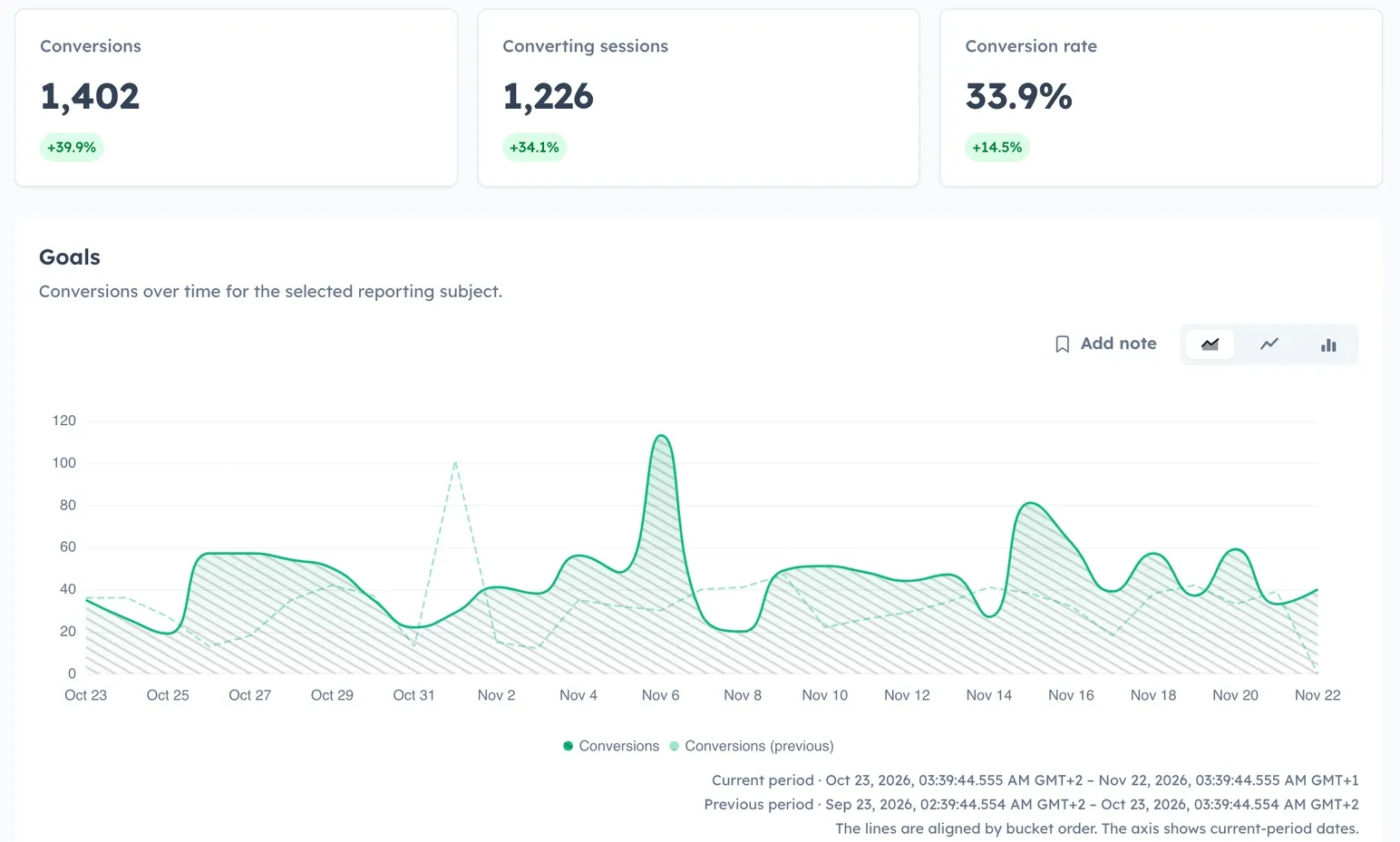
Take the seven days after you sent a newsletter and the seven days immediately before it. Did the links in the email bring more traffic to your signup page? Did more sessions complete signup, or did the extra traffic drop away at the form? In HitKeep 2.18.0, you can check the dates behind each comparison and follow the same reporting window from UTM to Funnels and Goals.
Check the dates behind the change
HitKeep compares your selected range with the immediately preceding window of equal elapsed time. Start with Period comparison under the Dashboard cards. It shows both windows in your local time zone, including UTC offsets, alongside the current values, previous values, and relative changes for five metrics. A bounce rate moving from 40% to 50% is a 25% relative increase. With a previous value of zero, the relative change is undefined. Live visitors counts the last five minutes.
Comparison charts label the current and previous dates. The horizontal axis shows current dates, and the dashed lines align the previous buckets in order. When the bucket grids are incompatible, the chart explains why the overlay is missing. The breakdown tables and traffic records describe the current window. See how HitKeep chooses the comparison dates.
See which campaign links brought traffic
Open UTM → Analytics and start with the Campaign and Content cards. Give links in the same newsletter a shared utm_campaign, such as november-update, and use utm_content values such as header-link and footer-link to distinguish placements. Select the campaign or link in the breakdowns to narrow the report.
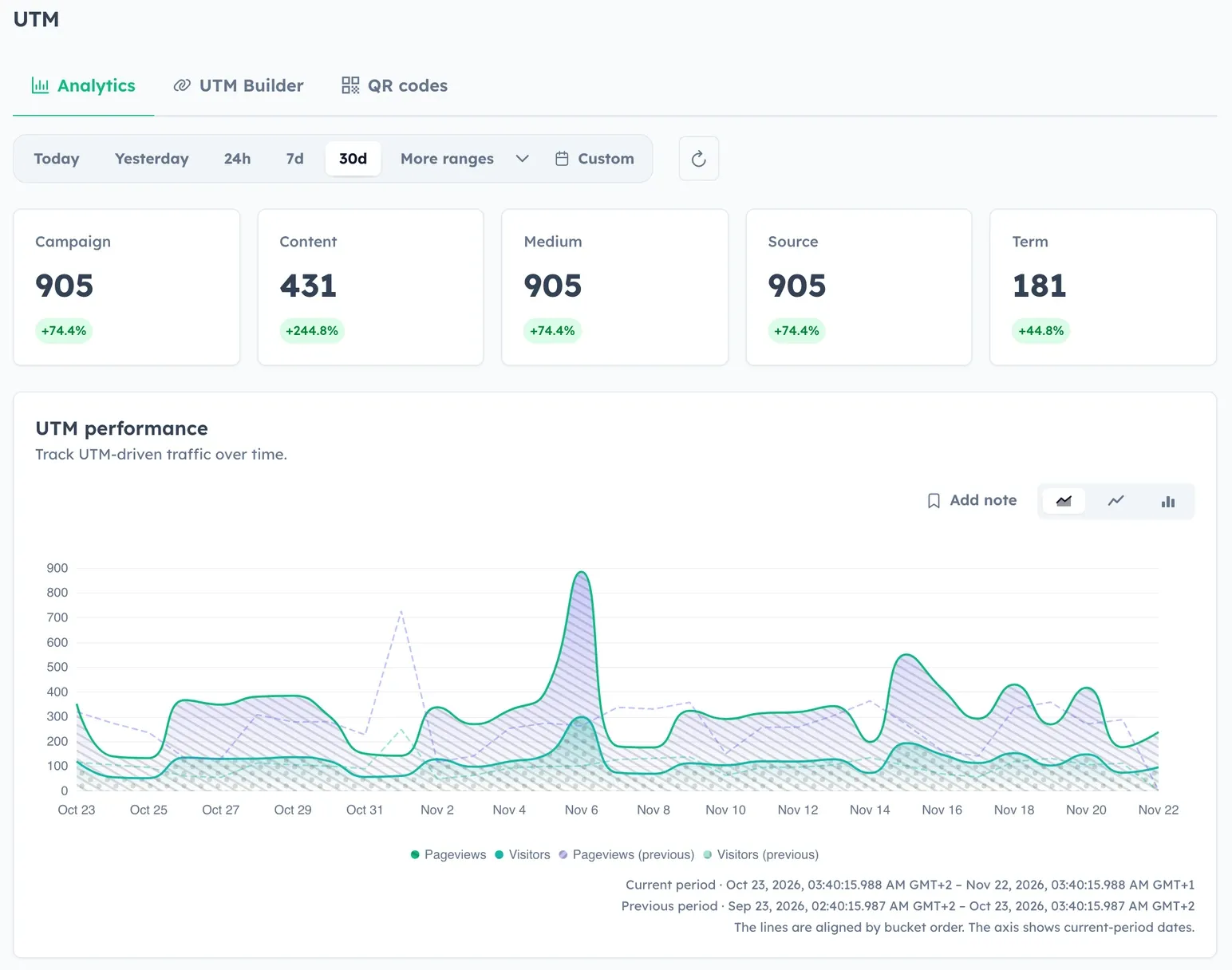
If you imported history, both periods now include tagged pageviews from eligible daily aggregates when the source export supplies that UTM dimension. For example, an import with utm_source can contribute to Source even when it carries no content tag. For an import comparison, choose an unfiltered daily or monthly report. Imported totals contribute only for complete UTC days. Filtered and intraday UTM reports use traffic recorded by HitKeep. See the UTM reporting and import rules.
See whether more sessions reached the outcome
Keep the same date range in Funnels. Start with entries, completions, and completion rate, then select a single funnel to find the step with the biggest drop-off. For a signup funnel, you might use the landing page, the signup page, and a signup_completed event your application sends after it creates the account. Funnel completion means one session matched all the configured steps within the range. The report matches steps by session membership, irrespective of the order in which they happened.
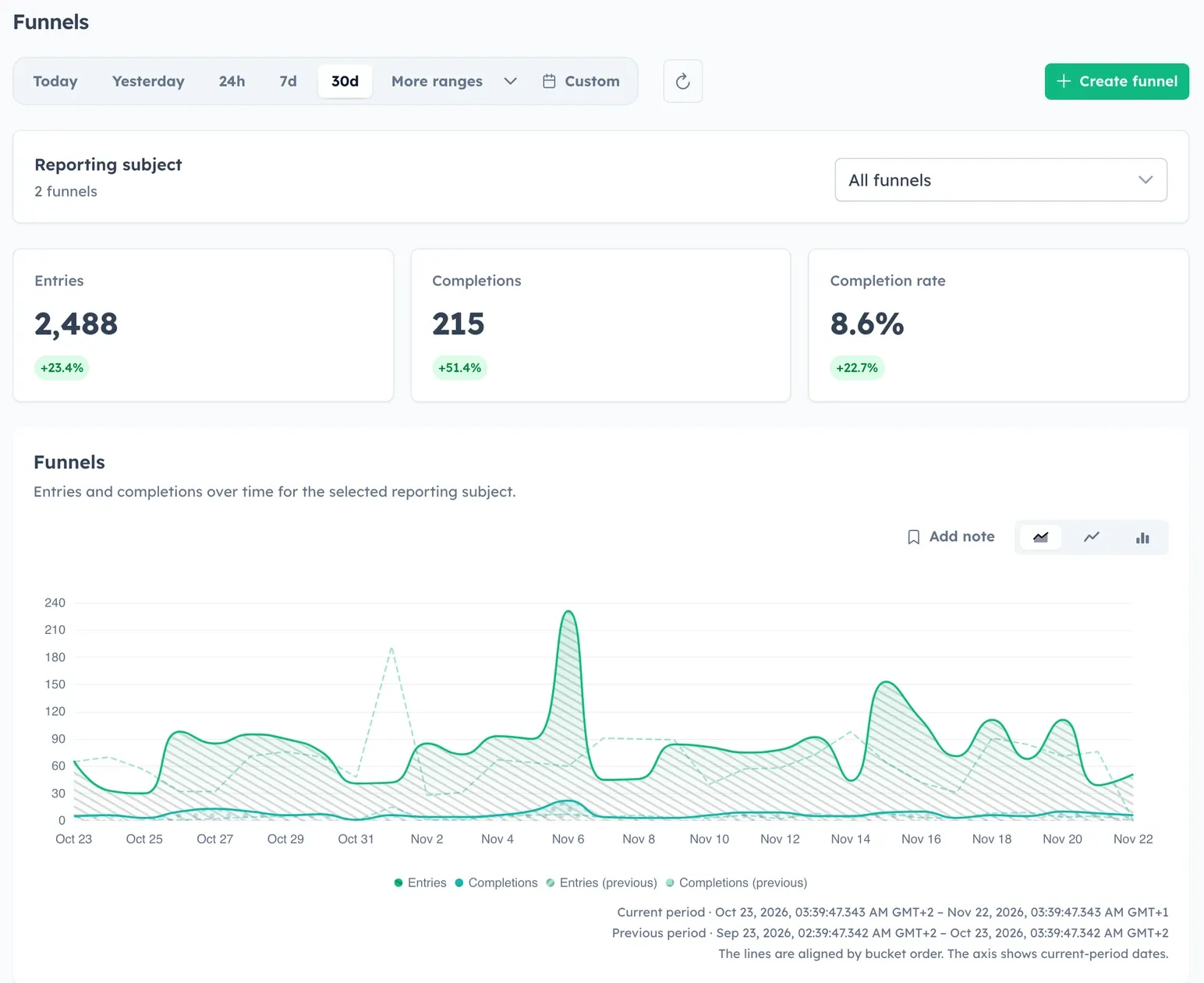
If you want to see whether the change holds for newsletter traffic, select the signup funnel in the Dashboard’s Conversions card and add a UTM source or campaign filter. That shows page hits from funnel entrants that match the filter. Use Goals to compare the confirmed signup outcome and Events to check whether the event is arriving. The date comparison can help you find what to investigate. Other changes in the same period can influence the result. See how Funnels counts steps and scopes matching traffic.
Add only the tracker signals you need
Three settings are off by default. Enable them in Site settings → Tracking → Script tag → Advanced options, then deploy the updated snippet. The npm tab can generate configuration for paid signals and visible time. For any of the three, you can set the corresponding npm option in your existing init() call. See the npm tracker configuration.
- Paid traffic signals (
enablePaidSignals: true). The tracker sends a boolean indicating whether the landing URL contained a nonemptygclidormsclkid. Click ID values stay out of the payload. The UTM card counts distinct matching sessions that had a marker out of sessions measured with the option on. A session can appear here and in UTM, and paid visits can arrive without a marker. Imported traffic and older trackers provide no measurement. If you edit the script tag by hand, includereferrerpolicy="no-referrer"to keep the landing URL out of the script request. Configure paid-click signals. - Measure visible time (
visibleTime: true). Open Visible time by page on the site dashboard to see average on-screen time and sample coverage for the ten busiest tracked paths in the selected range and filters. The clock pauses while the tab is hidden. A visible tab can be unattended, and interrupted delivery can leave a partial or missing sample. The report averages the views that supplied a sample. Hit exports and takeout include the receivedvisible_msvalue. See how visible time is measured. See the export formats. - Track marked clicks and form submissions (
declarativeEvents: true). Add a fixed name such asdata-hk-event="pricing_clicked"to a link or button, or mark a form withdata-hk-eventordata-hitkeep-event. HitKeep sends the event name with the usual tracking context and empty custom properties. Form markers fire on submit. For a confirmed outcome, send a separate event when the application accepts the submission. If the marked action already has a manual analytics call, remove that call to avoid a duplicate. Add named events to HTML.
Count views of a missing page
If an email links to a retired URL, send a fixed page_not_found event with no custom properties from the server’s 404 template or when your SPA router finishes navigating to its missing-page route. This measures views of the instrumented page, including an SPA error screen served from an HTTP 200 shell.
The event still carries ordinary tracking context, including path and referrer with query strings and fragments removed. Use the examples only where the pathnames are safe to collect, and serve an untracked error page for routes that may contain a token, email address, or customer identifier. The guide includes referrer controls and a test for both types of route. Set up and verify a not-found event.
Confirm the first hit after installing
Open Site settings → Tracking and copy the script tag into your shared page template once. If a coding assistant edits your site, Copy coding assistant prompt includes the snippet and instructions to preserve the site’s consent behavior and verify delivery. Keep the selected tracking URL and all snippet attributes.
After deploying, open a published page on the configured hostname where tracking is permitted. The Live tracking verifier checks automatically for up to two minutes while waiting. Look for a recent Last hit and use Refresh to check again. If you send pageviews from your server, send a real visit through that integration and check the same verifier. Follow the first-pageview checklist.
Reporting and upgrade fixes
- Goals shows an empty conversion cohort on sites with no goal definitions. Reports with several goals use fewer database queries, and changing the event or an event property cancels outdated requests in Events. Chart labels stay tied to the data returned for the selected window, including in Chatbots.
- Dashboard and Overview use the same complete UTC days for eligible imports. Chart counts include hits on the inclusive end of a range, including at a bucket boundary. Report reads leave rollup repair to the background worker, and hidden onboarding checklists skip live refreshes and recheck when you switch teams.
- Older self-hosted databases that added the hostname column separately can go through the historical hit-table migration with columns matched by name. Back up your instance before upgrading. Deployments with a custom tracker proxy should allow
/ingest/visible-timebefore enabling visible time. Back up a self-hosted instance. Check custom tracking domain setup.
This release also updates application dependencies and fixes keyboard resizing of the dashboard sidebar. Compare 2.17.0 with the 2.18.0 source revision on GitHub.
To run HitKeep yourself, follow the self-hosting guide.