
If you publish a WordPress blog and want to see which posts people visited this week, Koko Analytics is a good place to start. It starts counting when you activate it, and you can review the results inside WordPress. If the number needs to appear under the headline where readers can see it, choose Post Views Counter. Those two requests sound almost identical until you have to show someone the result.
| What do you want to see? | Where to start |
|---|---|
| The week’s popular posts and referring sites, with stats stored on your WordPress installation | Koko Analytics |
| A view count on the published post | Post Views Counter |
| Google Search clicks for one article, alongside reports from an existing GA4 property | Site Kit by Google |
| Net sales after coupons and returns | WooCommerce’s built-in Revenue report |
| Which campaigns brought visitors and what those visitors did, with analytics stored separately from WordPress | HitKeep Analytics |
We publish HitKeep. The walkthrough below shows where our plugin fits. For the other options, the links go to the developers’ documentation so you can check what you’ll get before installing anything.
Weekly editorial stats with Koko Analytics
Install Koko Analytics from Plugins → Add New Plugin, activate it, then open Dashboard → Analytics. Choose the week you want to review. The top pages tell you which posts attracted traffic. Referrers give you a separate list of sites that sent visitors. A high view count can be a reason to update an old article, especially if it still points readers to an event that has passed.
Koko stores aggregate statistics on your WordPress site and works without an external analytics account. Cookies are optional. That makes it a good fit for a publisher who wants to keep the data with the site and can answer the weekly question from pageviews and referrers. A view count alone won’t tell you whether someone finished the article. Koko Analytics features and setup
Campaigns and reader actions in HitKeep
Choose HitKeep Analytics when the report needs to go beyond a list of popular posts. A publisher can tag a newsletter link, look for visits from that campaign, and see whether anyone clicked the link to a reading list. The WordPress plugin displays the connected site’s reports in wp-admin. The analytics data lives in the HitKeep instance you choose.
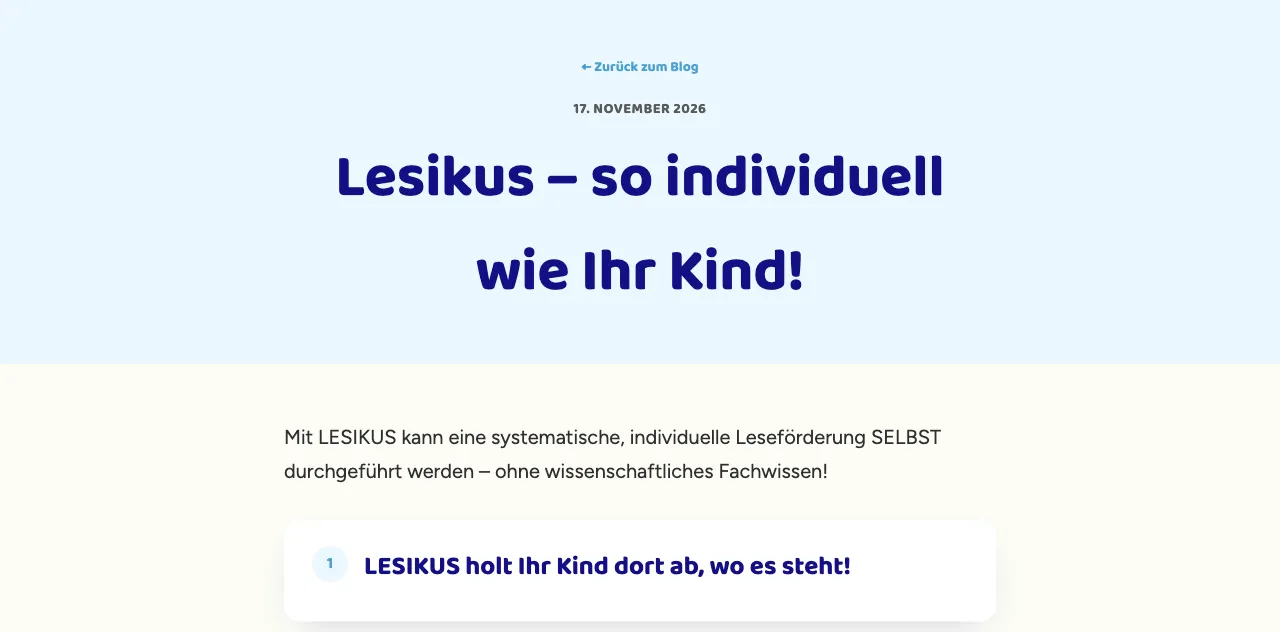
Take the Lesikus article Lesikus – so individuell wie Ihr Kind!, a German post about helping children learn to read. An editor who sends it in a newsletter might want to find the post in a traffic report, then see how many visits carried the newsletter tag. You can use any public post from your own site to follow the same steps. Read the original Lesikus article
- In Plugins → Add New Plugin, install and activate HitKeep Analytics. Open Settings → HitKeep and save your Cloud region or self-hosted instance URL. Both WordPress and HitKeep need public HTTPS addresses for the connection.
- Choose Sign in and connect. Approve the site WordPress may access, then select the site and tracking endpoint back in WordPress and save. If your theme already loads the HitKeep script, remove the duplicate before testing.
- Visit a published post in a logged-out browser that allows this intentional test. Open HitKeep → Dashboard in wp-admin, choose a date range that includes today, and find Content → Top pages. Logged-in WordPress users are excluded by default, and the tracker respects Do Not Track by default. If your visit is missing, follow the WordPress verification guide.
In the seven-day report on the Lesikus staging copy, the reading-support article accounts for 128 of 310 synthetic pageviews. The Acquisition → Top sources card beside it still covers the whole site. Select the article’s path under Top pages to narrow both cards to that post.
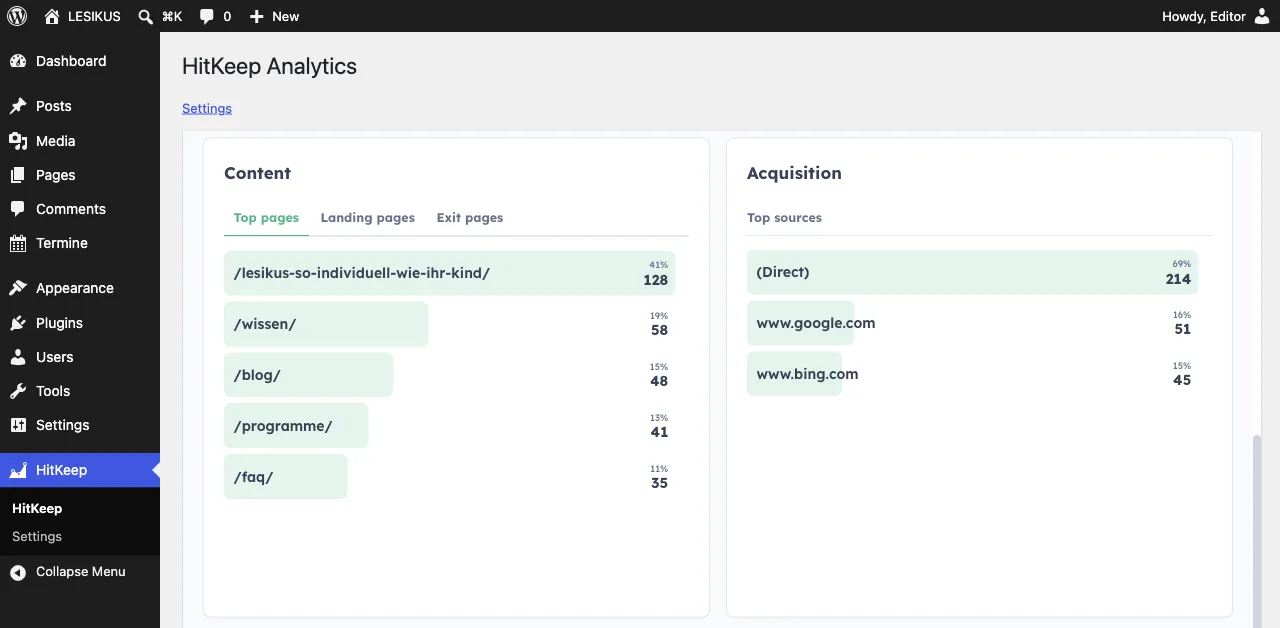
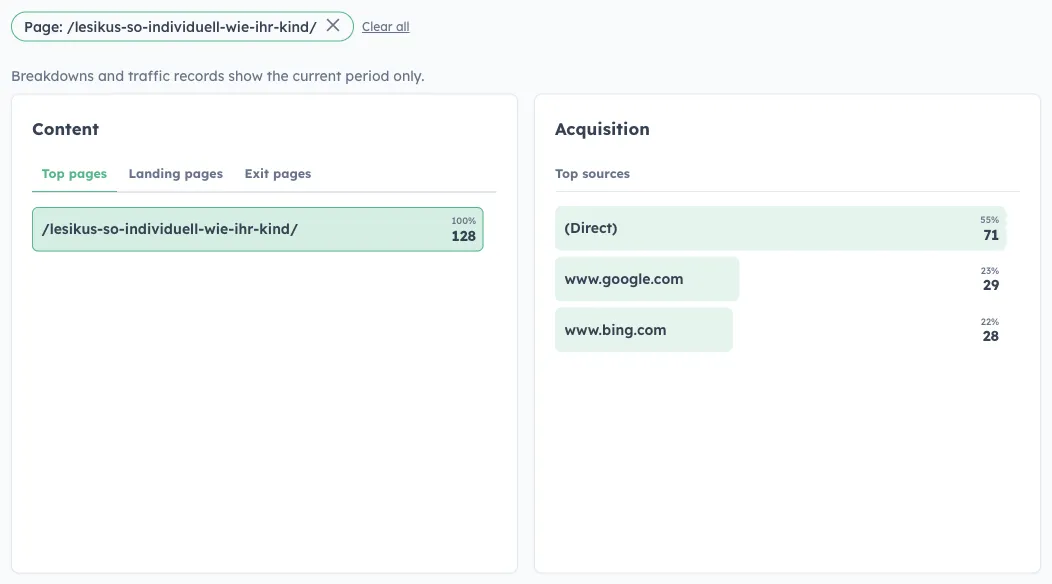
A source such as www.google.com identifies the referring host. For the Google Search queries that surfaced an article, use the Site Kit workflow below. A visit with no usable referrer can appear as (Direct), including a click from an email client. That’s a good reason to tag links you send yourself.
For a newsletter, put a tagged link to the article in the email, for example ?utm_source=newsletter&utm_medium=email&utm_campaign=autumn_books. After readers follow it, open the UTM report for the send dates and look under Campaign for autumn_books. The tag identifies traffic that arrived through that link. It can travel with a forwarded email. In Events, select file_download and the file_path property to find clicks on a particular PDF. The count tells you that someone followed the link. Whether they read the file is a different question. Campaign reporting and automatic download events
When an editor wants to know how long a post was on screen
WordPress plugin 0.5.0 adds Measure visible time under Settings → HitKeep → Tracking coverage. We tested its release candidate on the Lesikus staging copy with HitKeep 2.18.0. The Top pages and Top sources walkthrough above also works with plugin 0.4.0 and HitKeep 2.17 or later. Plugin 0.5.0 release notes
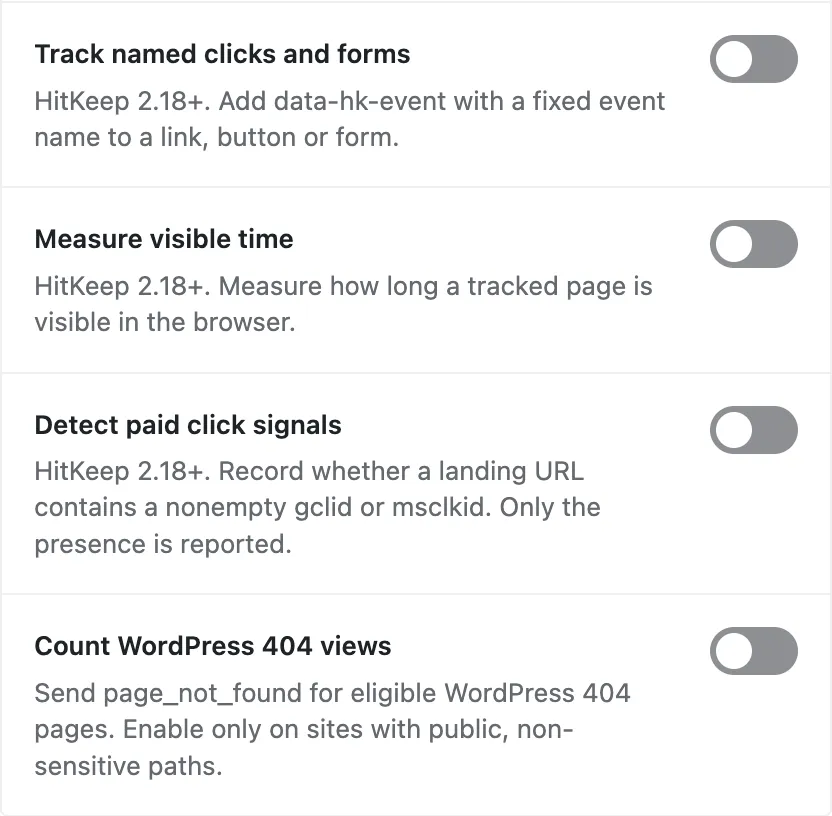
With a HitKeep 2.18 or later backend, enable Measure visible time, save, and clear the WordPress page cache if you use one. After fresh visits arrive, expand Visible time by page in the dashboard. Check how many views supplied a sample before using the average. The clock pauses in a hidden tab, but even an open tab can sit unattended. How HitKeep calculates visible time
The embedded reports are read-only. Open the connected HitKeep instance to change site settings or export data. A self-hosted instance puts those records under your team’s control, along with responsibility for its updates and backups. For managed hosting, check the retention you need against the Cloud plans. HitKeep data takeout
Public counts with Post Views Counter
Install Post Views Counter, choose which post types to count, and place its Post Views block where the number should appear. Open a published post while logged out and check the counter in the same cached version a reader would see. The plugin also supports automatic placement and a shortcode.
Before you label that number “readers,” check the Count Interval. It controls when another view from the same browser can count again. “Views” is the more accurate label. If only editors need the number, the plugin also provides a sortable column in the posts list. Post Views Counter features and display options
Google Search and GA4 in Site Kit
If an editor asks which Google searches bring people to an article, connect Search Console in Site Kit by Google. In the Site Kit dashboard, look up the article by title or URL and choose a reporting period. Check its search impressions, clicks, and the queries Google makes available. Search Console clicks cover Google Search. People opening a newsletter link or typing the address take a different route.
If your team also uses GA4, connect the existing property in Site Kit to see Analytics metrics for the page. Check whether a theme or tag manager already adds the Google tag before enabling tag placement. Keeping the existing property gives the team continuity with its earlier reports. For a move away from GA4, see the WordPress replacement guide and Google’s Site Kit dashboard guide.
Sales and refunds in WooCommerce
Before adding a plugin, open Analytics → Revenue in WooCommerce and choose the dates you want. Start with Net sales if the question is what you sold after coupons and returns. Taxes and shipping have their own columns. If one day looks unusual, select its order count to inspect the orders behind it. When two reports disagree, check the date basis in Analytics → Settings and use the same period in both. WooCommerce Revenue report
A different question comes up when plenty of people view a product but few place an order. For that, you need a record of visits before payment. HitKeep’s optional Track WooCommerce setting records product and checkout activity. WooCommerce sends eligible purchases when orders become paid and sends refunds separately. You can inspect delivery on the order itself. An eligible purchase can lack a browser session, so campaign-attributed revenue can fall short of the store total. Keep WooCommerce handy for reconciling orders. HitKeep WooCommerce setup and delivery checks
Try the report on one real question before rolling the plugin out across a site. For an editor, that might mean finding last week’s most visited article. For a shop manager, it might mean explaining a refund in Friday’s sales. When the person who needs the answer can find it in WordPress and explain what the number counts, you’ve picked a tool that fits.