
Screenshots show the current HitKeep interface. Feature descriptions refer to this release.
HitKeep 2.15.0 brings scoped assistant connections, OAuth client administration, and a reorganized dashboard. Sign in to HitKeep, choose one team and the sites an integration may use, then approve its requested permissions. Review or revoke that access later in Connected applications.
Release availability: HitKeep 2.15.0 is now available. Read the release notes and download it. OAuth setup also depends on your instance configuration and the connecting client’s support. See how to check instance support.
The screenshots use demonstration data from the current interface.
Set up an assistant for selected sites
Open Integration → Assistants to find your instance’s MCP endpoint and setup links for Claude, ChatGPT, and Codex. Add that endpoint as a custom connection in your assistant, sign in to HitKeep, and review the requested site access. A configured endpoint is setup information; the page does not claim that an assistant has connected successfully.
Updated public discovery helps compatible clients locate integration endpoints and the canonical analytics skills. Available analytics tools still depend on the configured instance and the sites your connection may access.
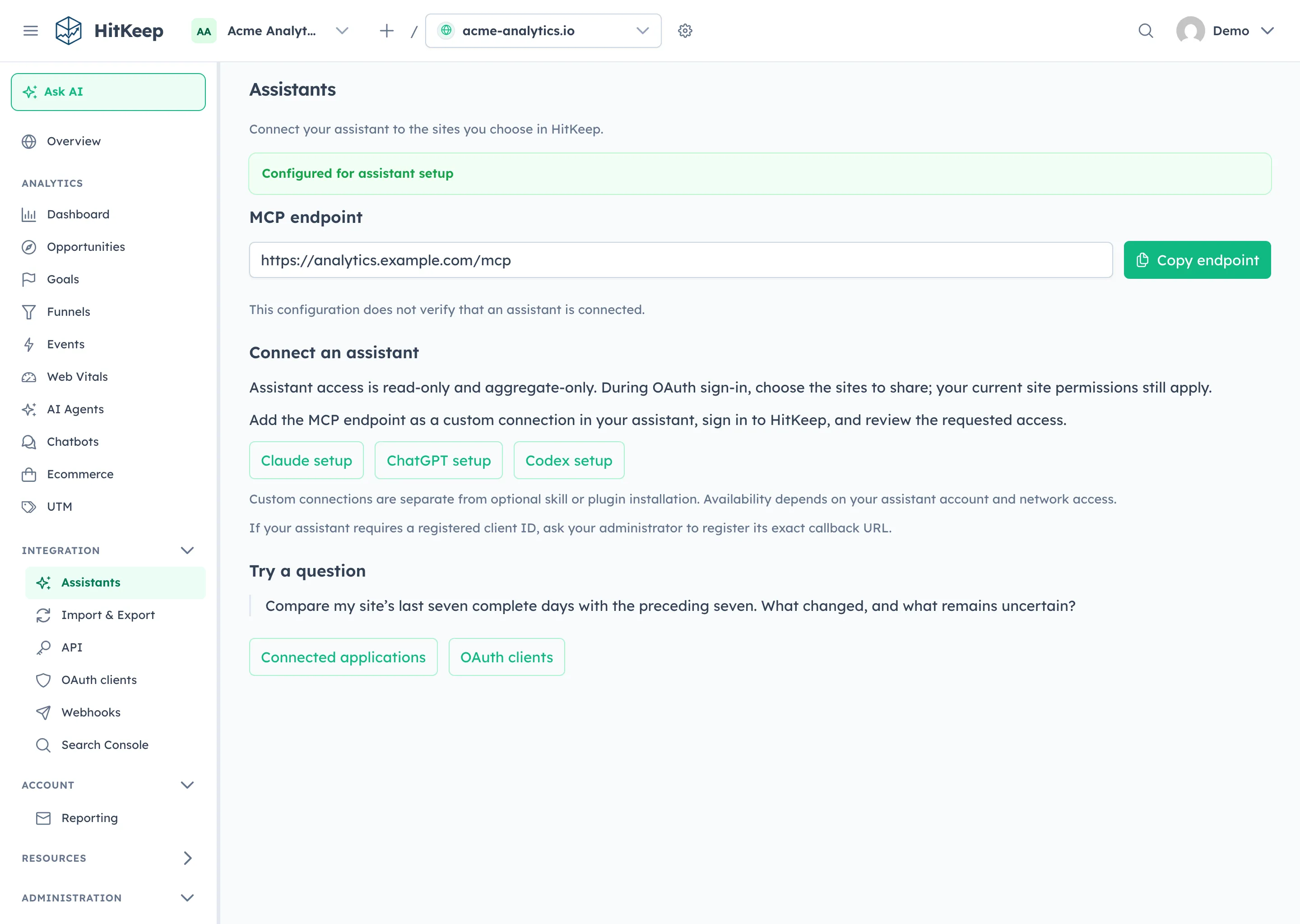
The first-party assistant plugin 2.15.0 is available for Claude, ChatGPT, and Codex. It supplies five analytics skills for general analysis, traffic diagnosis, AI visibility, ecommerce, and tracking verification. Installing these skills is separate from connecting your instance and approving access; it does not imply approval in a public plugin directory.
Install in Claude
For Claude Code, add the first-party marketplace and install the analytics plugin:
claude plugin marketplace add HitKeep/hitkeep-assistant-pluginsclaude plugin install hitkeep-analytics@hitkeepIn Claude on the web, download the HitKeep Analytics 2.15.0 ZIP, then open Settings → Plugins → Add → Upload plugin → Choose ZIP → Upload. Review the package’s five skills before using it.
Install in ChatGPT
Download the same published plugin ZIP. In ChatGPT, open Settings → Plugins → Browse catalog → Add → Upload plugin archive, select the ZIP, and choose Add plugin. Review HitKeep Analytics 2.15.0 and its five skills, then choose Install plugin. The installed detail offers Manage and Try in chat.
This is a private archive installation. It does not require a public directory listing, and it does not establish an MCP connection. The plugin release includes checksums.txt for checking the download.
Install in Codex
Add the versioned marketplace and install the same analytics pack:
codex plugin marketplace add HitKeep/hitkeep-assistant-plugins --ref v2.15.0codex plugin add hitkeep-analytics@hitkeepConnect your chosen HitKeep instance
- Choose your instance: EU Cloud, US Cloud, or your self-hosted instance’s canonical public HTTPS URL. Open Integration → Assistants there and copy its configured MCP endpoint, including any path prefix.
- In Claude on the web, open Settings → Connectors → Add → Add custom connector and enter the copied HTTPS MCP URL. In ChatGPT, open Plugins → Add → Add custom MCP server, enter a name and the server URL, and use OAuth where supported. Start sign-in where both your instance and client support it. Plugin installation alone does not configure the endpoint or sign you in.
- In HitKeep, choose one team and the specific sites to share. Review the requested
sites:read analytics:readscopes and MCP resource, then approve the connection. Your current site permissions still apply. - Return to the assistant and try a bounded question, such as: “Compare my site’s last seven complete days with the preceding seven. What changed, and what remains uncertain?” Check that the answer names the site and reporting period. Review or revoke the grant later through the header user menu’s Connected applications.
For clients without OAuth support, use a dedicated API-client token with explicit site grants where the client supports bearer authentication. The MCP guide and installation guide cover the alternatives. External assistant connections remain separate from HitKeep’s internal Ask AI and its model-provider configuration.
For complete client setup, follow the Claude guide, ChatGPT guide, or Codex guide. The dedicated Claude analytics, ChatGPT analytics, and Codex analytics pages show the reporting workflows and access boundary.
Connect with explicit consent
OAuth authorization uses your normal HitKeep login. Signup, email verification, SSO, and MFA can continue a pending connection, but signing in does not approve it. Consent is a separate step.
Each grant names one team, explicitly selected sites, scopes, and a resource. A reporting assistant can request aggregate analytics access; an integration sending server-side events needs ingest permission. Both remain subject to your current site permissions. Removing your underlying access prevents the integration from retaining it.
API and MCP access use different resource audiences. An API token issued through OAuth cannot be reused on MCP, and an MCP OAuth token cannot be reused on the API. Custom tracking domains remain for browser tracking; integration authorization, refreshes, and server-side events use the canonical HTTPS HitKeep instance.
Register an OAuth client for your team
Team owners and administrators with team.manage_api_clients can open Integration → OAuth clients at /integration/oauth-clients. Give the application a name, optionally add its public HTTPS website, and register its exact HTTPS callback URLs. HitKeep generates an immutable public client ID.
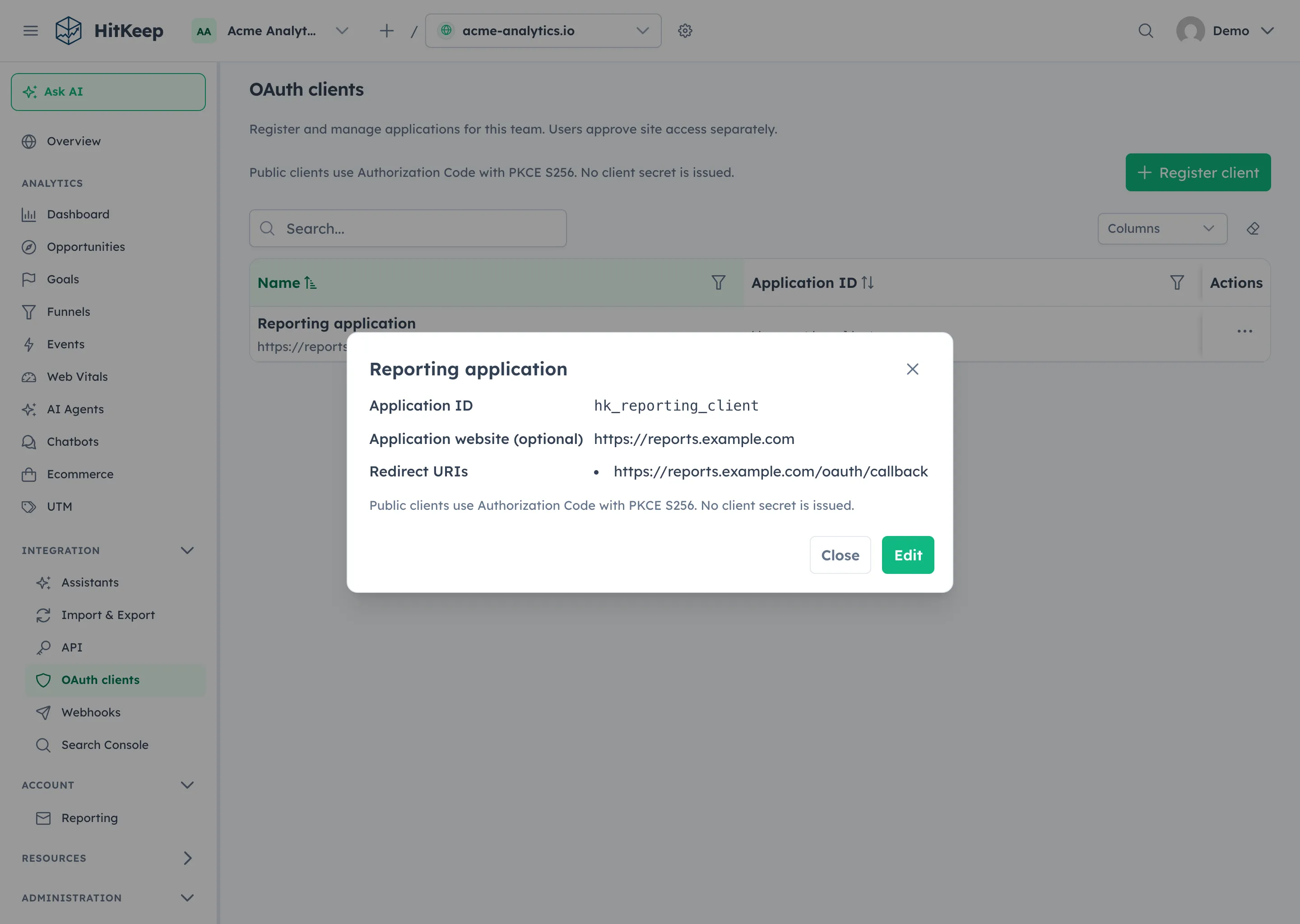
These clients use Authorization Code with PKCE S256. There is no client secret to create, copy, or embed in an application. Registration alone grants no analytics access: each user still approves the team’s sites and requested scopes.
Saving an edit invalidates the registration’s existing grants and pending consent. Users must start a new authorization after an edit. Revoking a registration prevents new authorizations and revokes its existing grants. Operator-configured clients and clients using public HTTPS Client ID Metadata Documents remain separate registration paths.
Review your connected applications
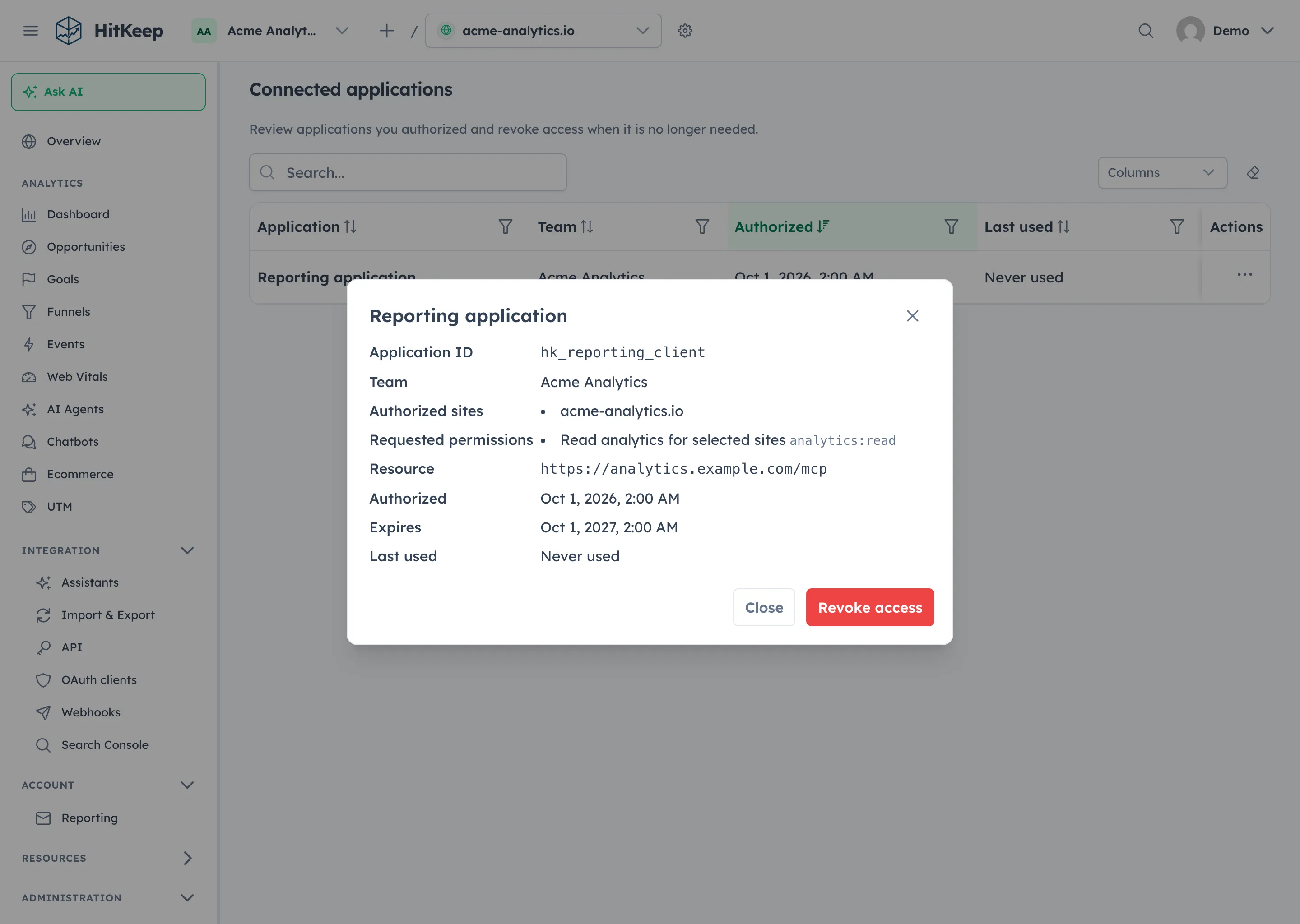
Open the user menu in the header and choose Connected applications to list the OAuth connections you personally approved. Select an application row to open its details dialog, review the team, sites, scopes, and resource, then disconnect any grant you no longer need.
Manual API-client tokens remain available for scripts, unattended jobs, and clients without OAuth support. Personal and team API clients keep their existing ownership and explicit site grants. Upgrading does not require replacing those tokens.
WordPress connects without a pasted token
The OAuth-capable HitKeep WordPress plugin lets you choose EU Cloud, US Cloud, or your canonical self-hosted instance, then choose Connect with HitKeep. Approve the requested sites and permissions in HitKeep, return to WordPress, select the authorized site and eligible tracking endpoint, and save.
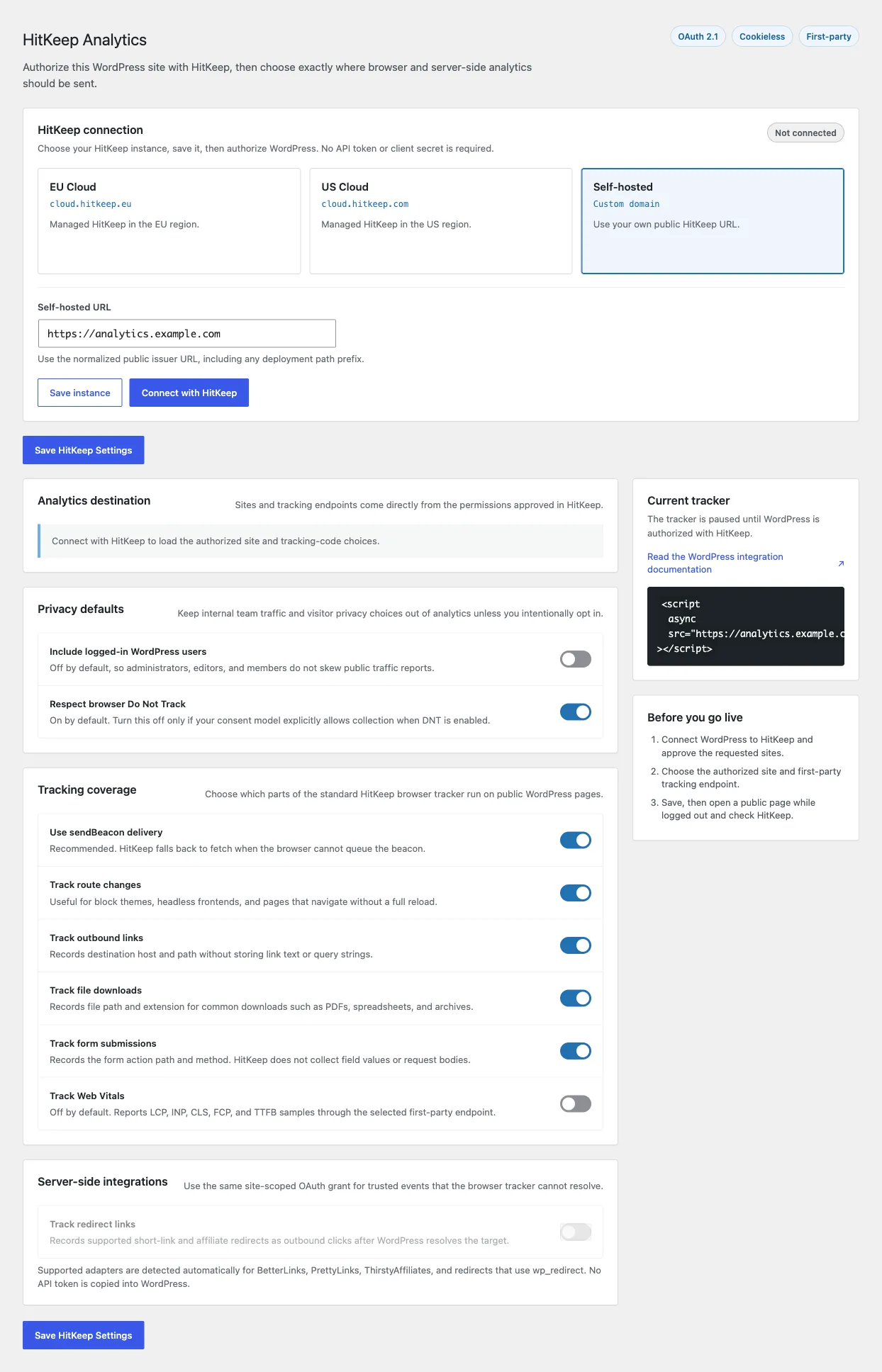
WordPress publishes a client metadata document, so the connection needs public HTTPS URLs on both sides. Existing saved browser and server-ingest settings survive upgrades and failed or cancelled authorizations. A successful OAuth connection replaces the previous credential; disconnecting explicitly revokes and clears it. Tracking switches, including Do Not Track choices, retain their saved values.
Optional redirect tracking uses the selected site’s ingest grant and current site.manage_data authority. The browser tracker still measures human visits; recording AI crawler fetches requires server-side forwarding.
Connect an assistant without expanding MCP’s boundary
OAuth-capable MCP clients can request sites:read analytics:read for the configured HTTPS MCP URL and selected sites. MCP stays optional, read-only, aggregate-only, and leader-only. OAuth adds a connection method; it does not add administration, write tools, billing, or raw exports. Protocol support does not imply a Claude or ChatGPT marketplace listing.
Find analytics and integrations in the updated navigation
The sidebar now groups analytics, integrations, account controls, and administration. Ask AI remains directly available in the sidebar. Use Integration → API for personal API clients, Integration → OAuth clients for team application registrations, and the header user menu for your personal Connected applications. Team API clients remain under Administration → Team → API clients.
Smaller fixes and maintenance
- OAuth management details: Client registrations and personal grants use consistent details dialogs for reviewing a registration before editing it and checking approved access before revocation. The screenshots above show both flows.
- MCP OAuth hardening: Resource and scope checks, refresh and revocation behavior, and current-permission limits remain part of the connection boundary. Assistant access stays read-only and aggregate-only.
- Localized export labels: Export format labels follow the active language after translation files finish loading and when you switch languages.
- Compatible dependency updates: Frontend and backend dependencies are refreshed while preserving the single Go binary with embedded DuckDB and NSQ.
- First-party GitHub identities: Release and maintained integration links consistently use the HitKeep organization, including the application source and releases.
The OAuth guide covers client registration, discovery, resource binding, refresh rotation, and revocation. Use the WordPress guide for plugin setup, the MCP guide for assistant connections, and API clients for manual tokens.